System
Overview
The System section contains important settings that affect how your phone works overall.
Languages & Input
The Languages & Input section is found inside System settings.
It gives you control over:
- Device language
- On-screen and physical keyboards
- Speech services
- Text correction tools
- Pointer behavior
Open Languages & Input
- Open Settings.
- Scroll down and tap System.
- Tap Languages & input.
Main Screen
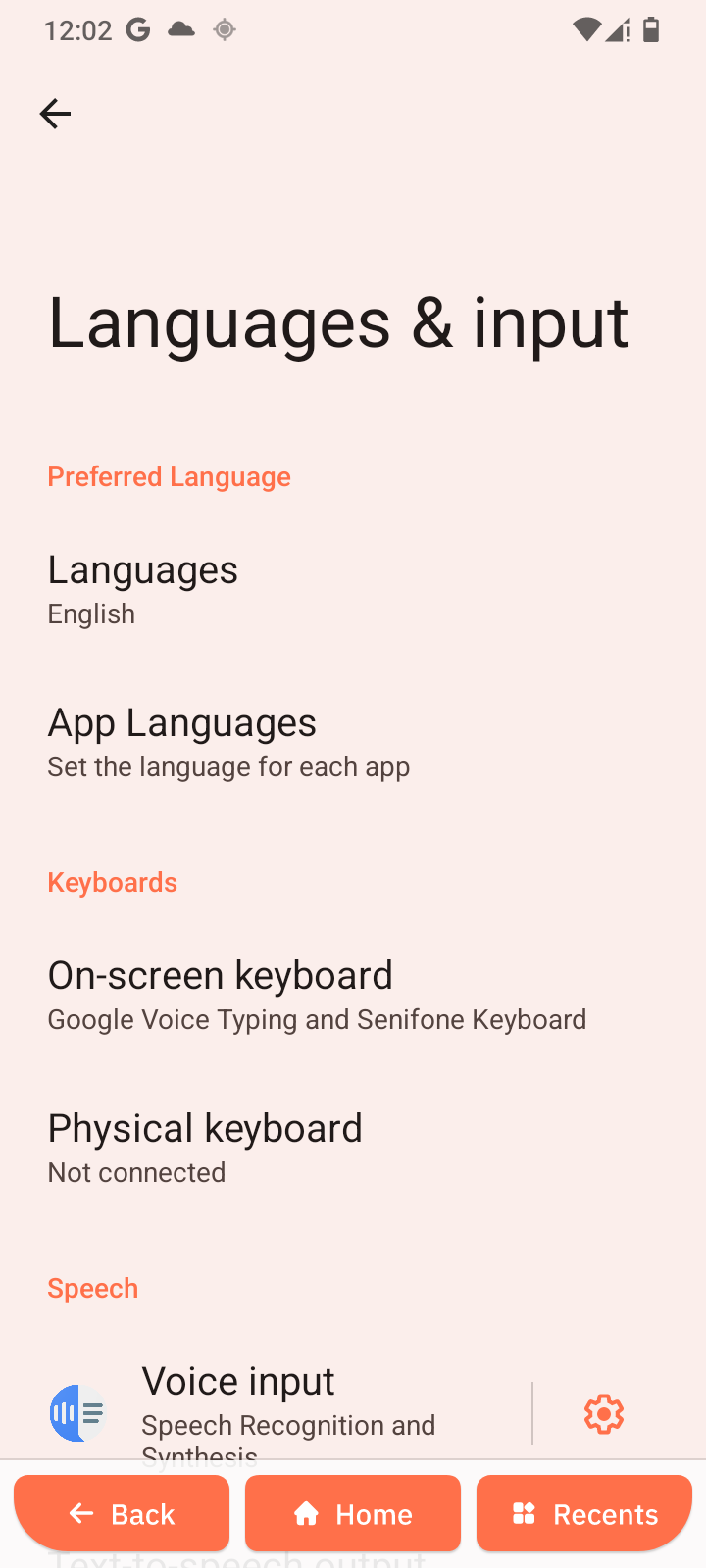
The Languages & input screen is divided into four sections:
-
Preferred Language
-
Keyboards
-
Speech
-
Tools
Preferred Language
Languages
Sets the system-wide display language.
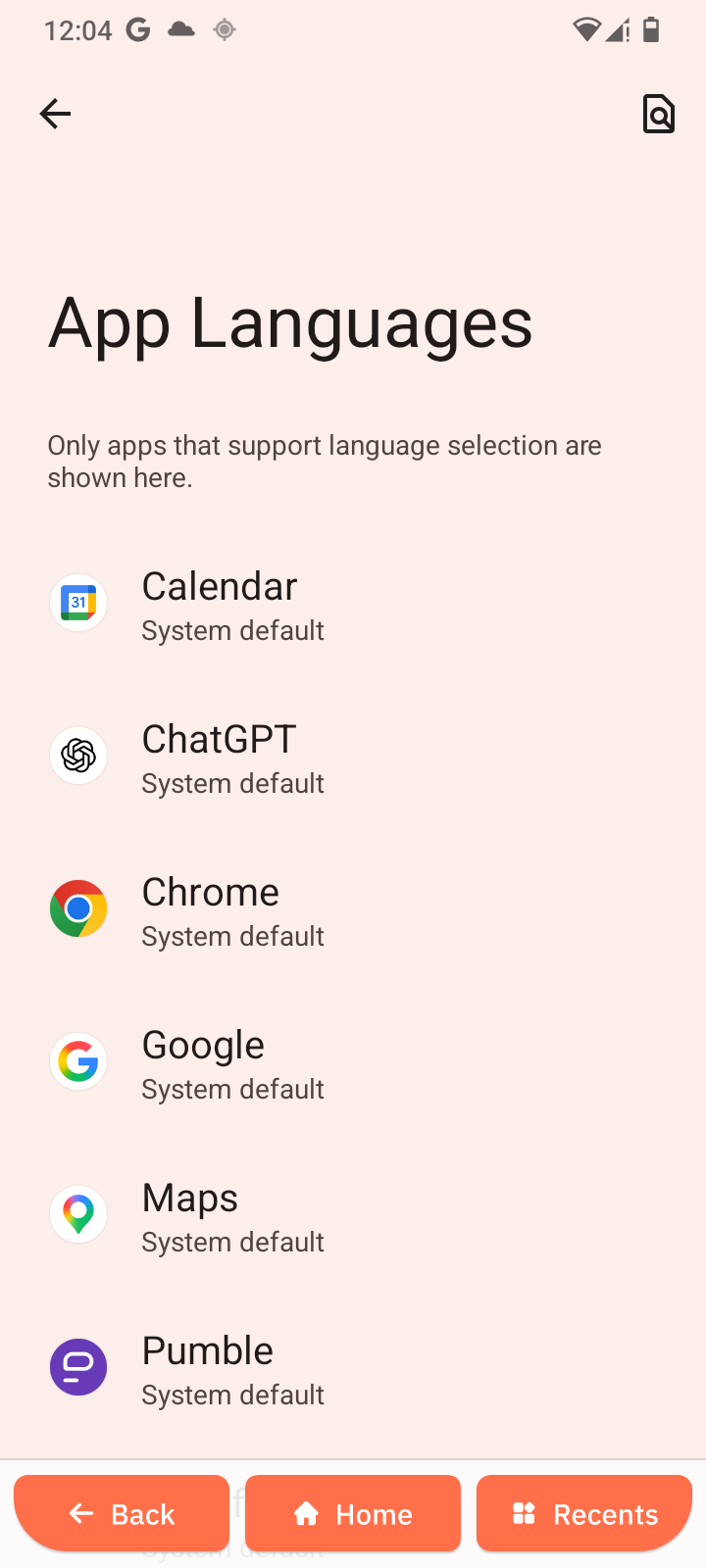
App Languages
Allows individual apps to use a language different from the system language.
Only supported apps appear in this list.
Quick setup
- Open Settings → System → Languages & input.
- Select your preferred language.
- Adjust keyboard and typing options.
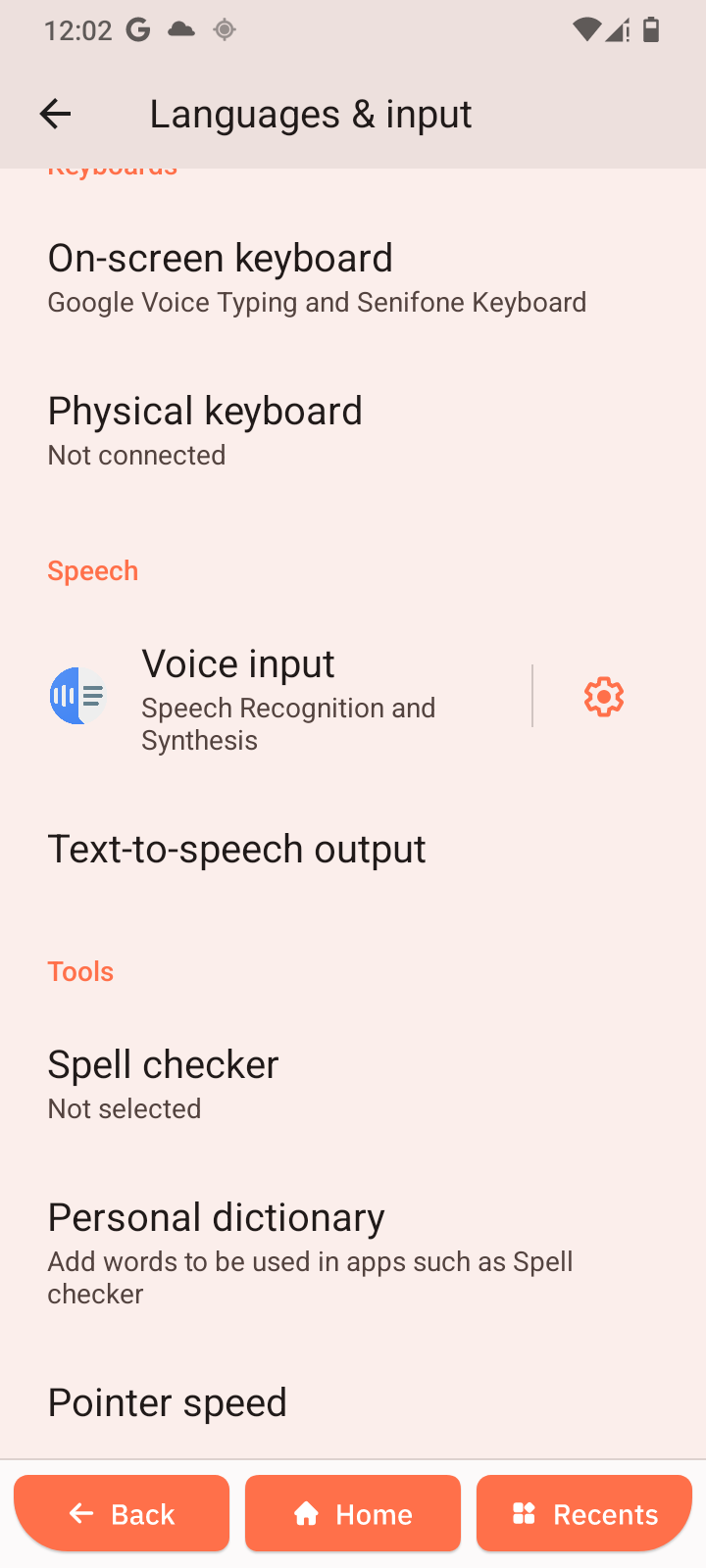
Keyboards
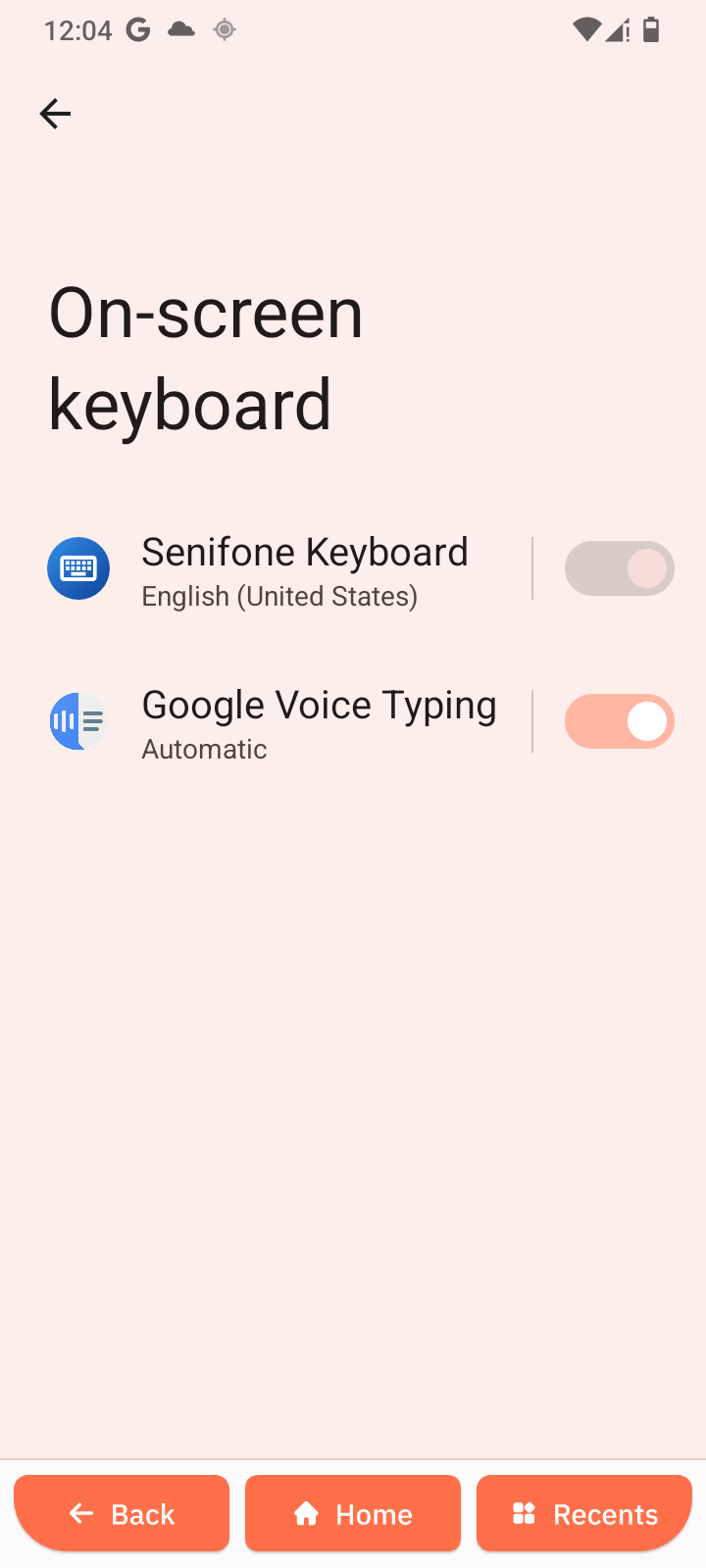
On-screen keyboard
Manage virtual keyboards used for typing.
Available:
-
Google Voice Typing
-
Senifone Keyboard
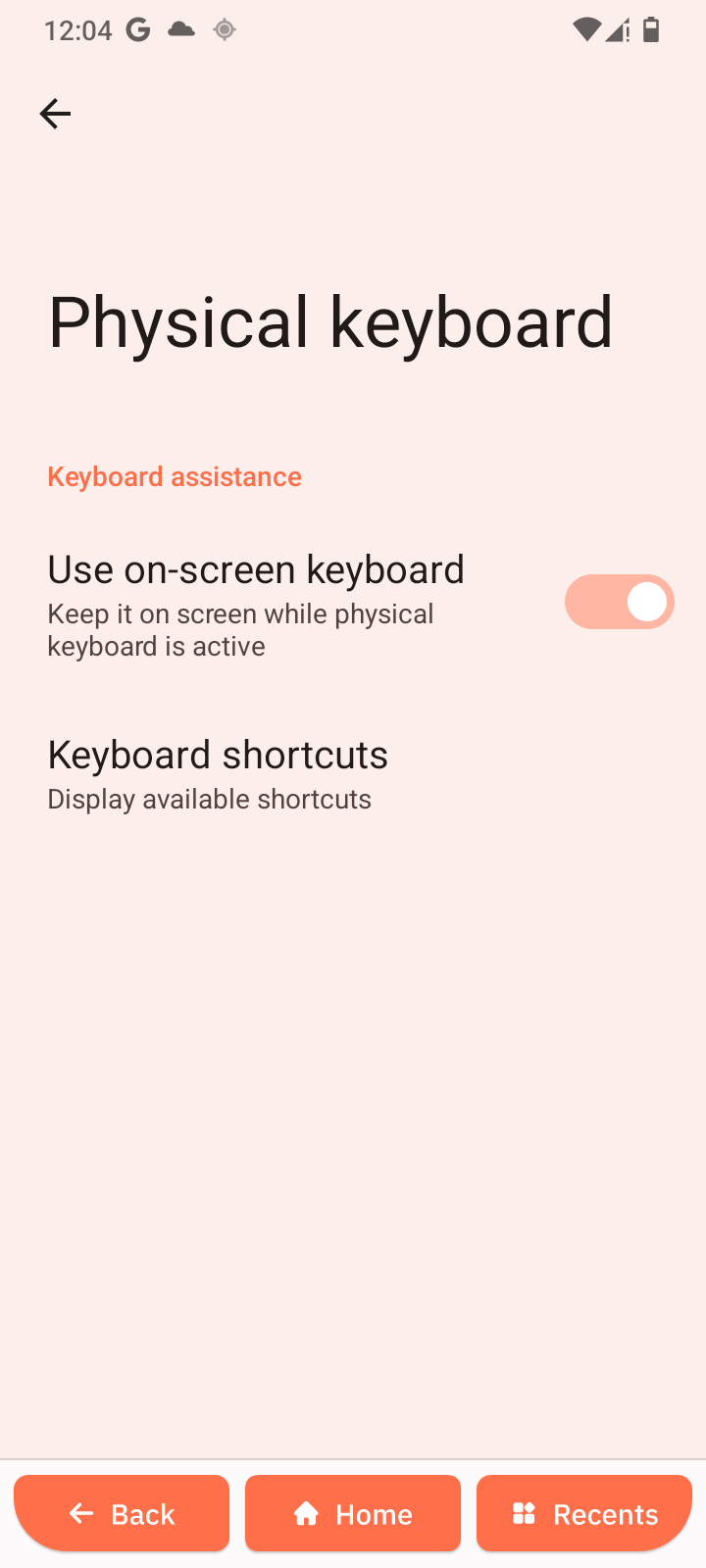
Physical keyboard
Appears when a Bluetooth or USB keyboard is connected.
Current status:
-
Not connected
Speech
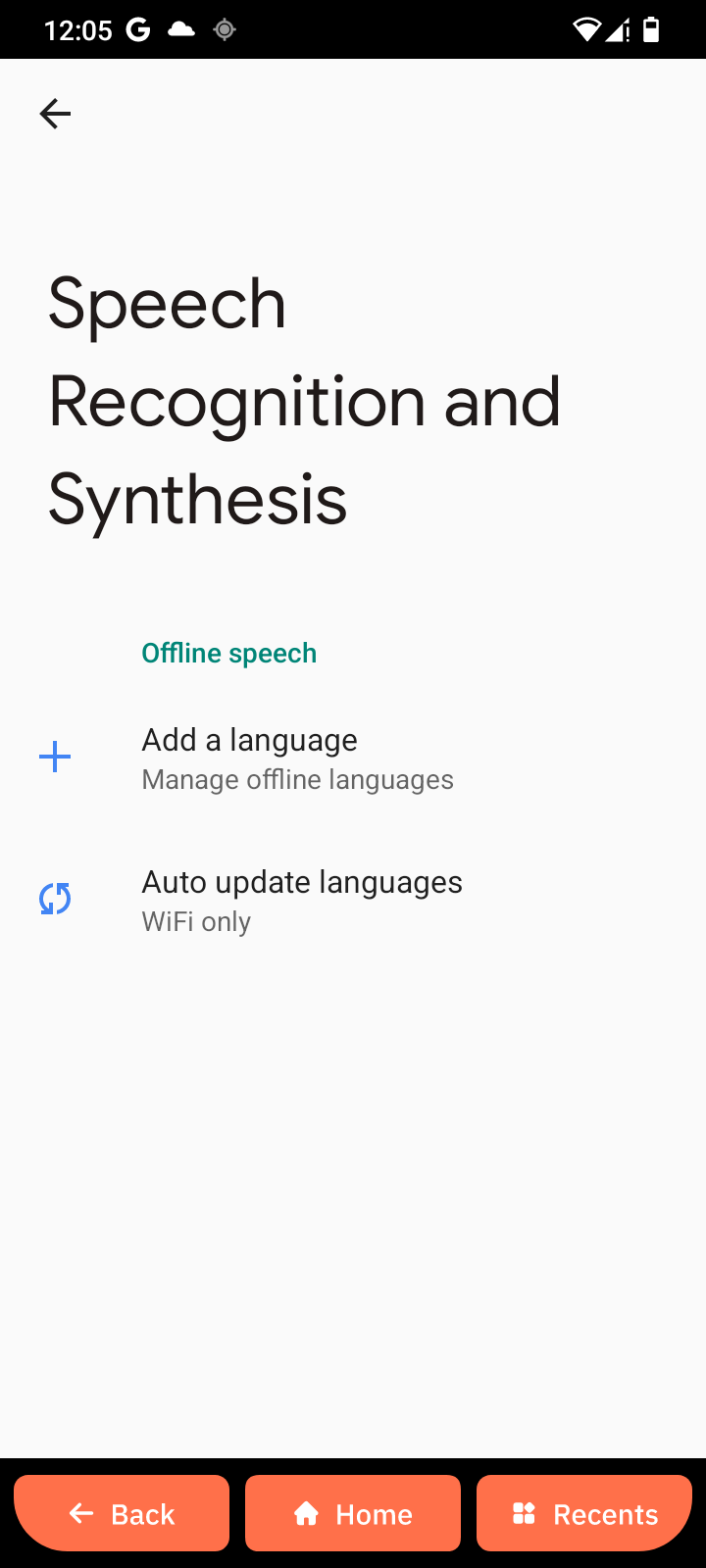
Voice input
Configure the engine used for:
-
Dictation
-
Voice commands
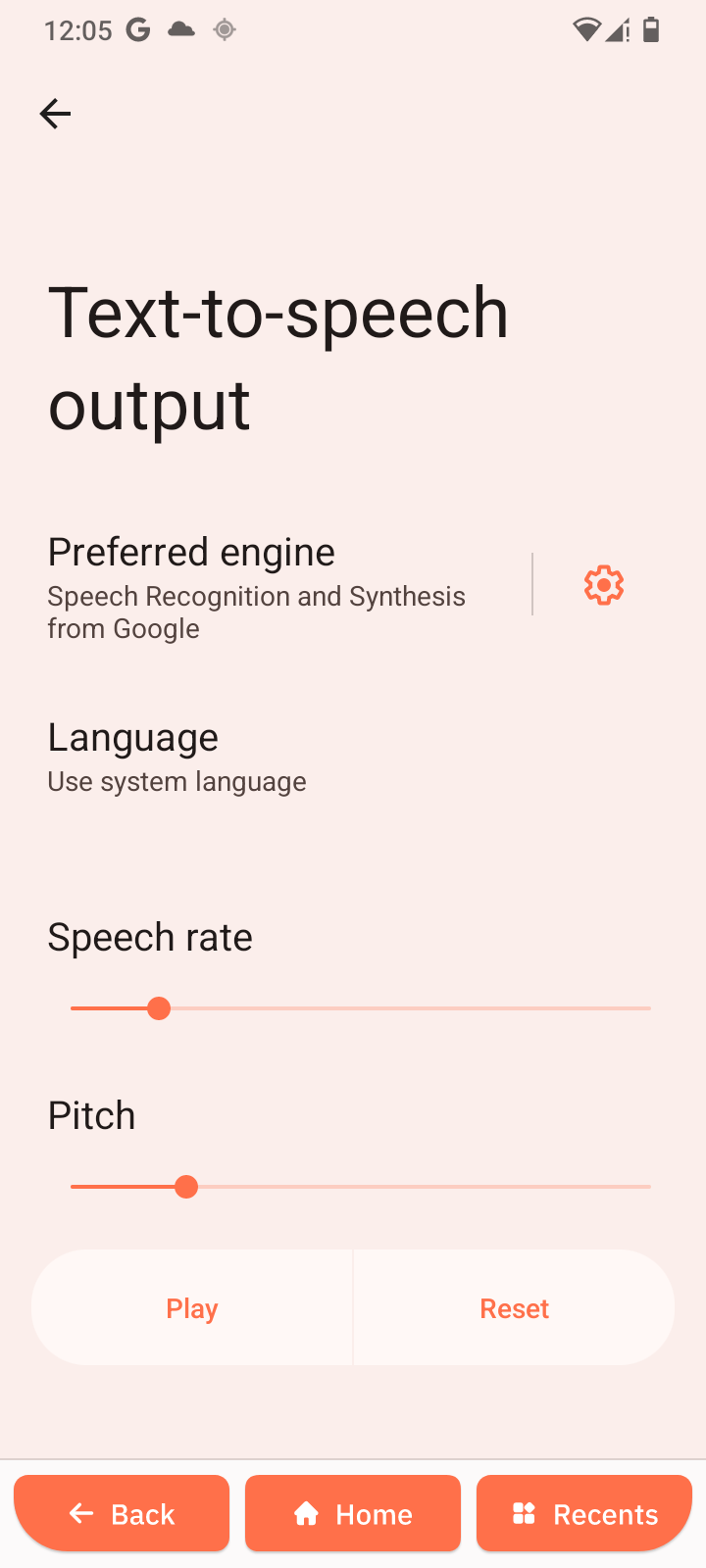
Text-to-speech output
Configure how the device reads text aloud.
Tools
- Spell checker: Enable or disable live spell checking
- Personal dictionary: Add custom words
- Pointer speed: Adjust mouse or trackpad speed
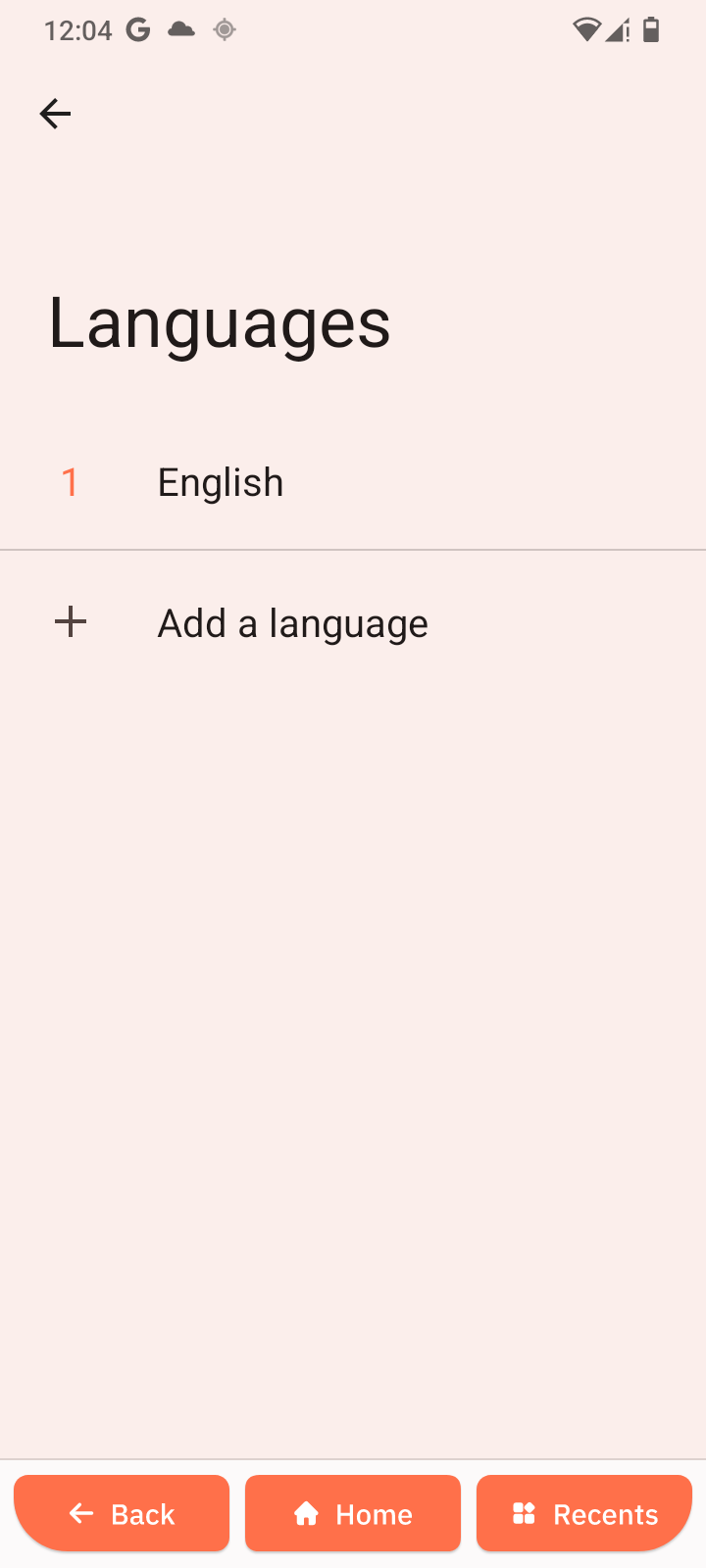
Manage Languages
- Tap Languages.
- View the language priority list.
The top language is used for the system UI.
Language options
- Tap + Add a language to add more languages.
- Long-press and drag to reorder.
- Long-press and select Remove to delete.
The device uses the highest-ranked supported language.
Set App Languages
- Tap App Languages.
- Select an app.
- Choose a language.
Apps shown:
- ChatGPT: System default
- Chrome: System default
- Calendar: System default
- Spotify: System default
- Google: System default
- Maps: System default
Set to System default to match the device language.
On-Screen Keyboard
- Tap On-screen keyboard.
- Enable or disable keyboards.
Available keyboards
- Senifone Keyboard: English (US) (Off)
- Google Voice Typing: Automatic (On)
Switch keyboard while typing
- Tap the keyboard icon in the navigation bar.
- Or use the notification panel and choose Change keyboard.
Google Voice Typing allows voice dictation.
Physical Keyboard
Appears when a hardware keyboard is connected.
Hardware keyboard options
- Use on-screen keyboard: Show the virtual keyboard alongside the physical keyboard
- Keyboard shortcuts: View the shortcut list
Keyboard Shortcuts
System shortcuts
- Home: Search + Enter
- Back: Search + Backspace
- Recents: Alt + Tab
- Notifications: Search + N
- Keyboard shortcuts: Search + /
- Switch layout: Search + Space
Application shortcuts
- Assist: Search key
- Browser: Search + B
- Calendar: Search + L
- Music: Search + P
Tap Done to close.
Voice Input
- Tap Voice input.
- Select a speech recognition engine.
Current:
- Speech Recognition and Synthesis (Google)
Used when tapping the microphone on the keyboard.
Text-to-Speech Output
Controls how text is read aloud.
Settings
- Preferred engine: Google engine
- Language: Use system language
- Speech rate: Adjust speed
- Pitch: Adjust voice tone
Controls
- Tap Play to preview.
- Tap Reset to restore defaults.
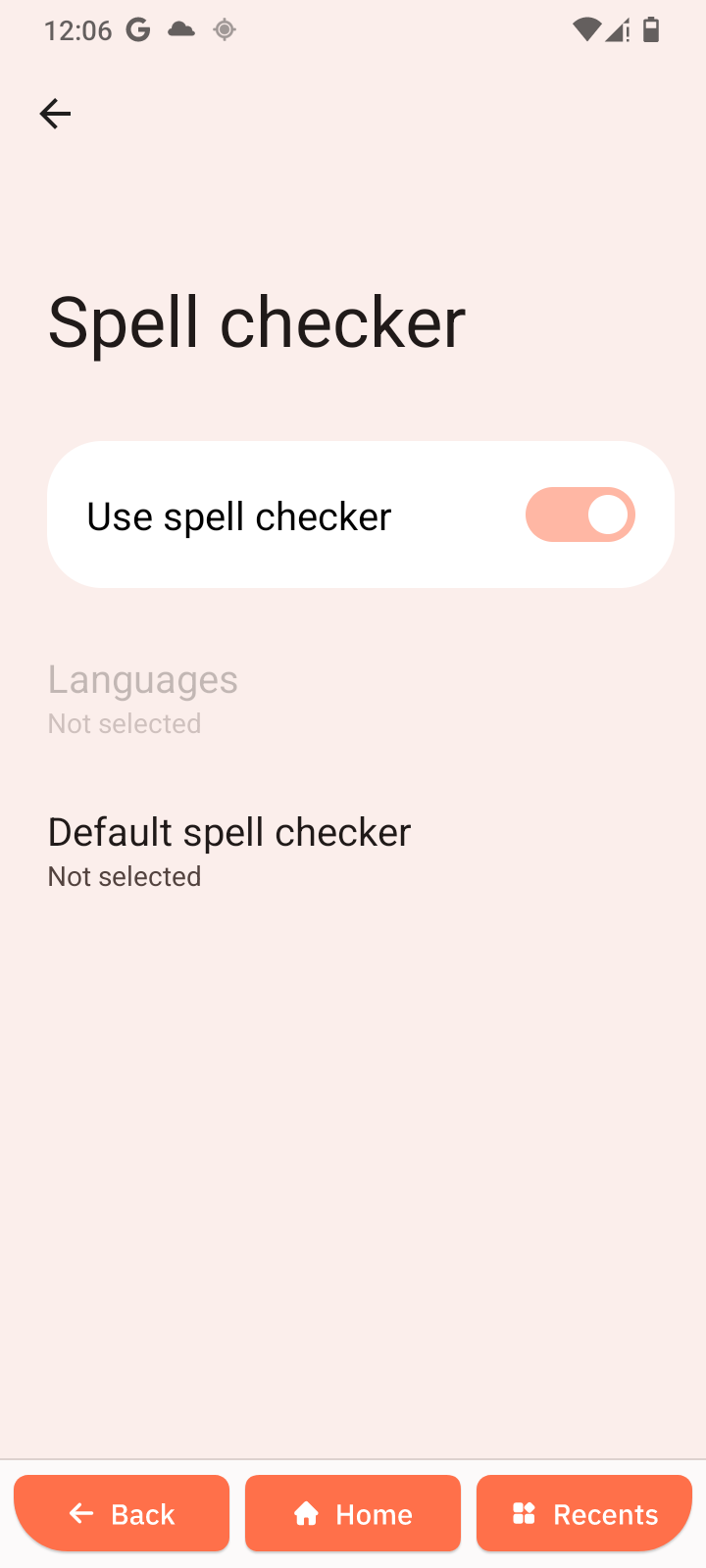
Spell Checker
- Open Spell checker.
Spell checker options
-
Use spell checker: Enable or disable
-
Languages: Use system languages
-
Default spell checker: Select the engine
Personal Dictionary
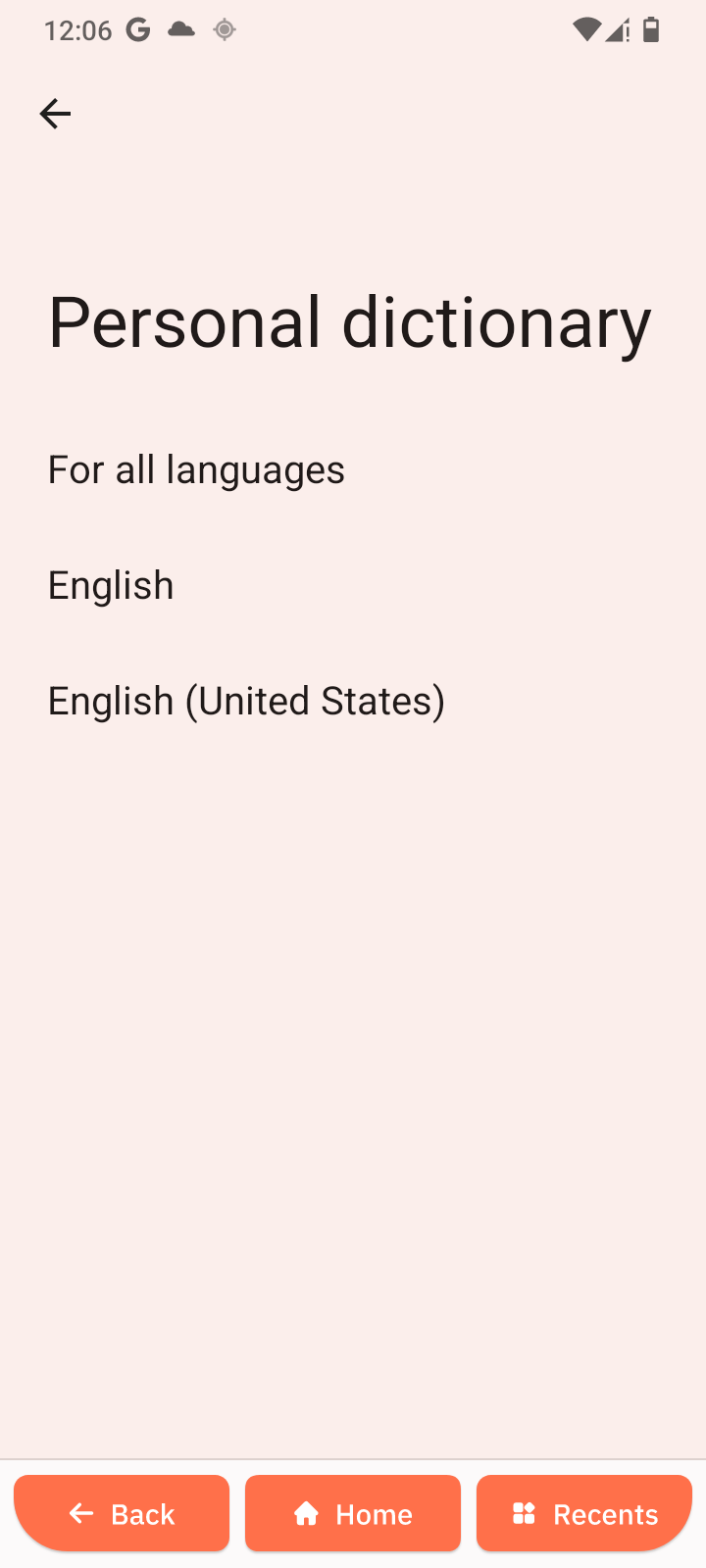
Stores custom words for autocorrect and spell check.
Categories
- For all languages
- English
- English (United States)
Add a word
-
Open a category.
-
Tap +.
-
Enter a word.
-
Optionally add a shortcut.
Pointer Speed
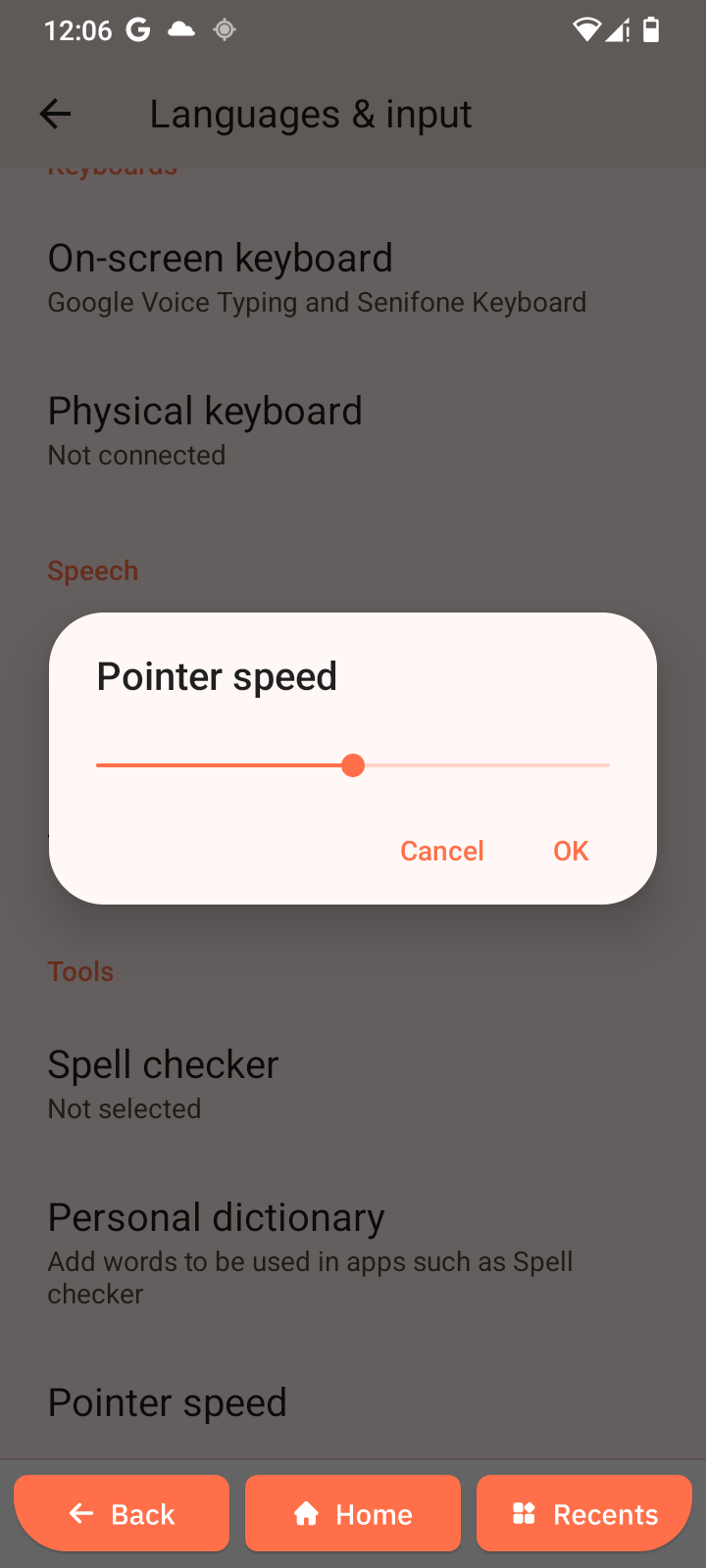
Controls mouse or trackpad movement speed.
- Tap Pointer speed.
- Drag the slider.
- Tap OK.
Only applies when a pointing device is connected.
Quick Reference
- Change device language: Languages & input → Languages
- Add a language: Languages → + Add a language
- Change app language: App Languages → Select app
- Enable a keyboard: On-screen keyboard
- Enable voice typing: Google Voice Typing
- View shortcuts: Physical keyboard → Keyboard shortcuts
- Change dictation engine: Voice input
- Adjust text-to-speech: Text-to-speech output
- Disable spell check: Spell checker
- Add a word: Personal dictionary
- Adjust pointer speed: Pointer speed
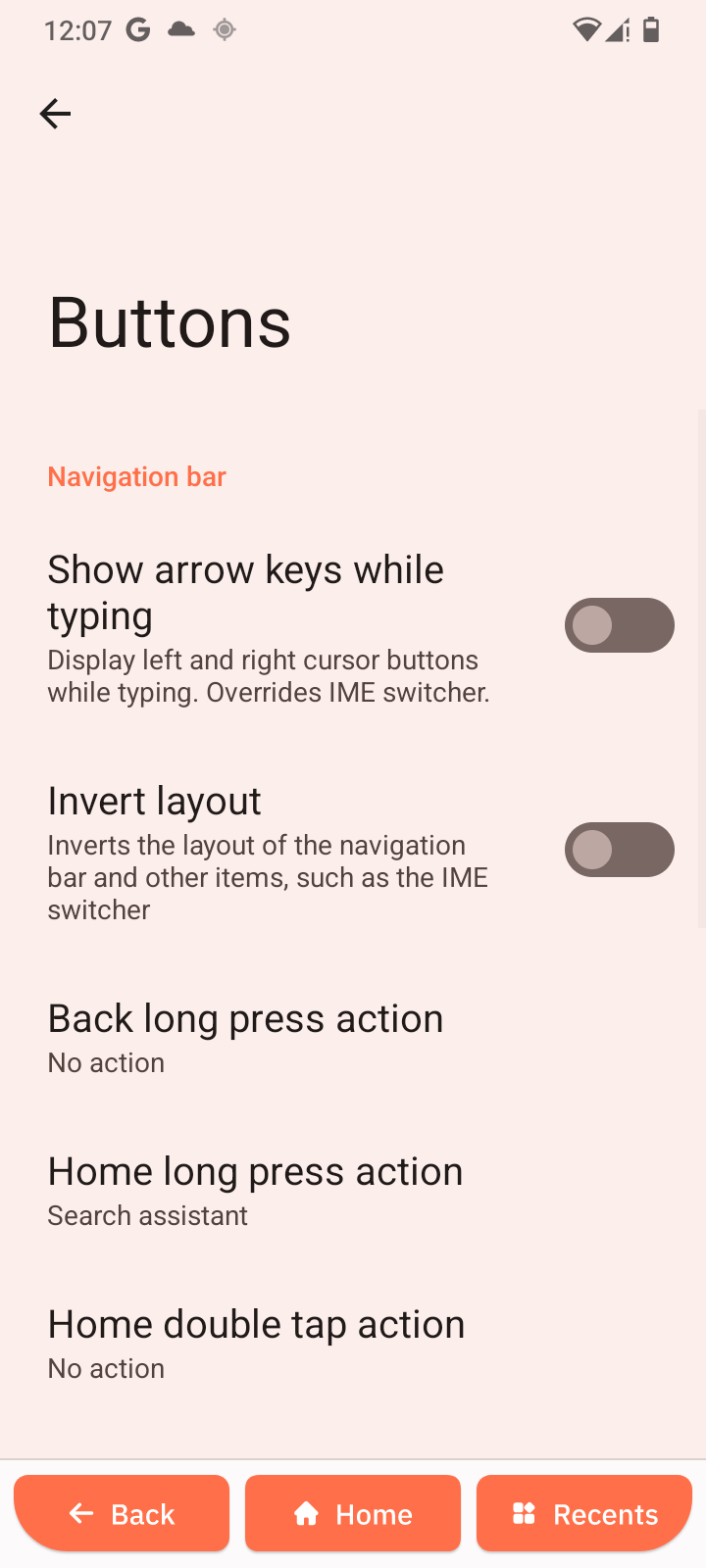
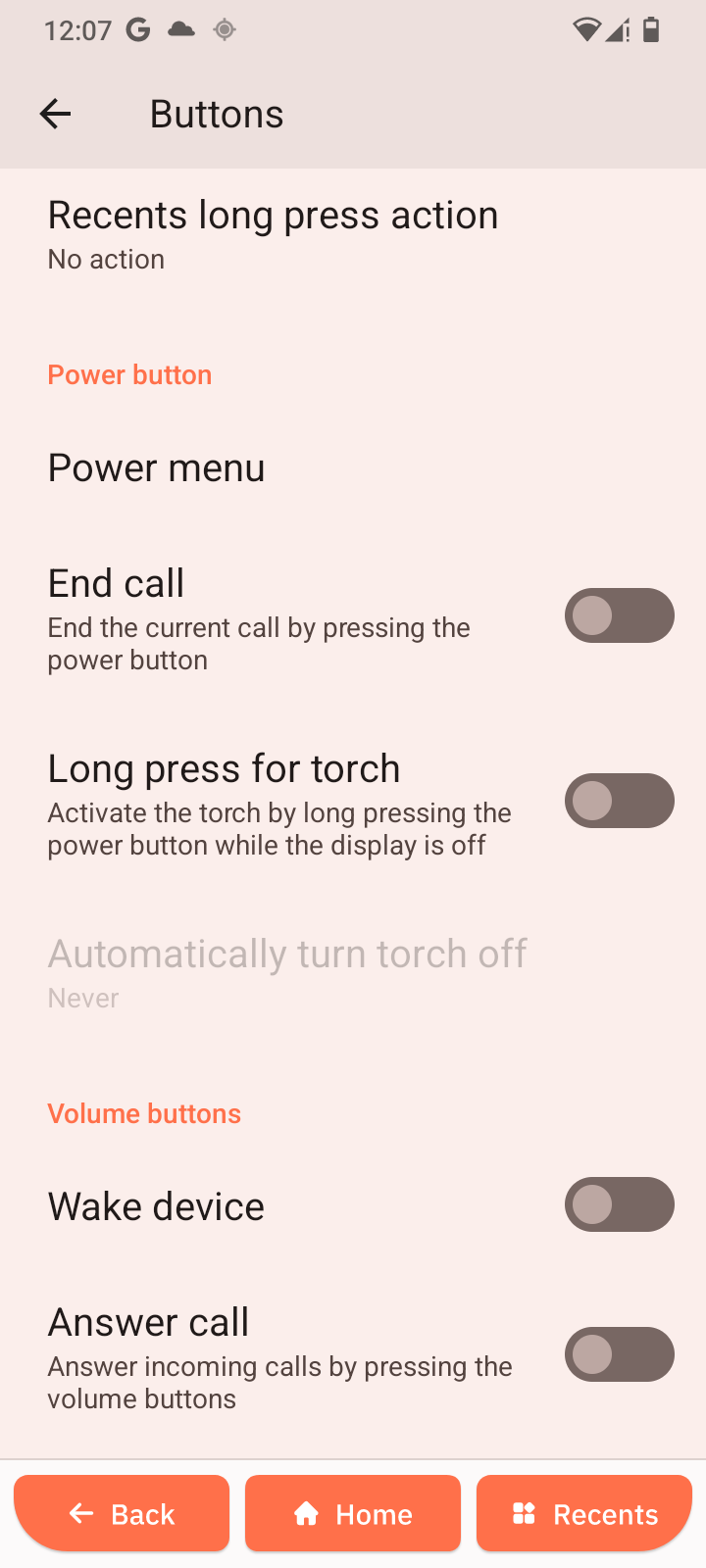
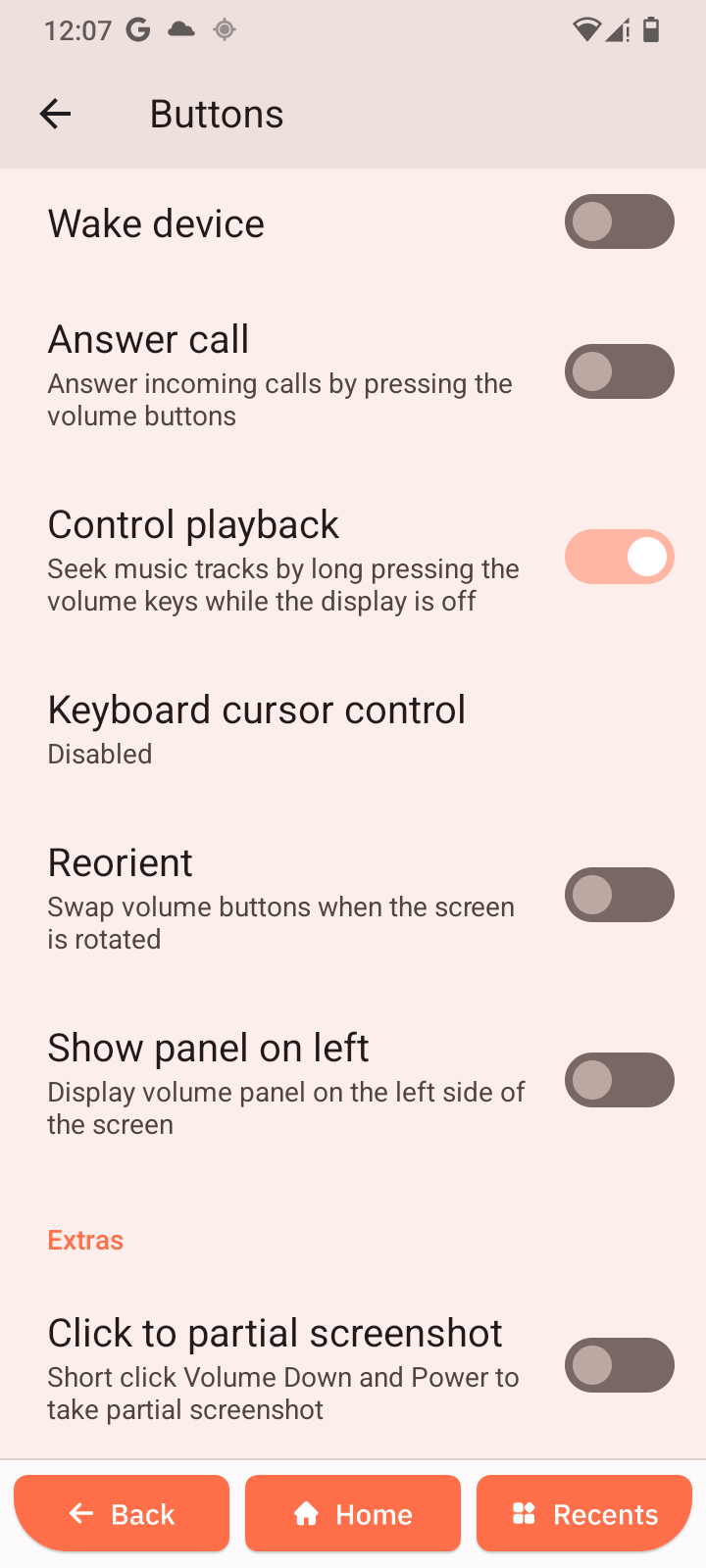
Buttons
Button steps
-
Open Settings → System → Buttons.
-
Change button actions as needed.
System Profiles
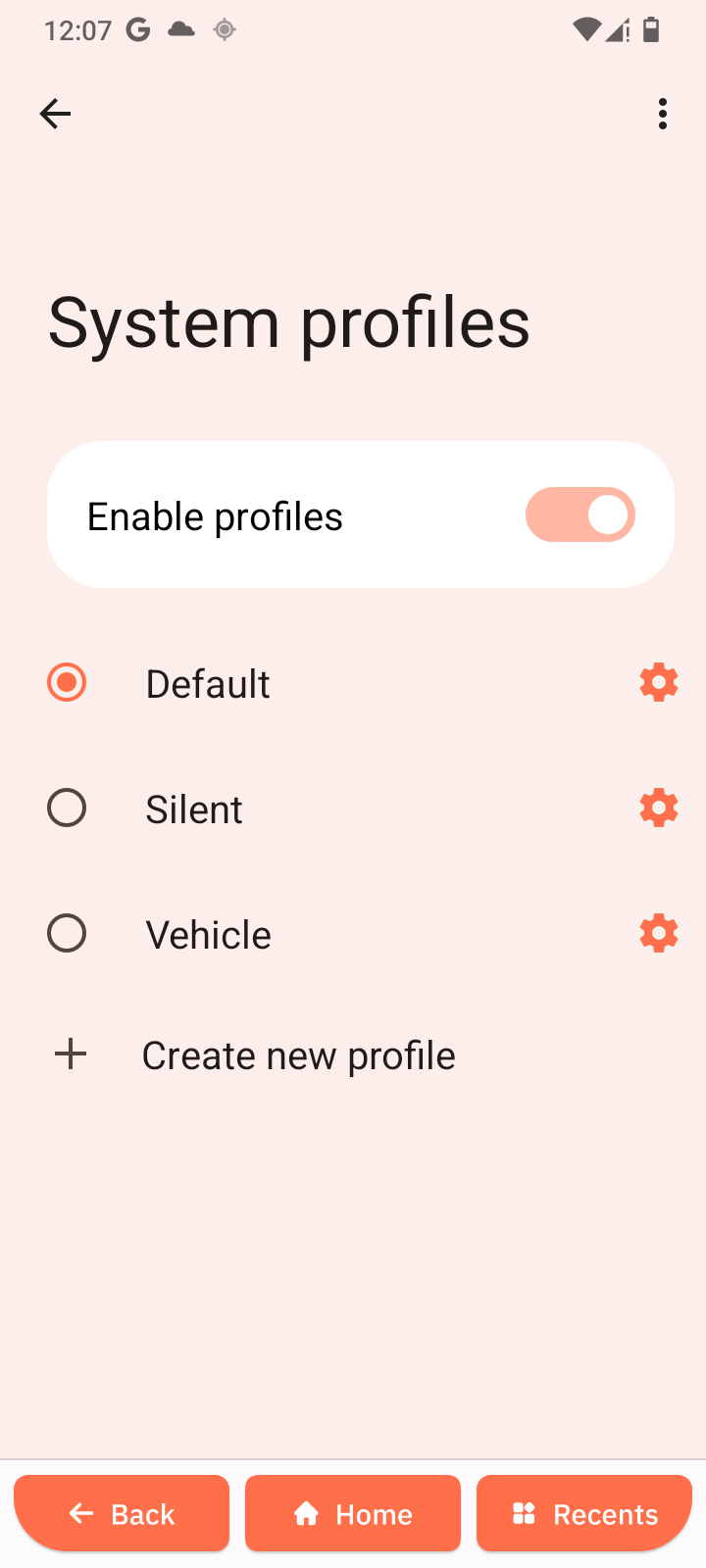
Profile steps
-
Open Settings → System → System profiles.
-
Select a profile.
-
Adjust settings if needed.
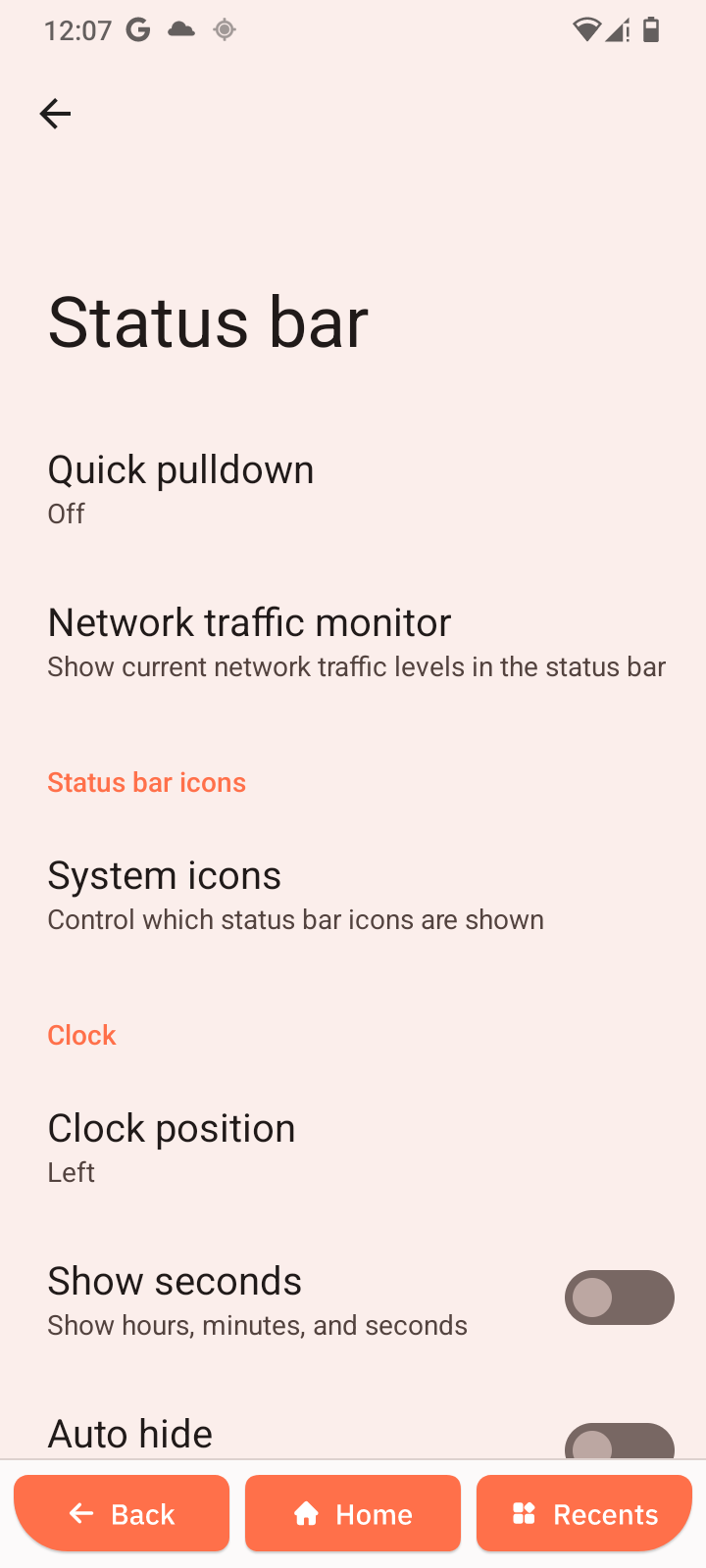
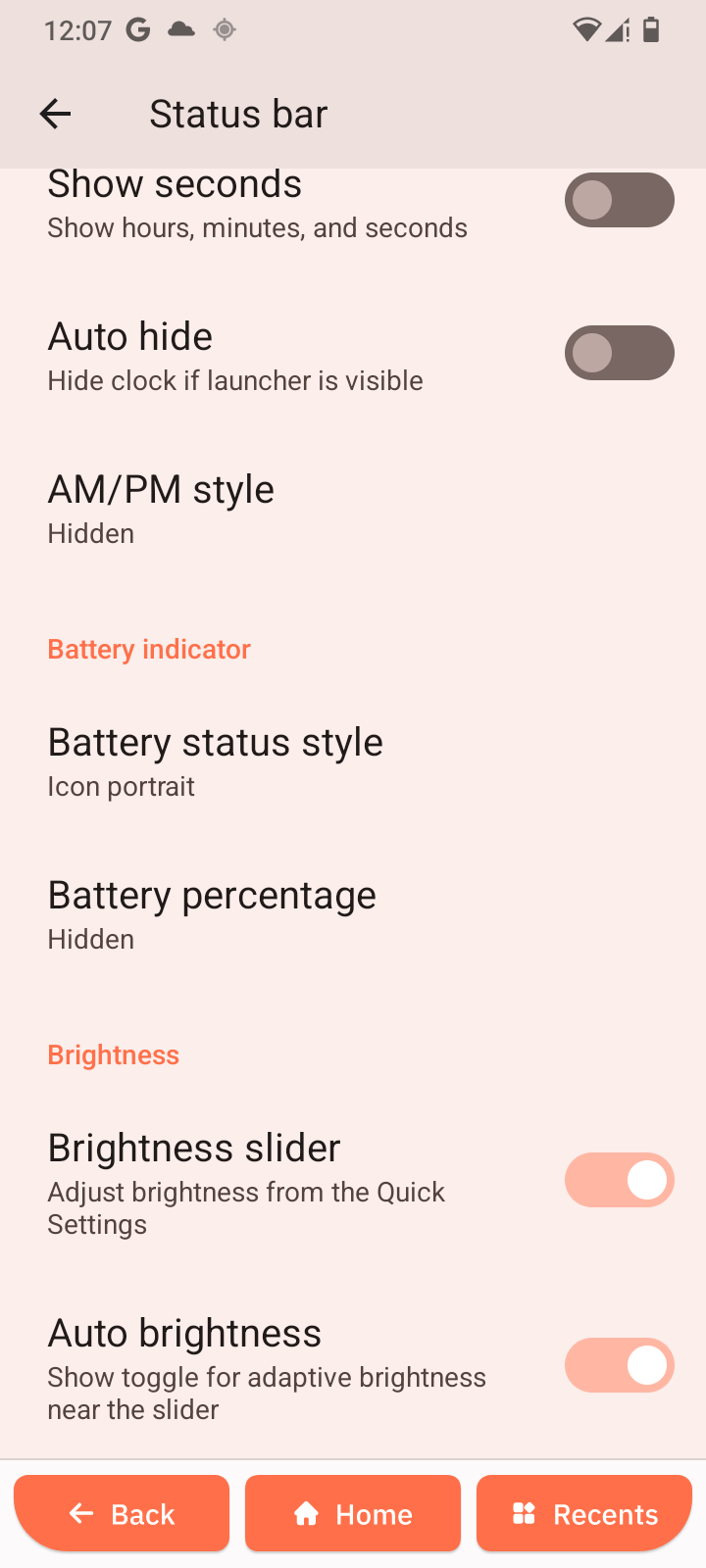
Status Bar
Status bar steps
-
Open Settings → System → Status bar.
-
Show or hide icons.
-
Adjust indicators.
Gestures
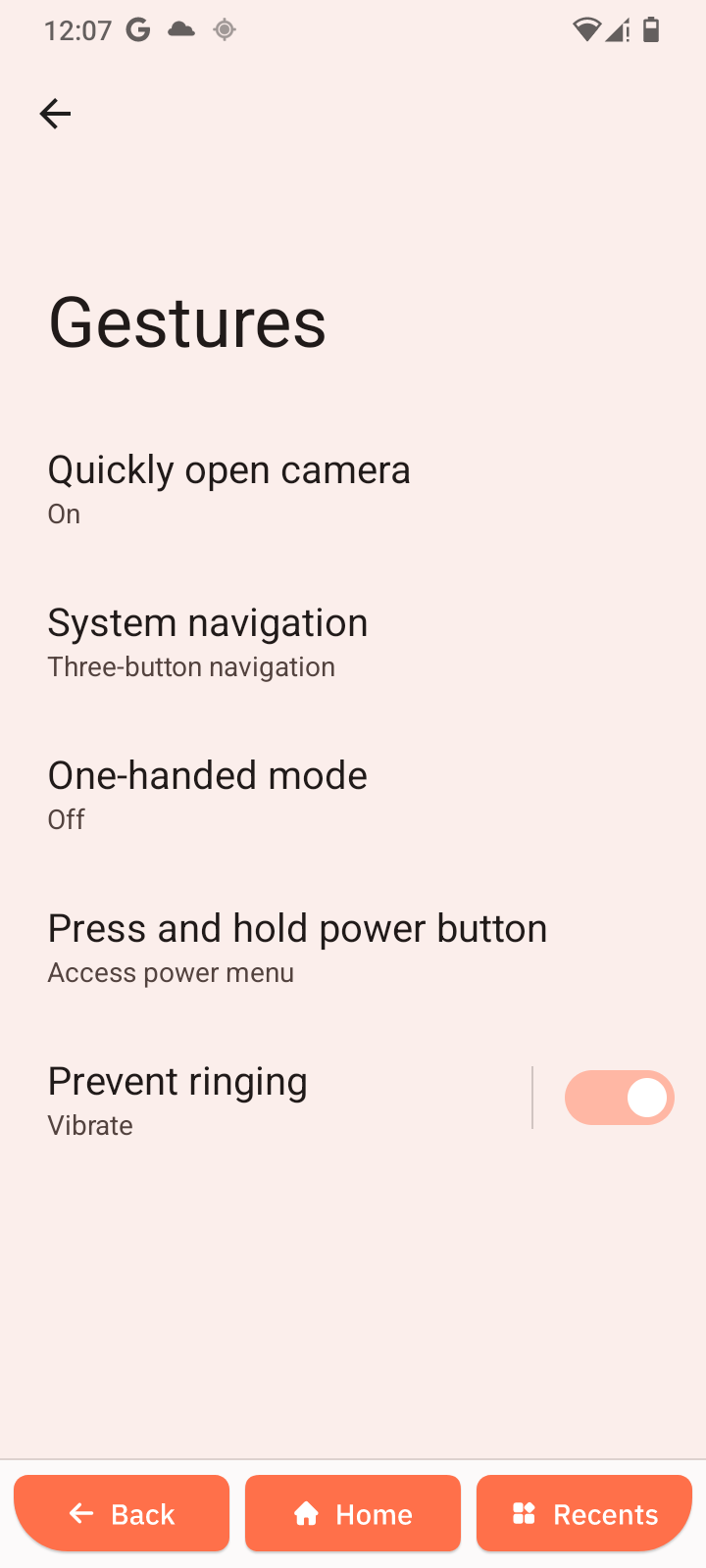
Gesture steps
-
Open Settings → System → Gestures.
-
Enable or disable gestures.
Date and Time
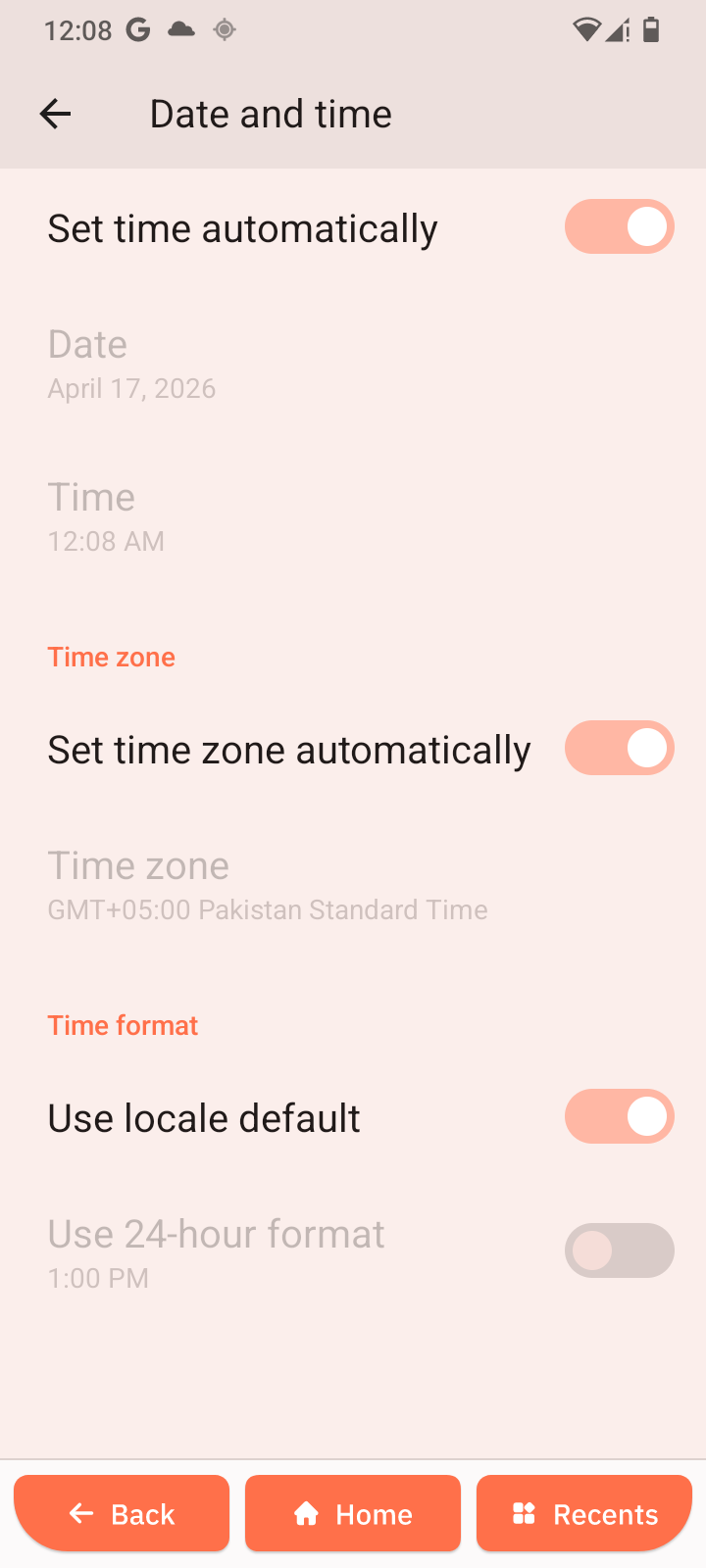
Date and time steps
-
Open Settings → System → Date and time.
-
Enable automatic time or set manually.
-
Adjust time zone and format.
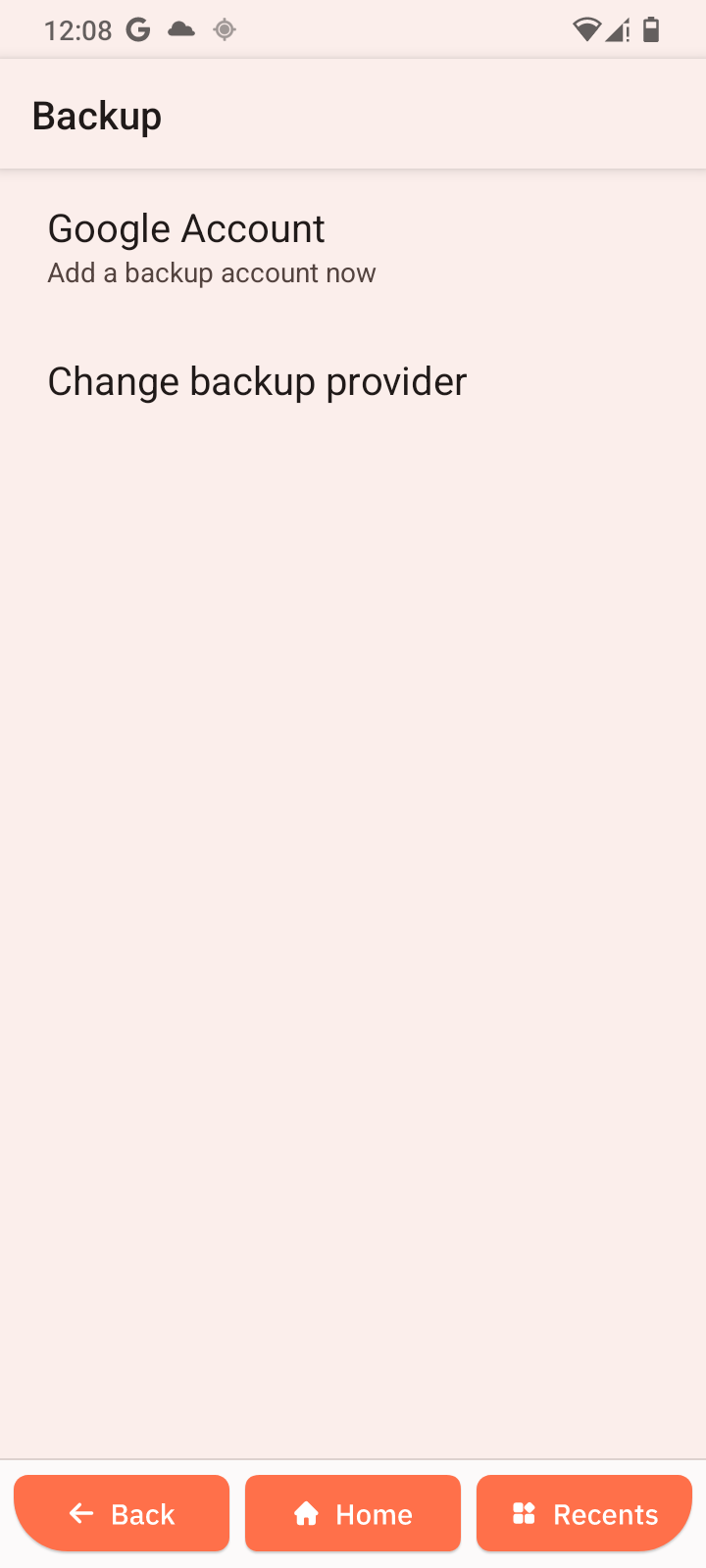
Backup
Backup steps
-
Open Settings → System → Backup.
-
Enable backup.
-
Back up data.
Updater
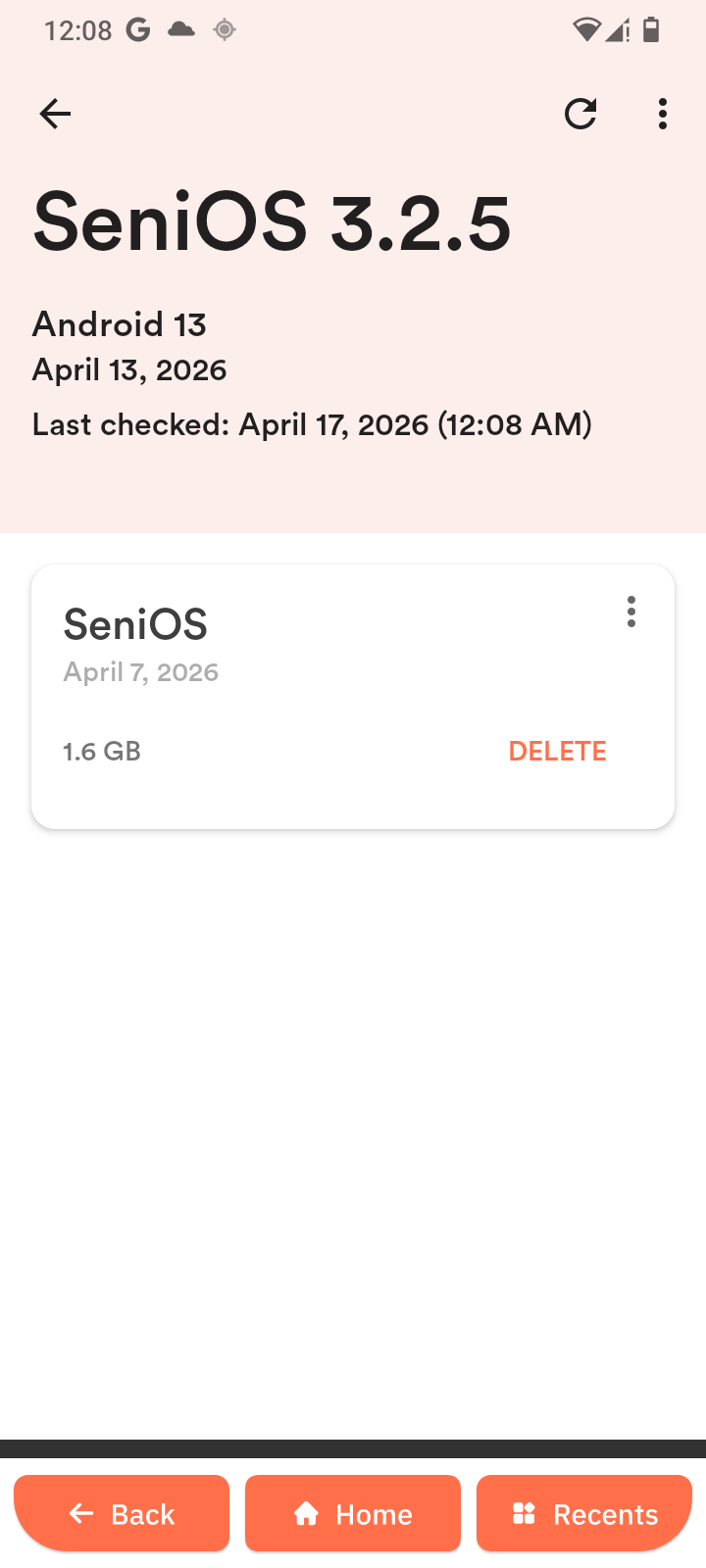
Updater steps
-
Open Settings → System → Updater.
-
Check for updates.
-
Install updates.
Multiple Users
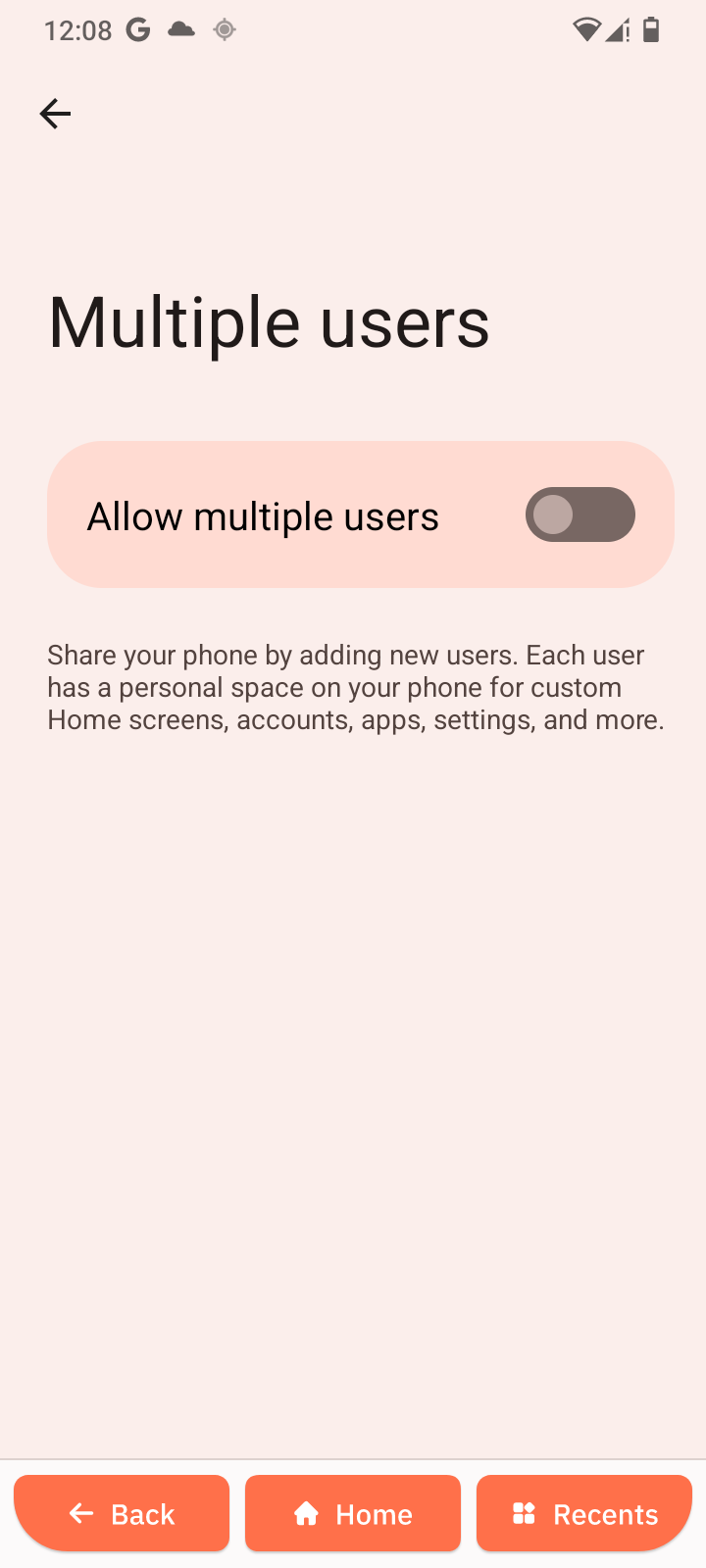
Multiple users steps
-
Open Settings → System → Multiple users.
-
Enable multiple users.
-
Manage users.
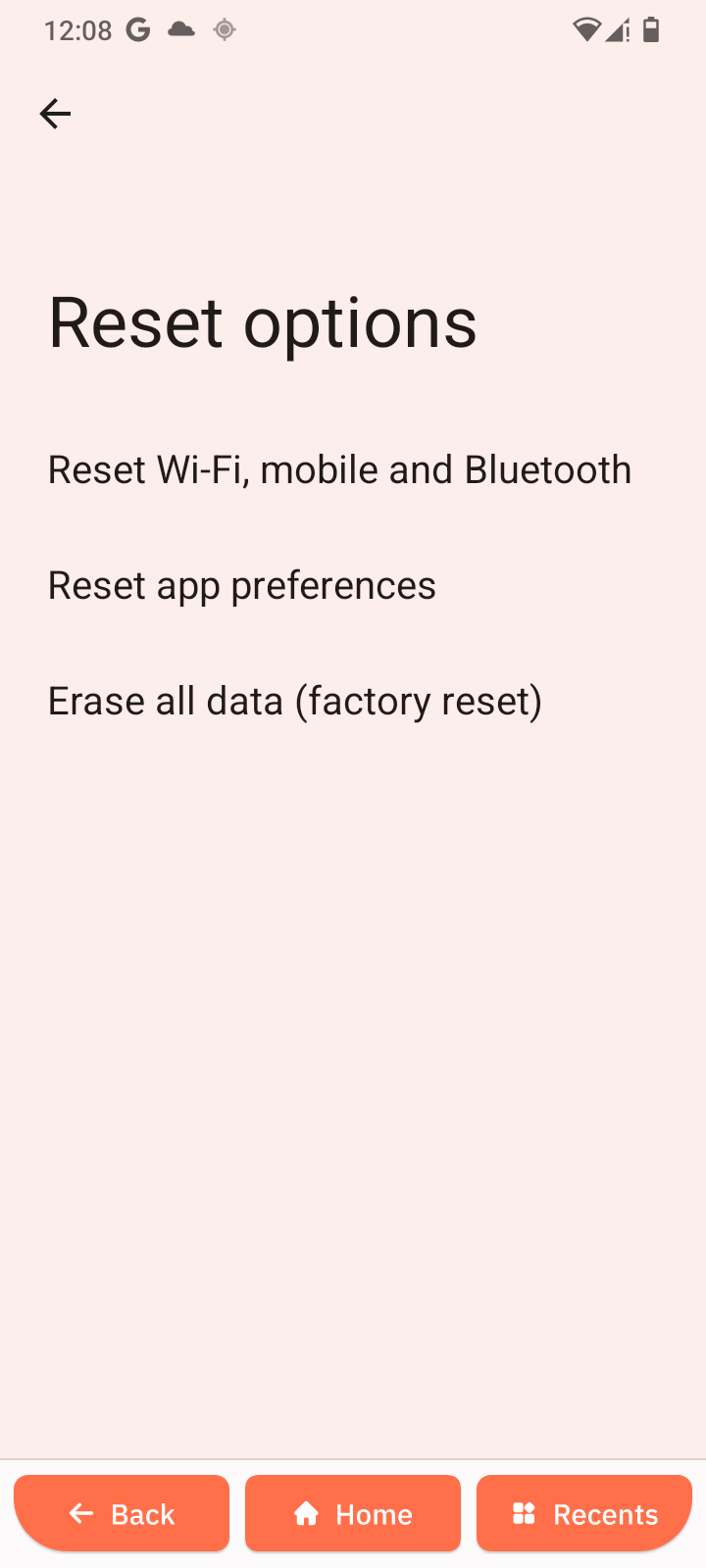
Reset Options
⚠️ Warning
Resetting may delete settings or data. Always back up important information first.
Reset steps
- Open Settings → System → Reset options.
- Select a reset type.
- Review details.
- Tap Reset or Erase all data.
- Confirm.
Reset Types
- Reset Wi-Fi, mobile & Bluetooth
- Reset app preferences
- Erase all data (factory reset)
When to use each reset
-
Use Wi-Fi/Bluetooth reset for connectivity issues
-
Use app preferences reset for app issues
-
Use factory reset as last option