SOS & Security
Overview
SOS & Security settings help protect your device and provide quick access to help in emergencies.
SOS settings
Configure the SOS button for emergency use.
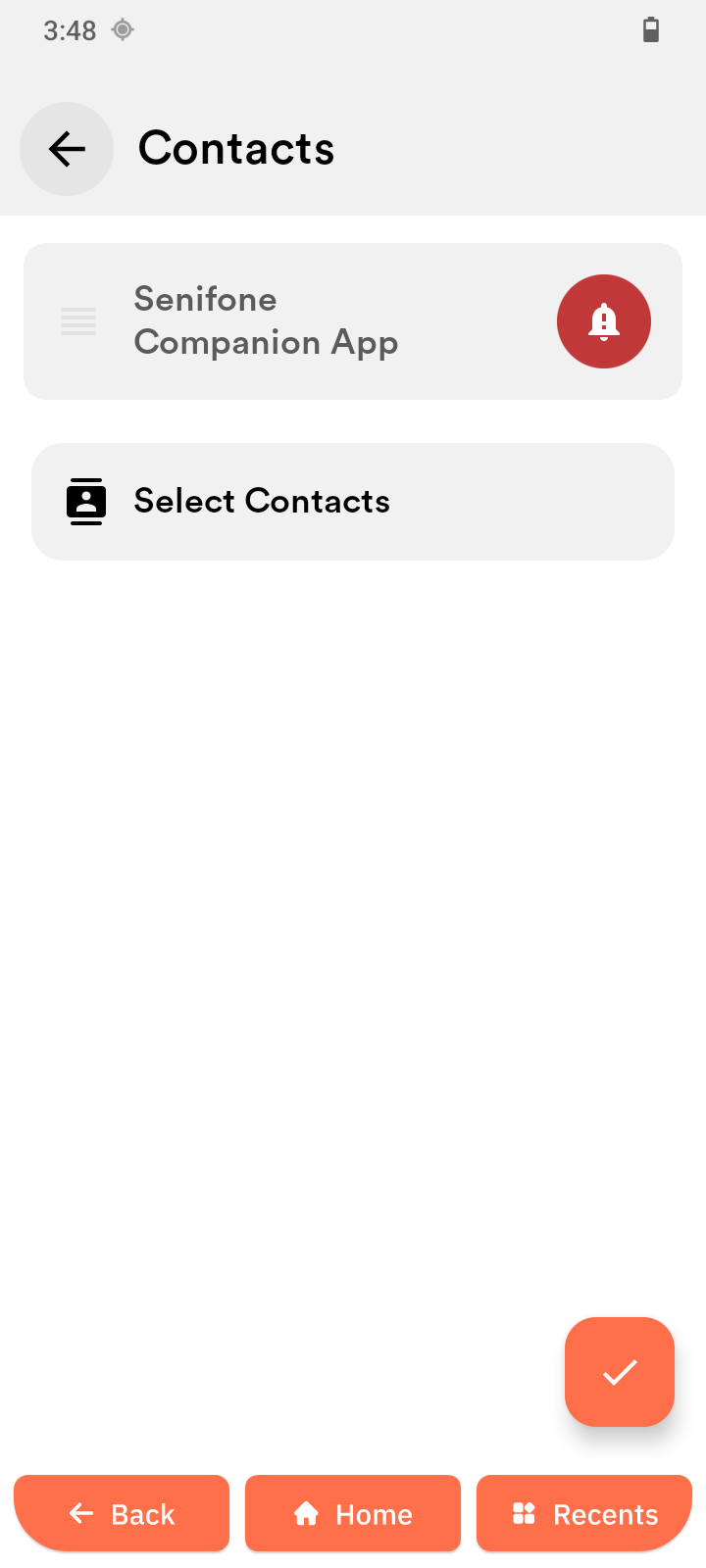
Manage SOS contacts
- Open SOS settings.
- Tap Manage Contacts.
- Tap Select contacts.
- Select one or more contacts.
- Tap the check mark.
- Drag to set priority.
- Tap the check mark to confirm.
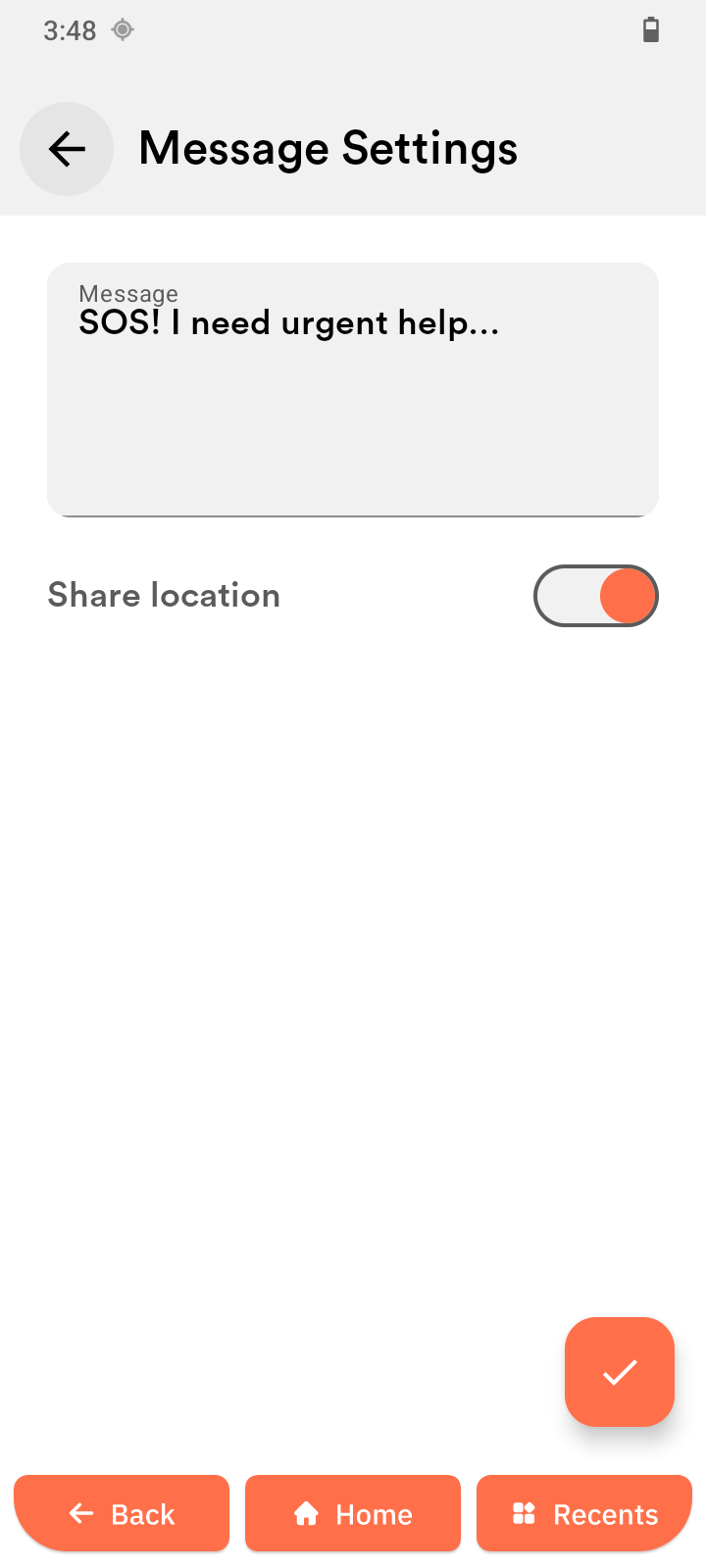
Configure SOS message
- Open SOS settings.
- Tap Message Settings.
- Enter your message.
- Turn on Share location if needed.
- Tap the check mark to save.
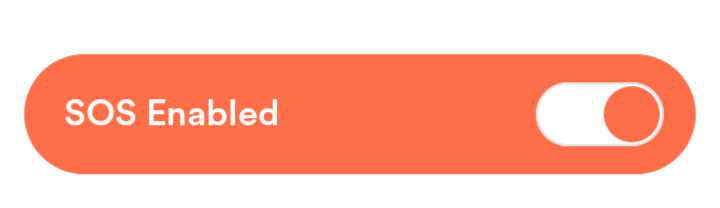
Enable and use SOS
- Turn on SOS enabled.
- The button turns red.
- Press and hold the SOS button during an emergency.
Restrictive Mode
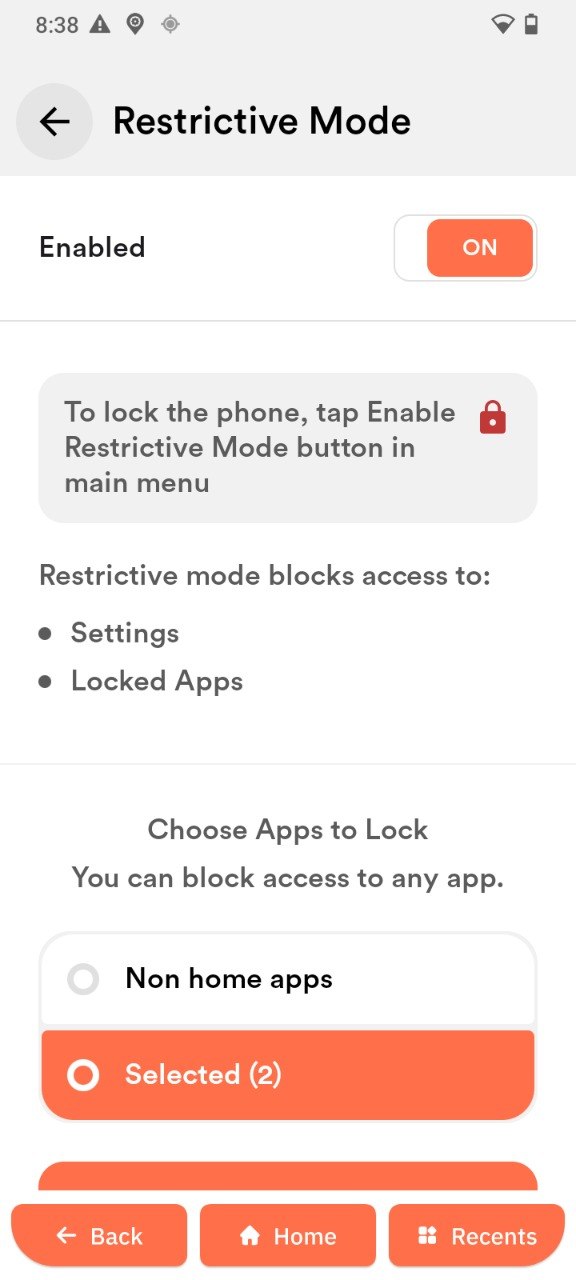
Restrictive Mode limits what can be accessed or changed on the phone. It is designed to be set up by a family member or caregiver – not by the phone user themselves. Once enabled, it keeps the phone simple and safe by preventing accidental changes to settings or access to certain apps.
When would you use it?
- To prevent accidental changes to important settings.
- To limit which apps can be opened on the phone.
How to set it up
-
Open Restrictive Mode in the Senifone Settings.
-
Turn it on using the toggle.
-
Create a PIN-code and confirm it. This code is needed to turn Restrictive Mode off or change the settings – keep it somewhere safe. Do not share this code with the phone user.
-
Choose what to restrict:
- Lock apps – select specific apps that cannot be opened without the code.
-
Tap the apps to lock.
-
Tap the check mark to confirm the selection.
-
Tap Enable Restrictive Mode in the main menu to activate.
What does Restrictive Mode block?
Once enabled, the following are protected by the PIN-code:
- Settings – no changes can be made without the PIN.
- Locked apps – selected apps cannot be opened.
How to turn it off or make changes
To disable Restrictive Mode or adjust the settings, enter the PIN-code. If the PIN has been forgotten, please contact Senifone support.
Medical ID
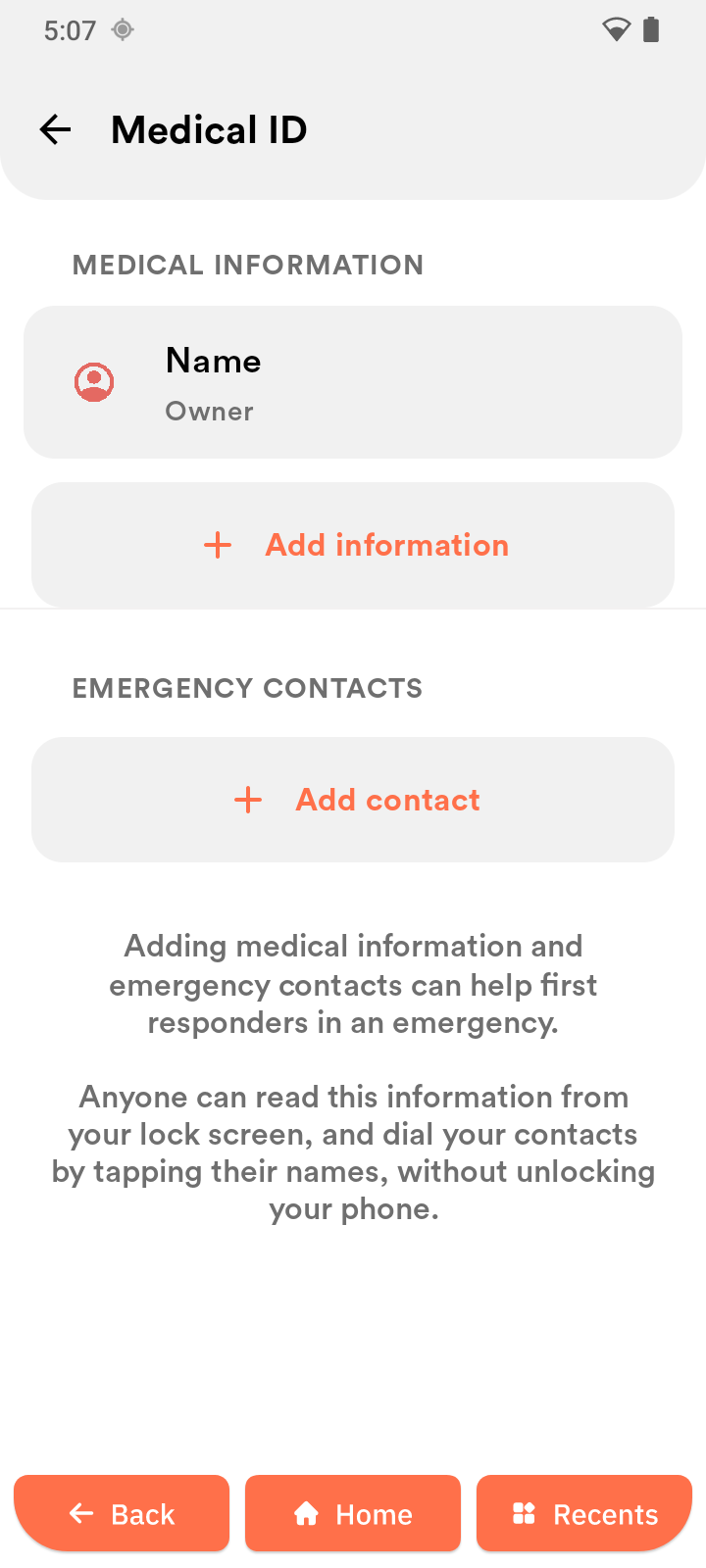
Stores emergency medical information.
- Open Settings.
- Tap Medical ID.
Add medical information
You can add:
- Full name
- Date of birth
- Blood type
- Allergies
- Medical conditions
- Current medications
- Emergency contact
Steps:
- Tap a field to edit.
- Enter the information.
- Tap Save.
Add an emergency contact
- Tap Add emergency contact.
- Select a contact.
- Tap Save.
Access Medical ID from lock screen
- Wake the screen.
- Tap Emergency.
- Tap Medical ID.
Tip: Keep your medical information up to date.
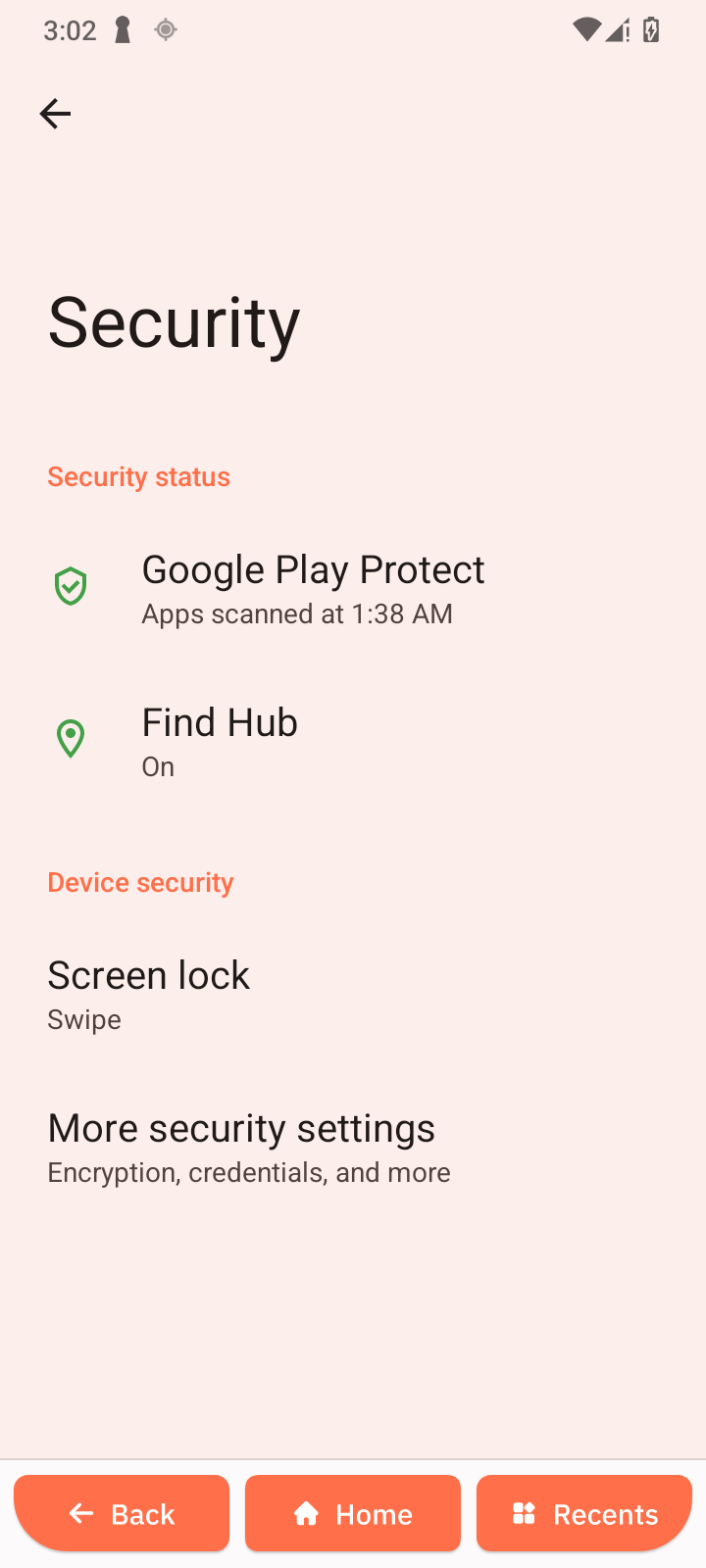
Security and Lock Screen
Manage device protection.
Google Play Protect
- Open Google Play Protect.
- Check scan status.
Find Hub
- Open Find Hub.
- Enable Allow device to be located.
Screen lock
-
Open Screen lock.
-
Choose a method:
- Swipe
- Pattern
- PIN
- Password
-
Follow setup steps.
More security settings
- Open More security settings.
- Configure options.