Home Screen Overview
Home screen
Overview
The Home screen is designed for clarity and quick access. Your apps, time, different statuses, and battery level are always shown on the Home screen.
The screen has five main areas:
- Status bar
- Notification panel
- Quick Settings menu
- App tiles
- Navigation panel
Status bar
The Status bar displays important system information using icons:
- Airplane mode
- Do Not Disturb
- Location services
- Wi-Fi signal strength
- Mobile data signal strength
- Battery level
Notification panel
The Notification panel appears below Quick Settings and shows messages, notifications, and alerts.
Quick Settings menu
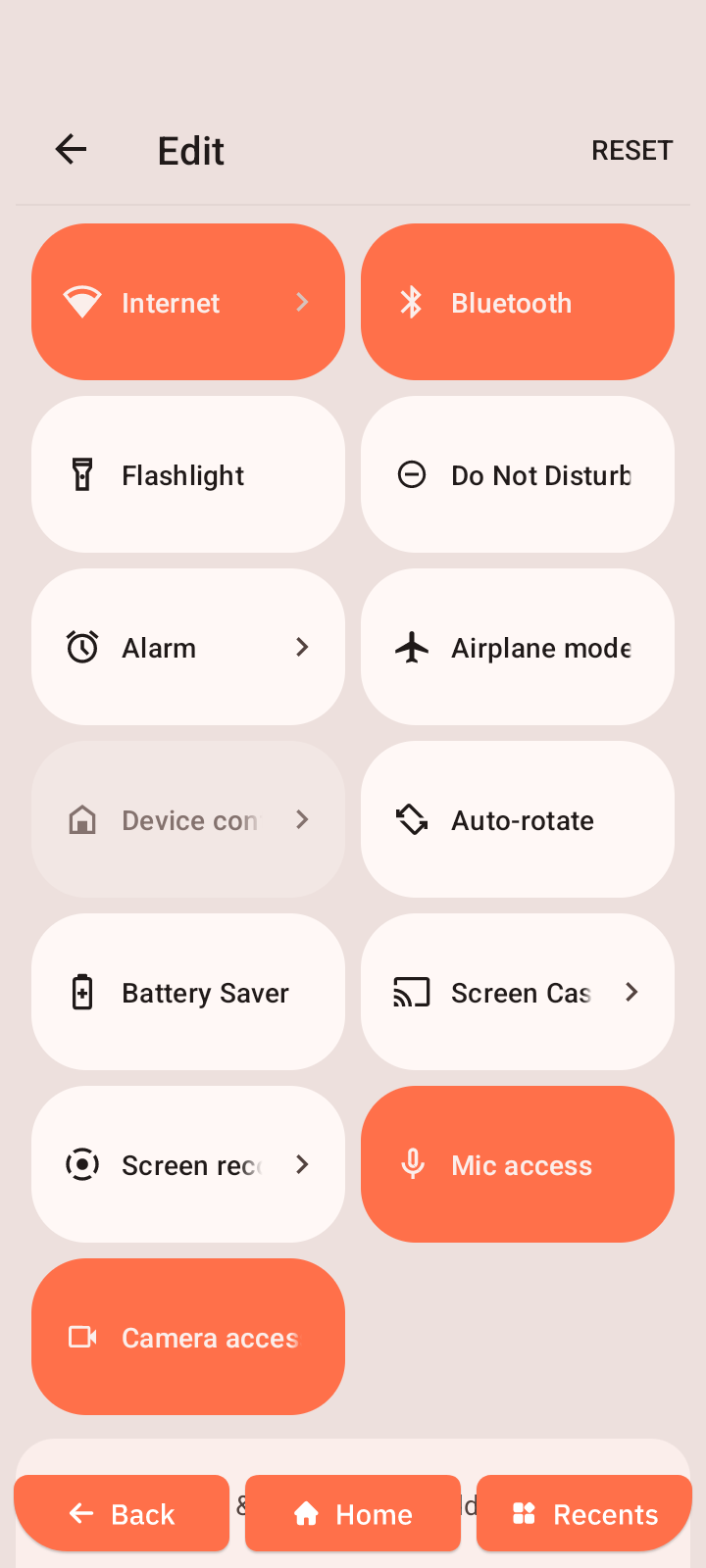
The Quick Settings menu provides fast access to common features such as Wi-Fi, Bluetooth, and Alarm.
- Swipe down from the top of the screen.
- Swipe down again to expand the menu.
- Swipe left to view more options.
- Tap a shortcut to use it.
The Quick Settings menu can be customized by tapping the pencil icon.

You can move shortcuts freely by pressing and holding a shortcut, dragging it across the screen, and releasing it in the desired position.
App tiles
The default Home screen displays six tiles:
- Camera
- Messages
- Contacts
- Shortcuts
- Photos
- Browser
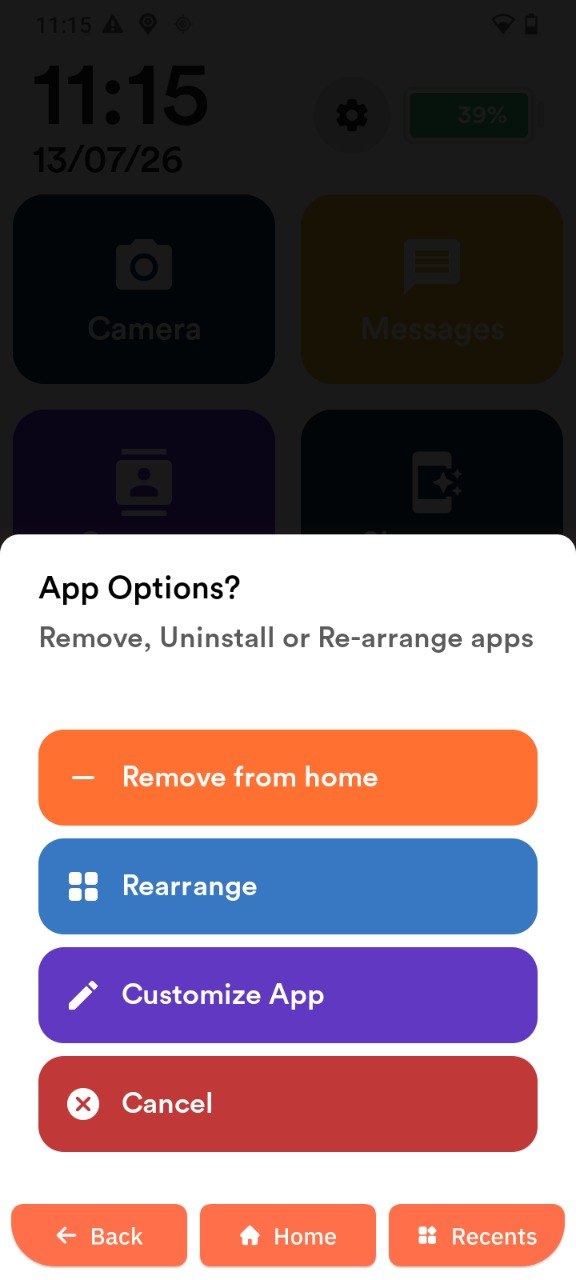
To edit tiles:
- Press and hold a tile.
- Select an option.
Available options:
- Remove tile from Home screen
- Change tile position (rearrange)
- Change tile appearance (customize app)
- Cancel
Navigation panel
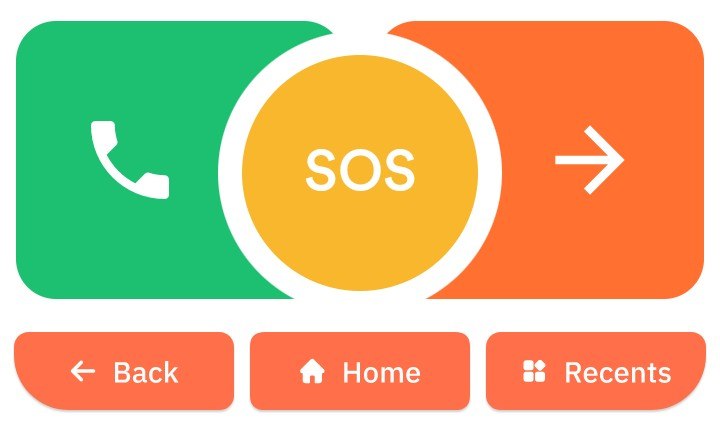
The Navigation panel allows you to move between screens and perform actions:
- Call button (opens dial pad)
- Inactive SOS button (opens the SOS settings). When the SOS button is enabled, the button turns red.
- Navigation arrow (switch pages)
- Back
- Home (opens the Home screen)
- Recent (opens recent apps)
When you move to the next page, the Call button is replaced by a navigation arrow to return to the previous page.