SOS
Overview
The SOS feature lets you quickly call for help, alert your emergency contacts, and share your location during an emergency.
You can trigger SOS using the on-screen button or the hardware power button.
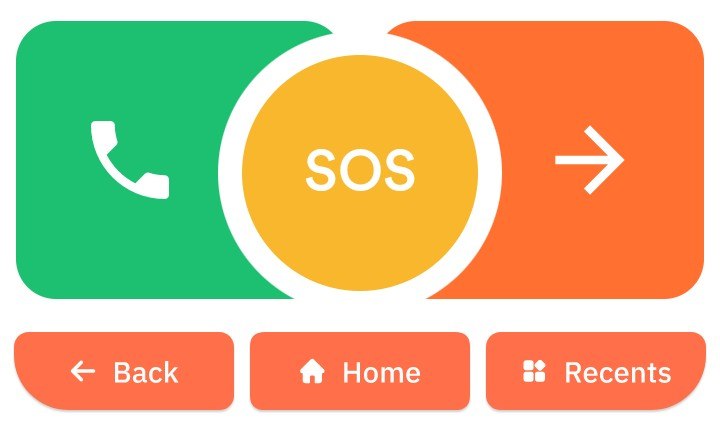
SOS button states on Home screen
- 🟡 Yellow — SOS is not enabled
- 🔴 Red — SOS is enabled and ready to use
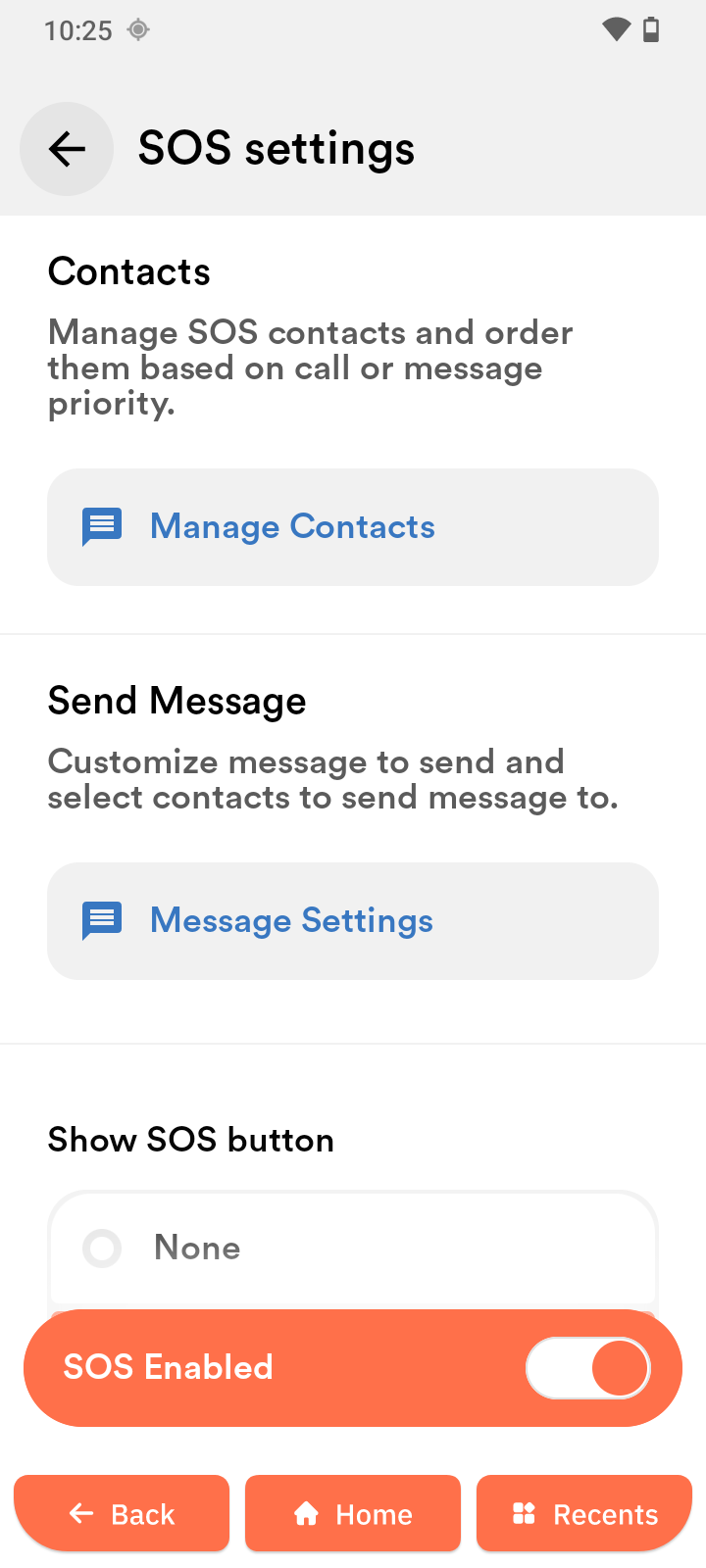
Open SOS settings
You can access SOS settings in two ways:
- Tap the SOS button on the home screen.
- Or go to Settings → SOS Settings.
Enable SOS
- Open SOS settings.
- Tap SOS.
- Turn on Use SOS.
- Confirm when prompted.
Once enabled, the SOS button changes from yellow to red.
SOS can be triggered even from the lock screen once enabled.
Add emergency contacts
Emergency contacts receive alerts when SOS is triggered.
- Open SOS settings.
- Tap Manage Contacts.
- Tap Select contact.
- Select a contact from the list.
- Repeat to add more contacts.
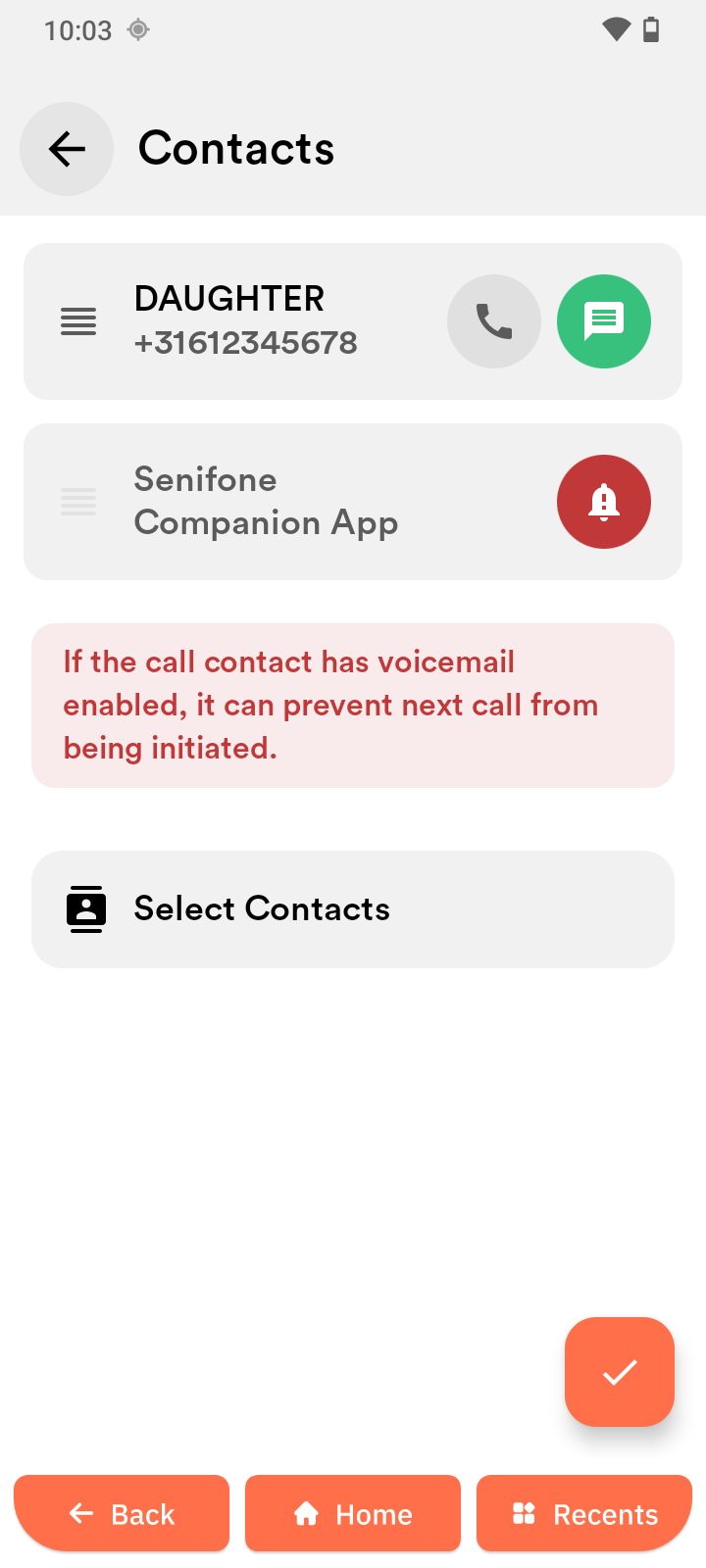
Note: check the phone icon next to each contact. A green icon means this contact will be called in an emergency. A grey icon means they will not be called. Tap the icon to switch it on, then tap the check mark to save.
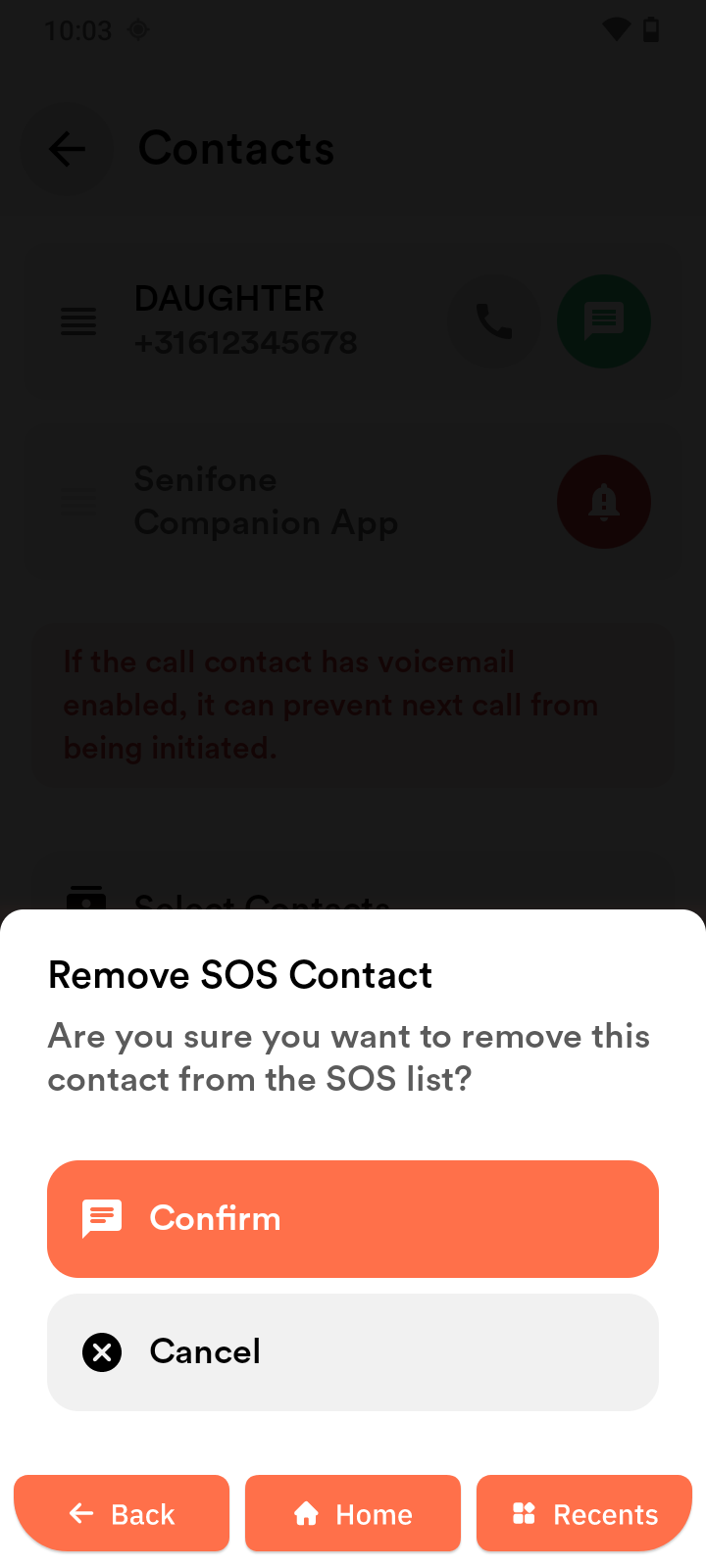
To remove a contact:
- Tap the contact and select Remove.
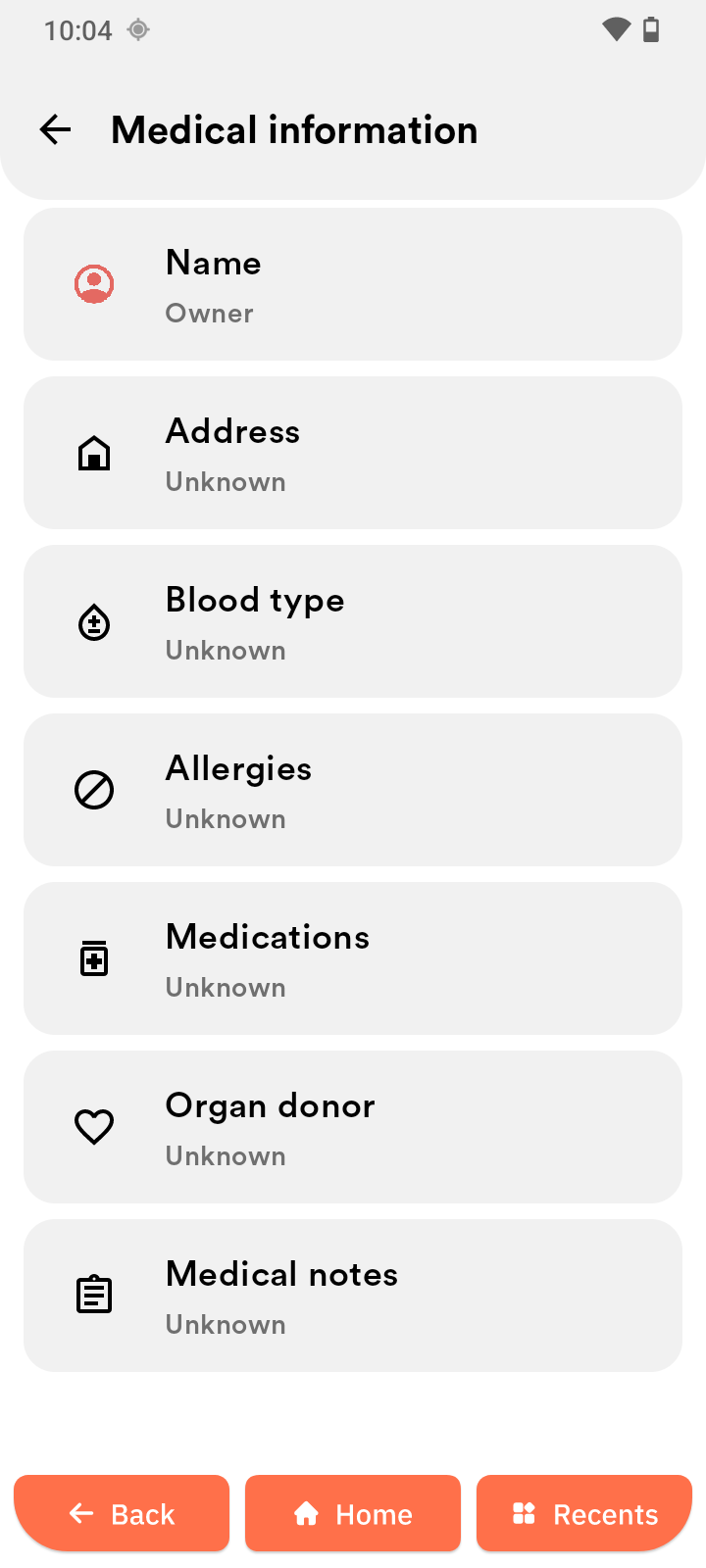
Set emergency information
Emergency information is visible from the lock screen.
- Open Settings.
- Tap Medical ID.
- Enter details such as:
- Name
- Blood type
- Allergies
- Medical conditions
- Address
Configure SOS behavior
Control how SOS works when triggered.
- Open SOS settings → SOS.
- Adjust the following options:
- Countdown sound — play sound during countdown
- Auto call — call emergency services automatically
- Share location — send GPS location
- Send SOS message — notify emergency contacts
Trigger SOS (home screen)
- Make sure SOS is enabled (red button).
- Tap and hold the SOS button.
- A countdown appears.
- Wait for countdown to finish.
To cancel:
- Tap Cancel before countdown ends.
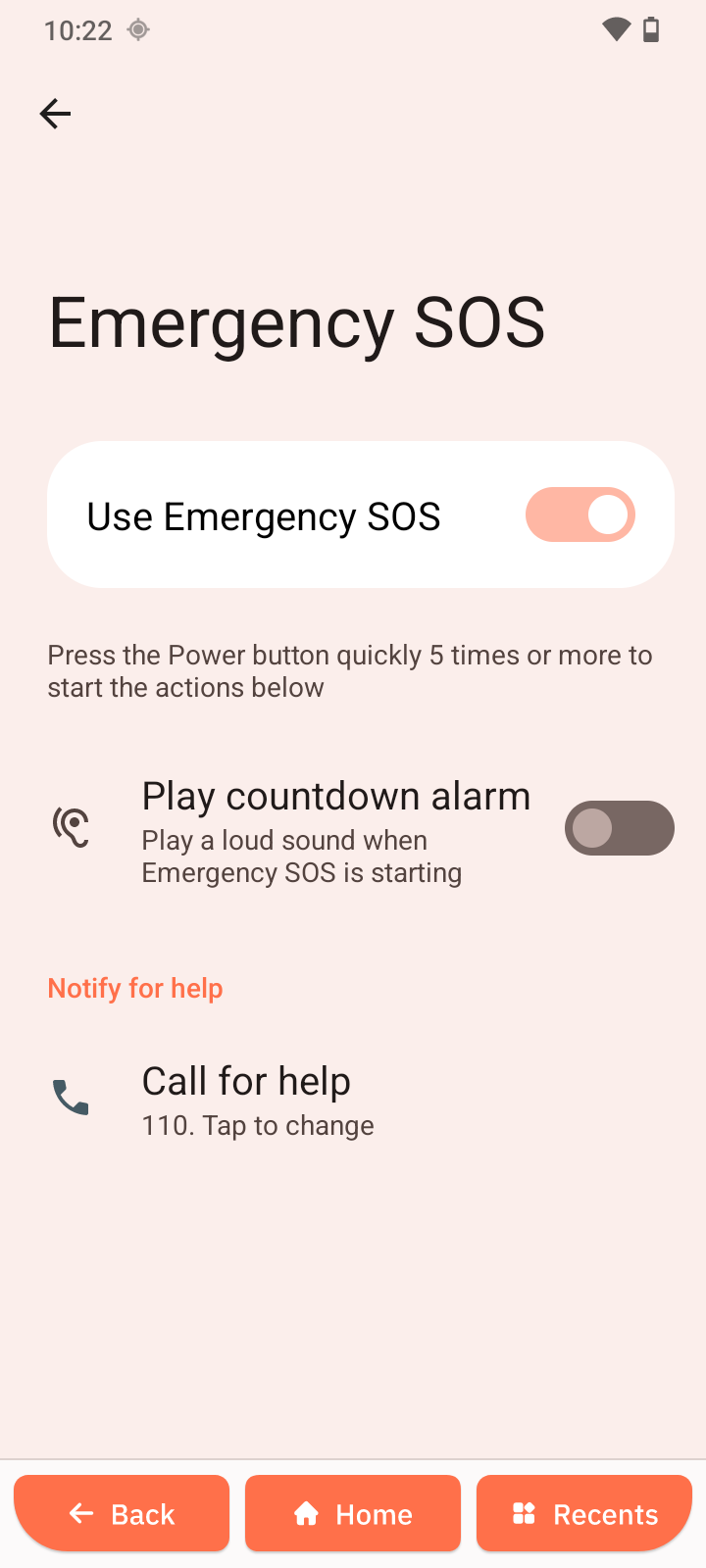
Trigger SOS (power button)
- Press the power button 5 times quickly.
- Countdown screen appears.
- Wait for countdown to complete or tap Cancel.
Works even when the phone is locked. To disable it open Settings → Safety & Emergency → Emergency SOS
What happens when SOS is triggered
Depending on your settings:
- Emergency call is placed
- SMS is sent to emergency contacts
- Location is shared
- Alarm sound plays
Disable SOS
- Open SOS settings → SOS.
- Turn off Use SOS.
- Confirm the action.
The SOS button changes from red to yellow.
Quick flows
First-time setup
- Open SOS settings
- Add emergency contacts
- Add emergency information
- Enable SOS
Trigger SOS
- Tap and hold red SOS button
- Wait for countdown
- SOS activates
Cancel SOS
- Tap Cancel during countdown
Turn off SOS
- Open SOS settings
- Turn off Use SOS