SOS Button
Overview
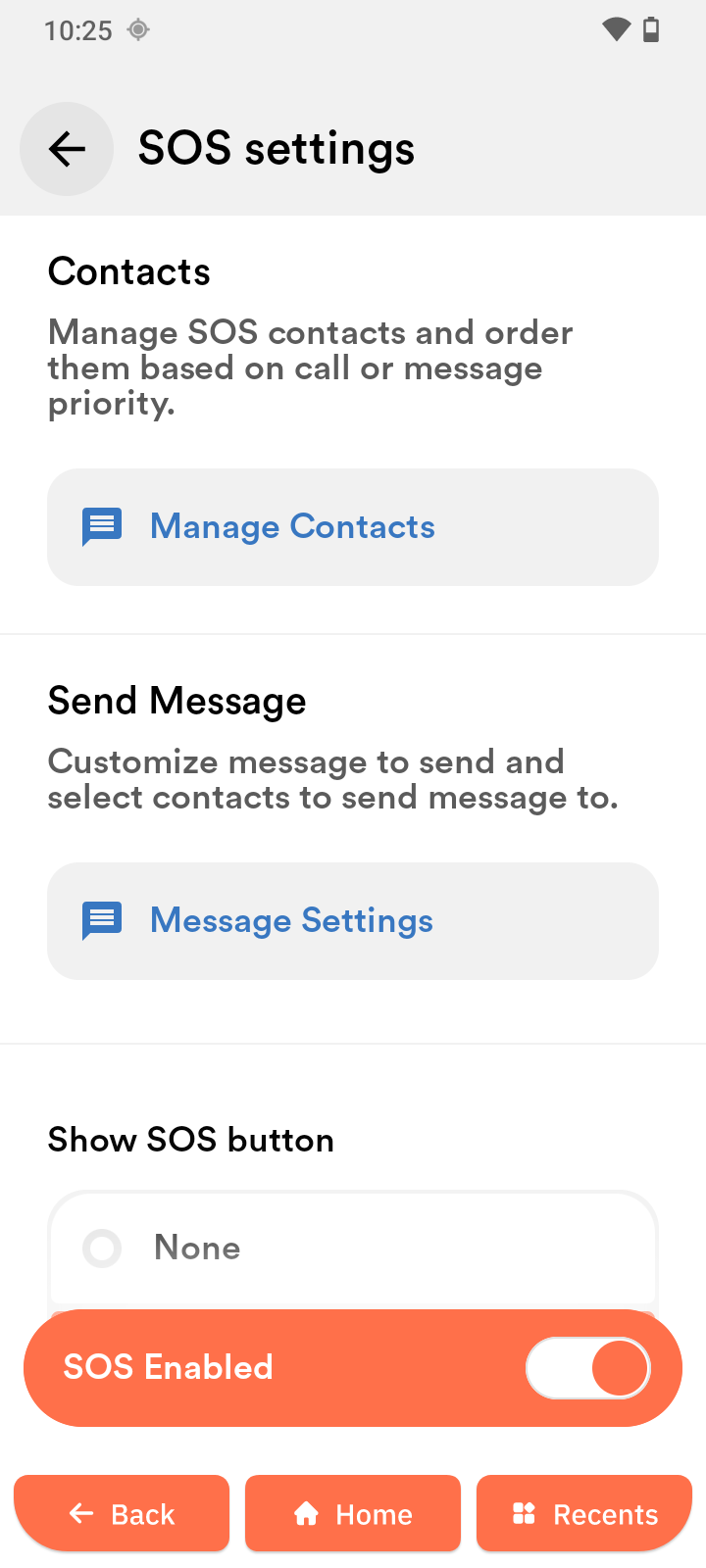
The SOS button can be configured for emergencies. You can add SOS contacts, set a message, share your location, and choose how long the button must be pressed.
Configure the SOS button
The SOS button can be customized for extra safety. You can assign one or more SOS contacts or remove the button entirely.
-
Tap the inactive yellow SOS button to open settings.
-
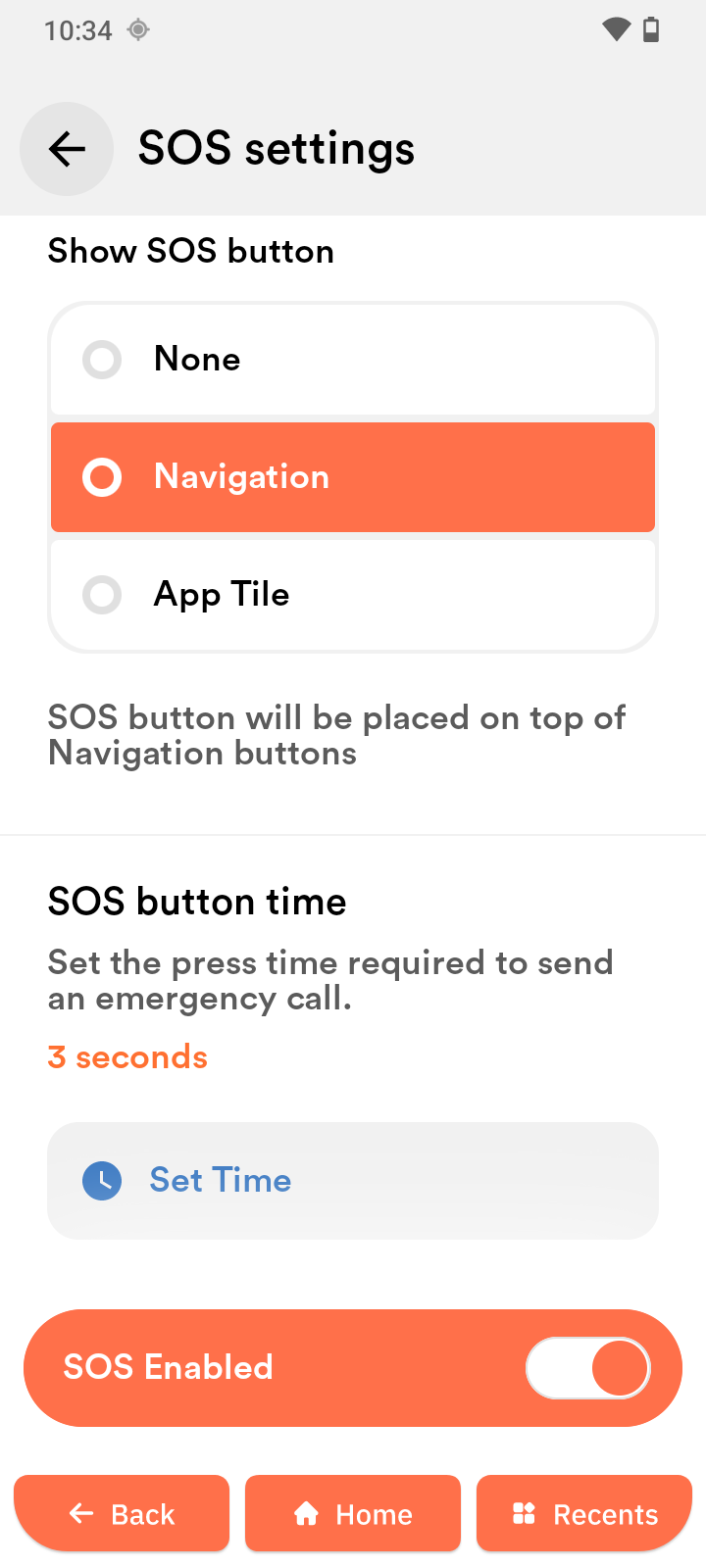
Swipe down and choose the SOS button placement:
- Navigation: in the navigation bar (default)
- App tile: movable tile on the home screen
-
Tap Set time to choose how long the button must be pressed.
-
Set the press duration and tap Confirm.
Manage SOS contacts
- Tap Manage contacts.
- Tap Select contacts.
- Select one or more contacts.
- Tap the check mark to confirm.
- Drag to order contacts by priority.
- Tap the check mark to confirm.
Configure the SOS message
- Tap Message settings.
- Tap the text field and write your SOS message.
- Enable Share location to include your location.
- Tap the check mark to save.
Enable and use SOS
- Tap SOS enabled to activate.
- The button turns red. Test it before relying on it.
- Press and hold the SOS button for the configured time in an emergency.