Senifone Companion App
Introduction
Senifone Companion helps you stay connected, informed, and in control of your Senifone device – especially when safety matters.
With this app, you can:
- Know where the device is at any time (live location tracking)
- Get instant alerts in emergencies (SOS, movement, low battery)
- Set safety boundaries like safe zones for monitoring movement
- Control device settings remotely without needing the physical device
- Monitor device health (battery, connectivity, activity)
Note: to receive accurate data, make sure Senifone has internet access (Wi-Fi and mobile data).
Download and install the app
Start by downloading or opening the Senifone Companion App from the Companion start page: Senifone Companion App
Install the app on your phone, then open it and continue with the account setup below. After your account is ready, link your Senifone device and configure the safety settings you want to use.
Account setup
Create and manage your account to get started.
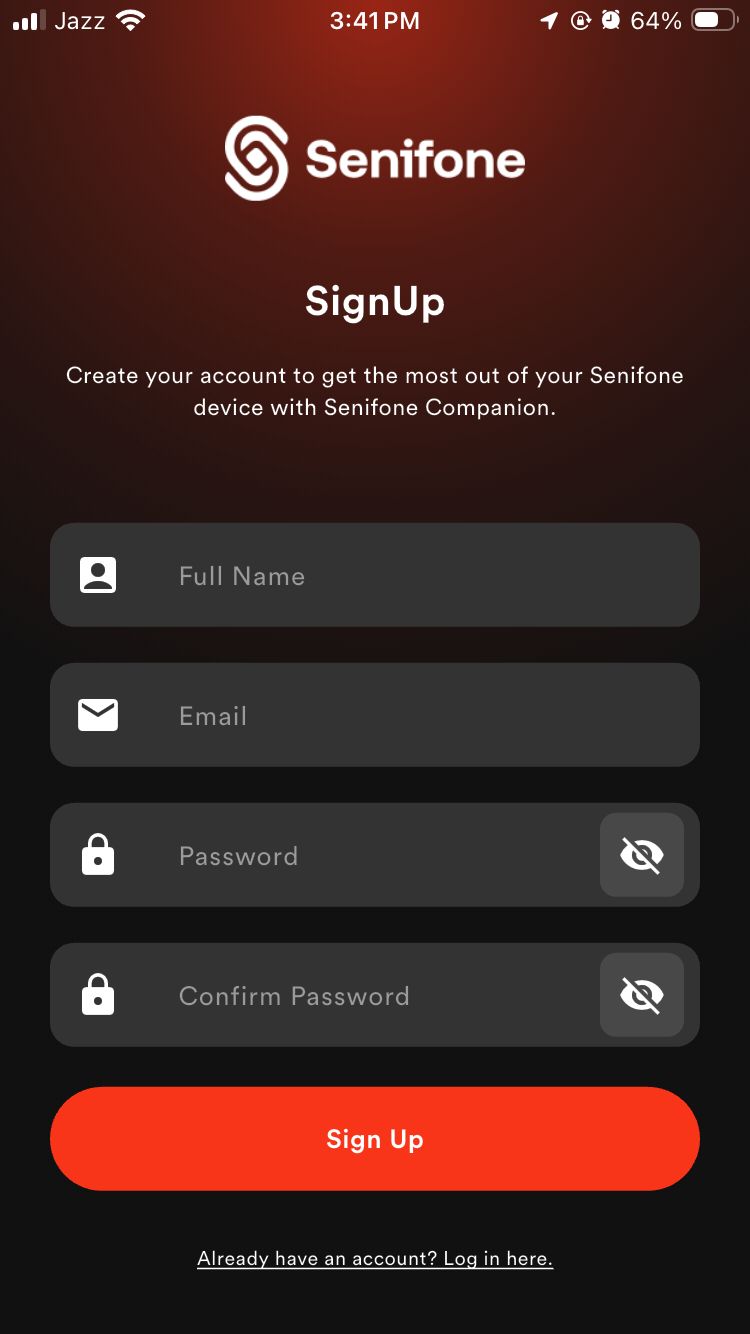
Sign up
-
Open the app.
-
Tap Sign Up.
-
Enter your details:
- Full Name
- Password
- Confirm Password
-
Tap Sign Up.
Notes:
- Use the eye icon to show or hide your password.
- Tap Log in here if you already have an account.
Forgot password
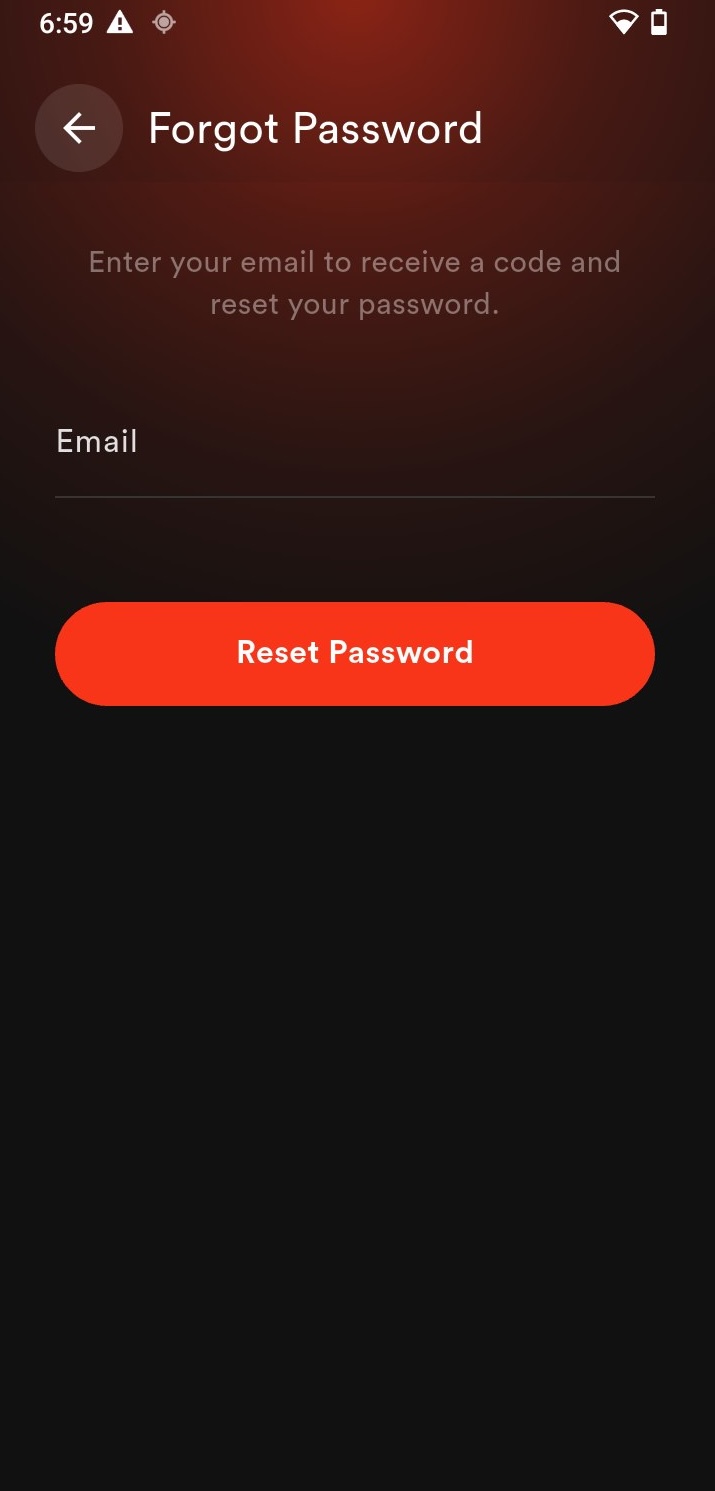
- Tap Forgot Password.
- Enter your email.
- Tap Reset Password.
- Follow the instructions sent to your email.
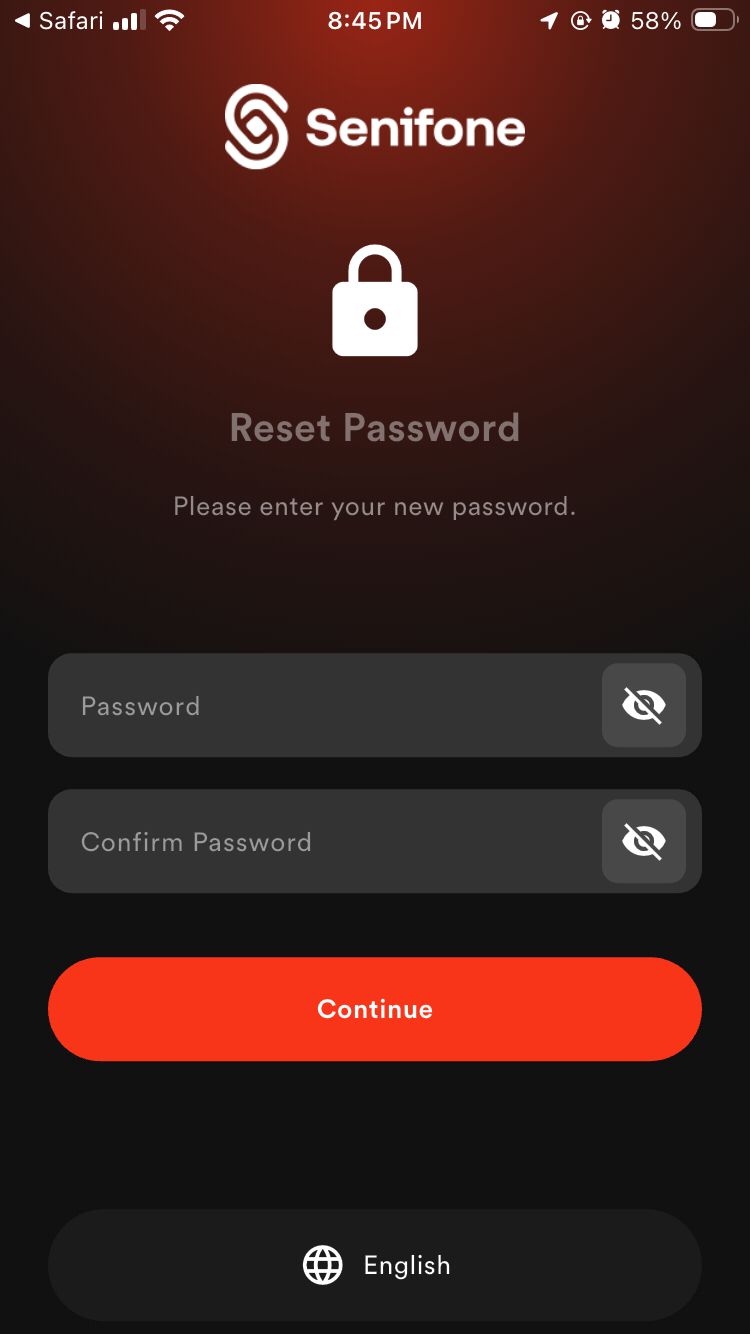
Change password
- Open Profile.
- Tap Change Password.
- Enter required details.
- Tap Update Password.
Device linking
Before using any features, you need to connect your Senifone device.
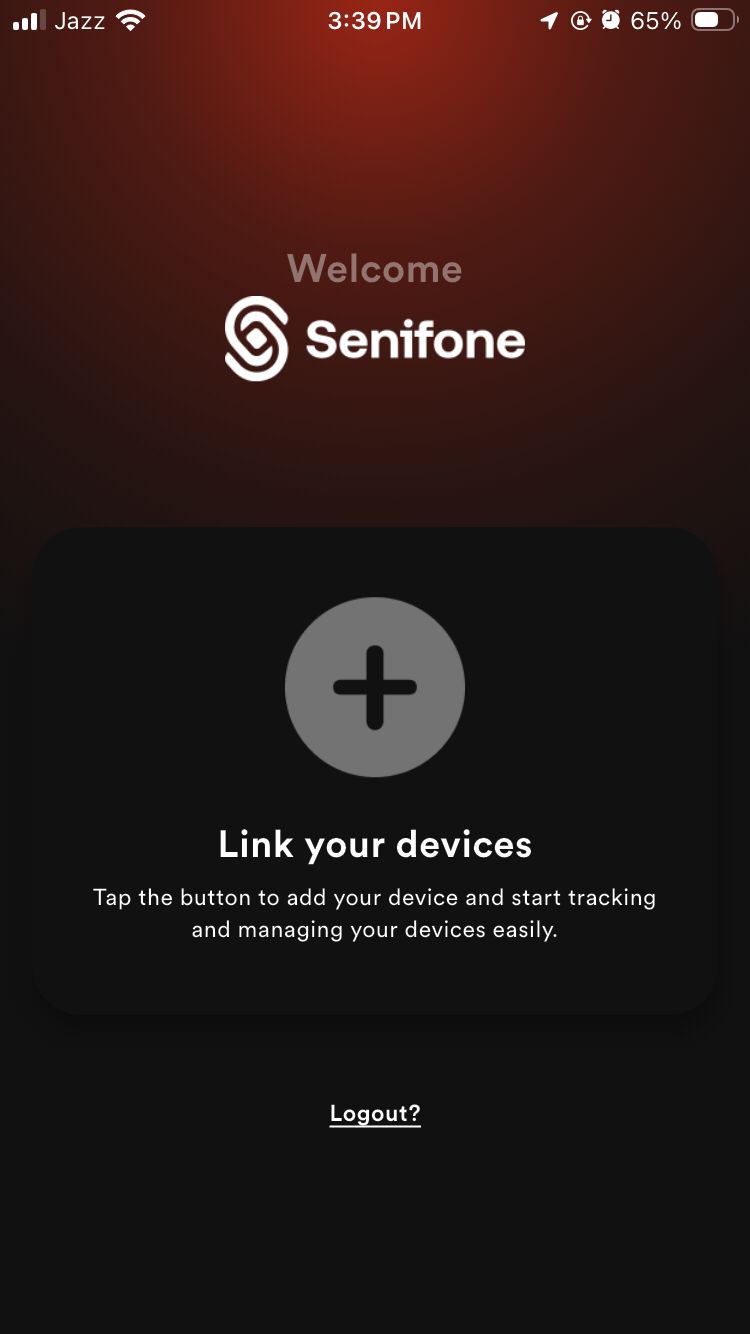
Link your device
- Tap + (Link your devices).
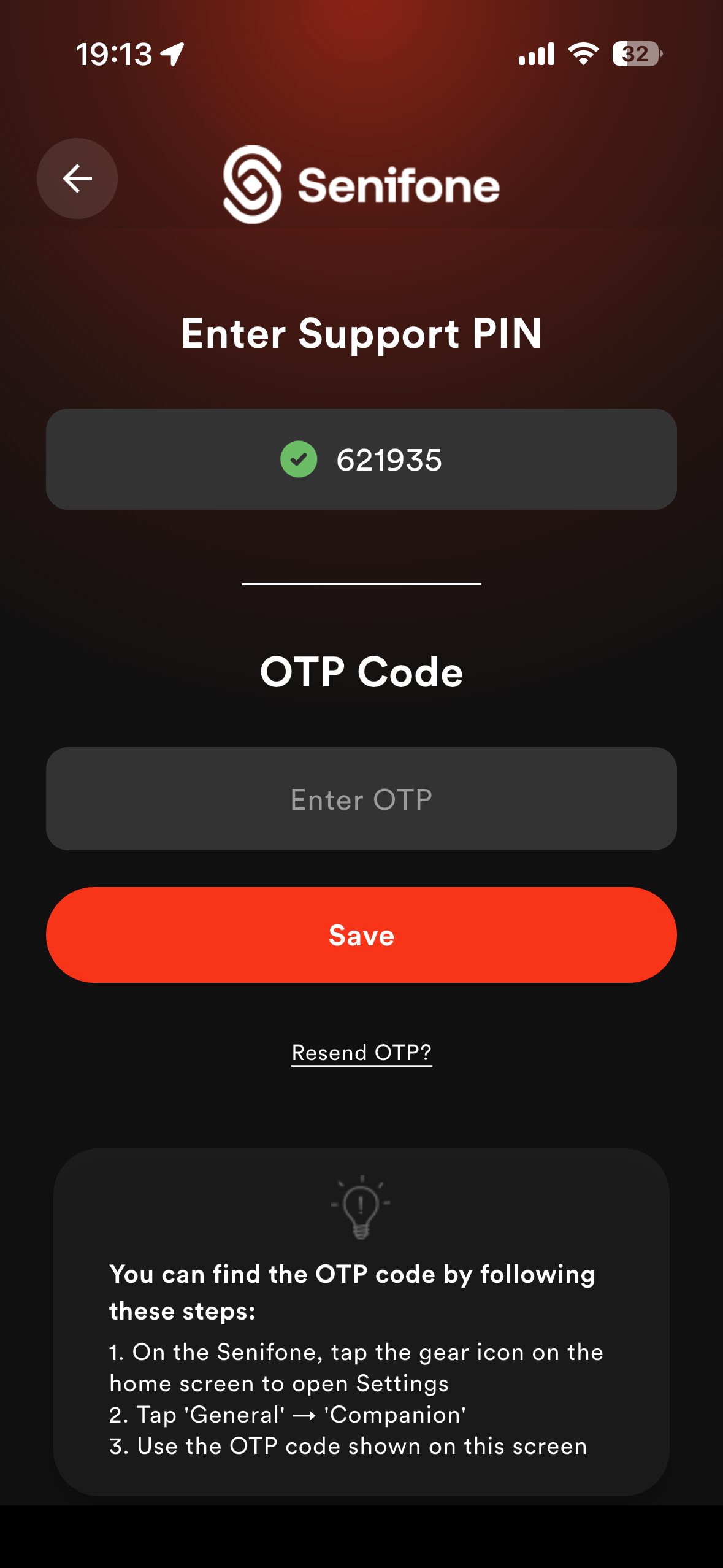
- Enter Device PIN.
- Enter OTP Code.
- Tap Save.
Get OTP code (from device)
- On the Senifone device, open Settings.
- Go to General.
- Tap Companion.
- Copy the OTP code.
Once done, your device will appear in the app.
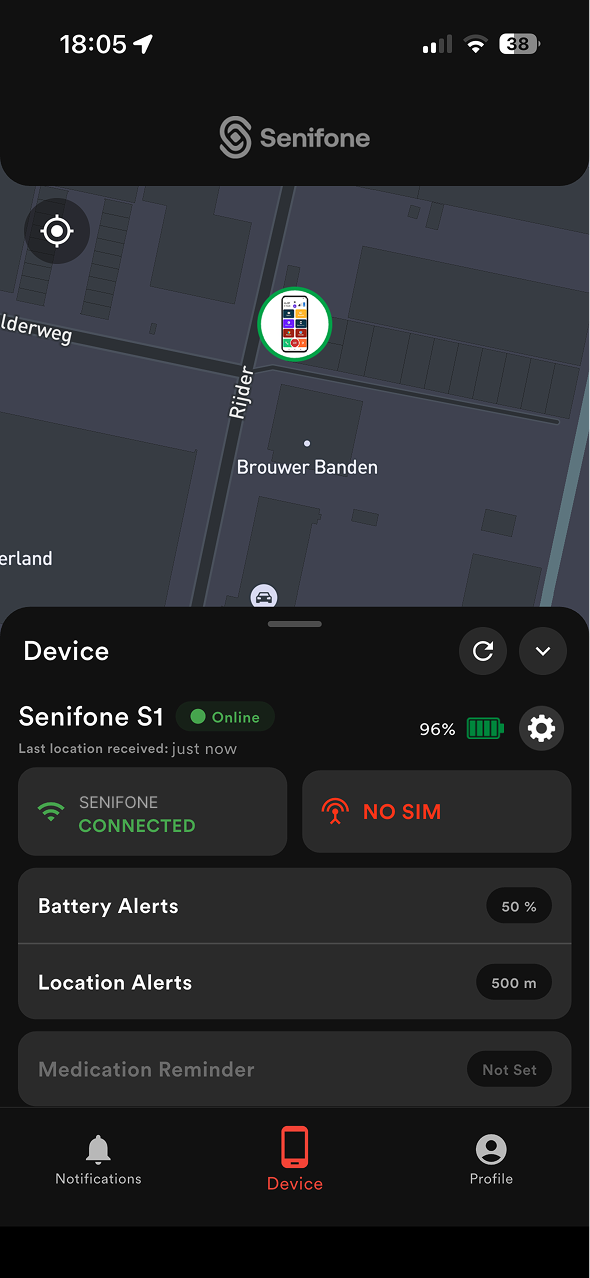
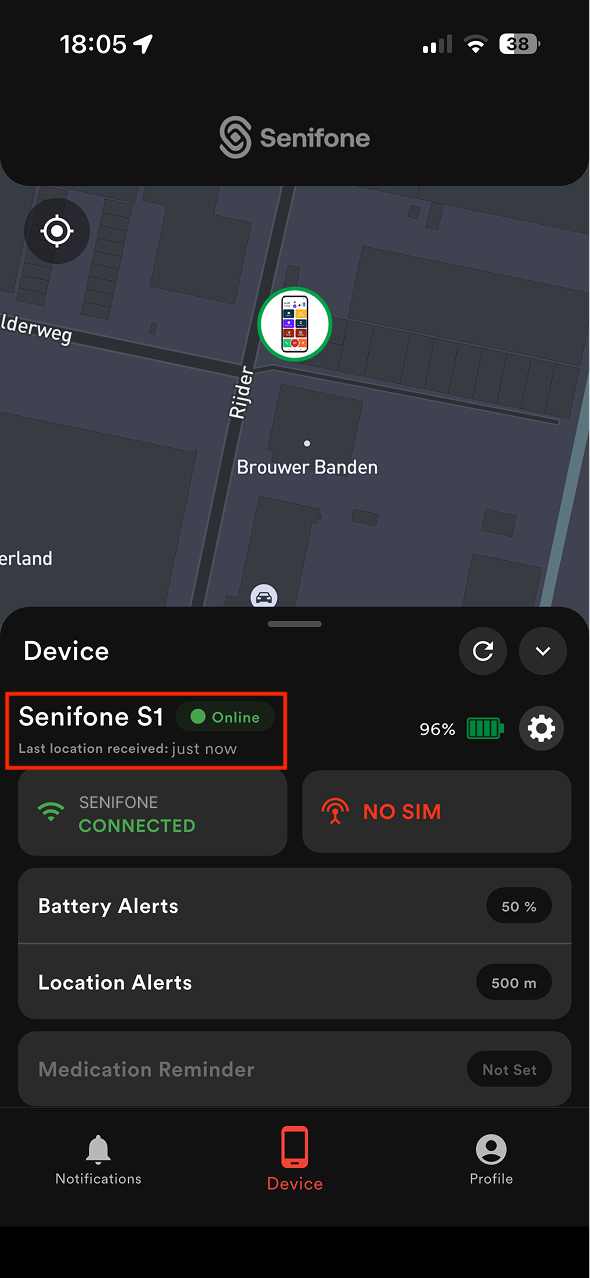
Devices screen
View and manage your connected devices.
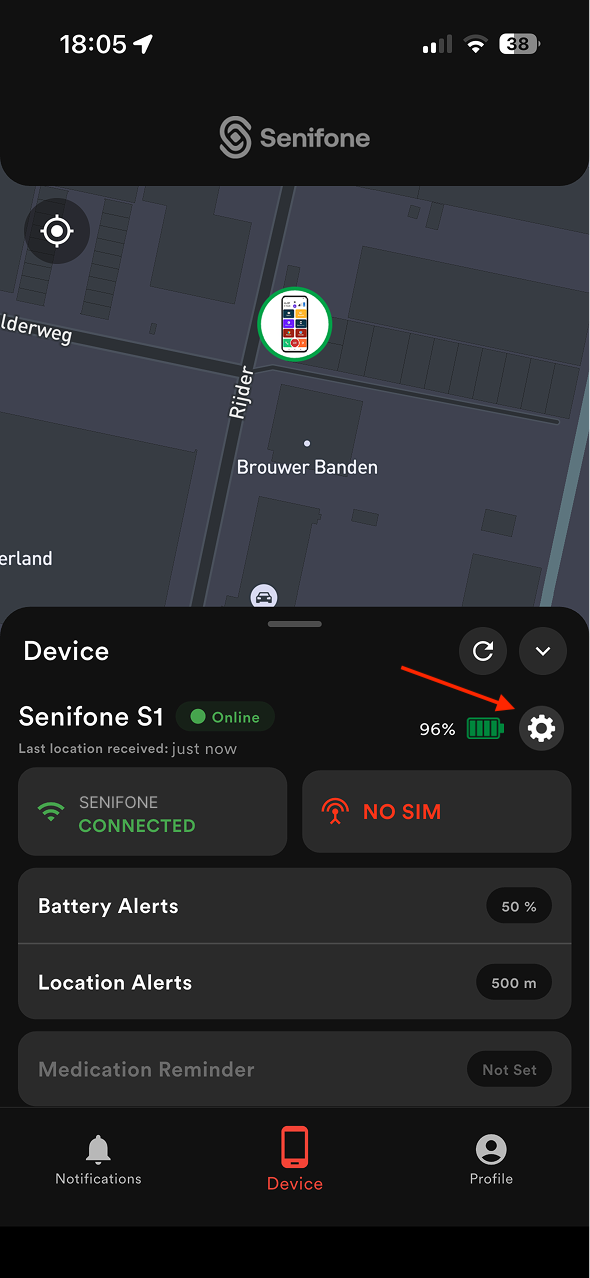
Device overview
Shows:
- Device name
- Online / Offline status
- Battery level
- Last known location
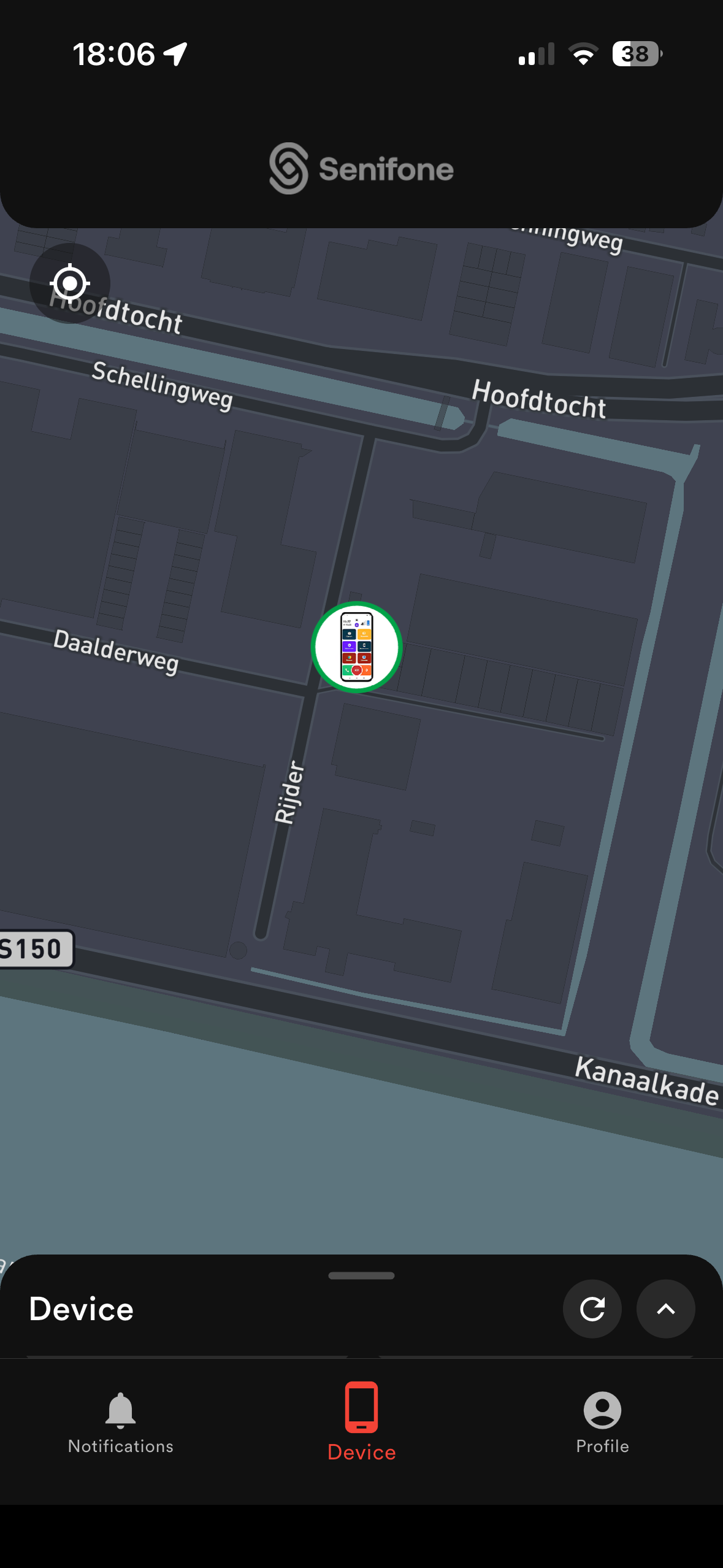
Map view
- Displays device location on a map.
- Supports live tracking when active.
Quick actions
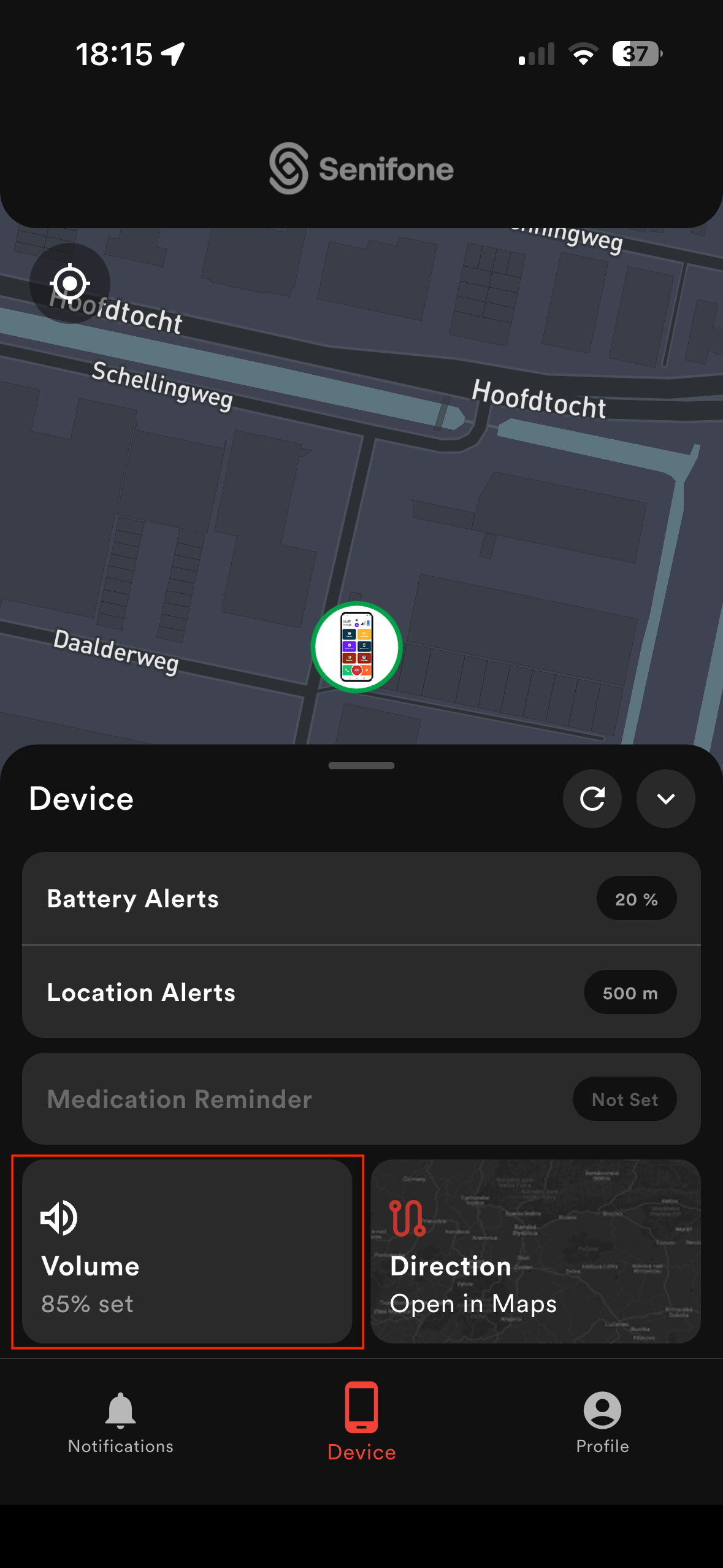
- Volume status
- Direction (navigation)
Device status
- Active — device is online
- Offline — no connection
- Alerts — important notifications
Core Features
Live Location Tracking
To always know where the device is — useful for:
- Keeping track of senior citizens
- Locating a lost device
- Monitoring movement in real time
Live location steps
- Open the Devices screen.
- Select your device.
- View its location on the map.
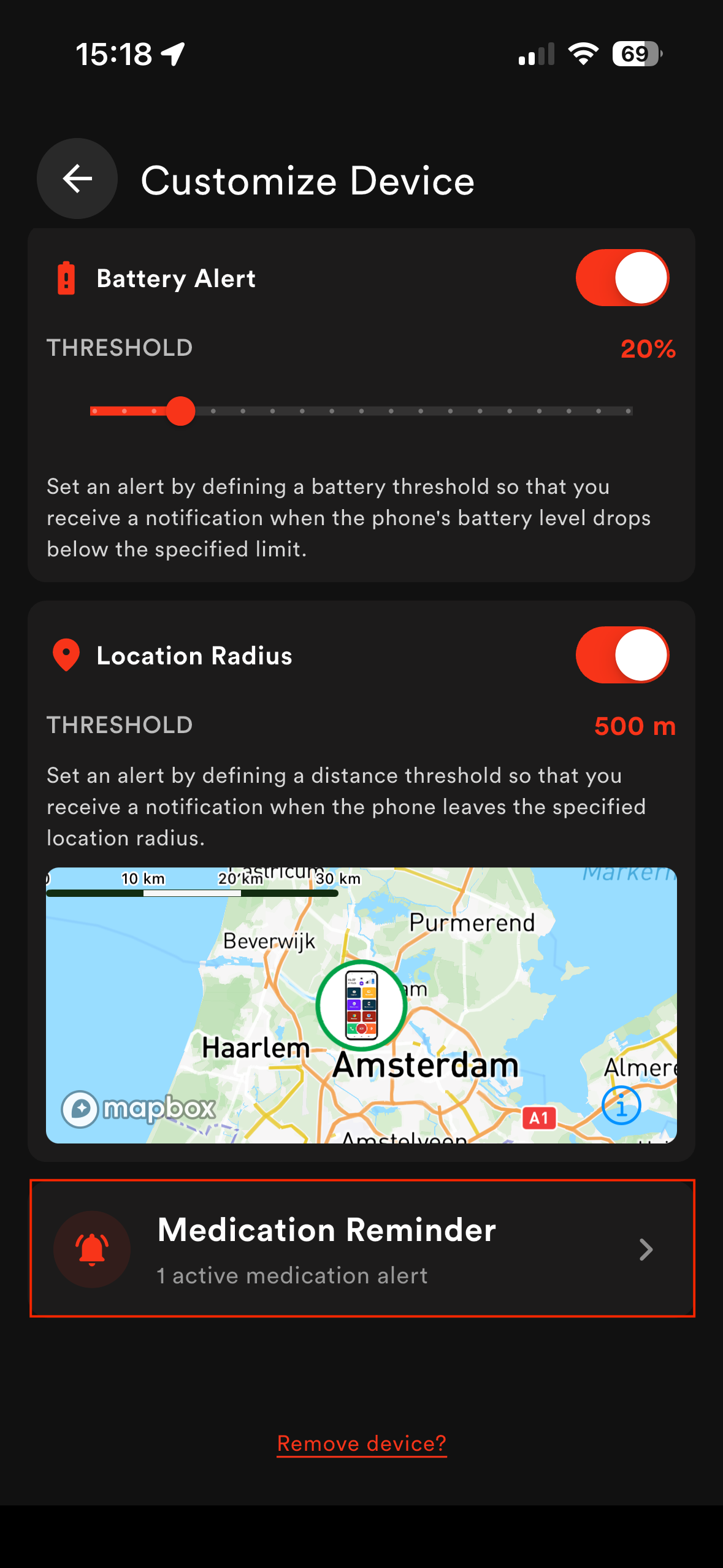
Geo Alerts (Safe zones)
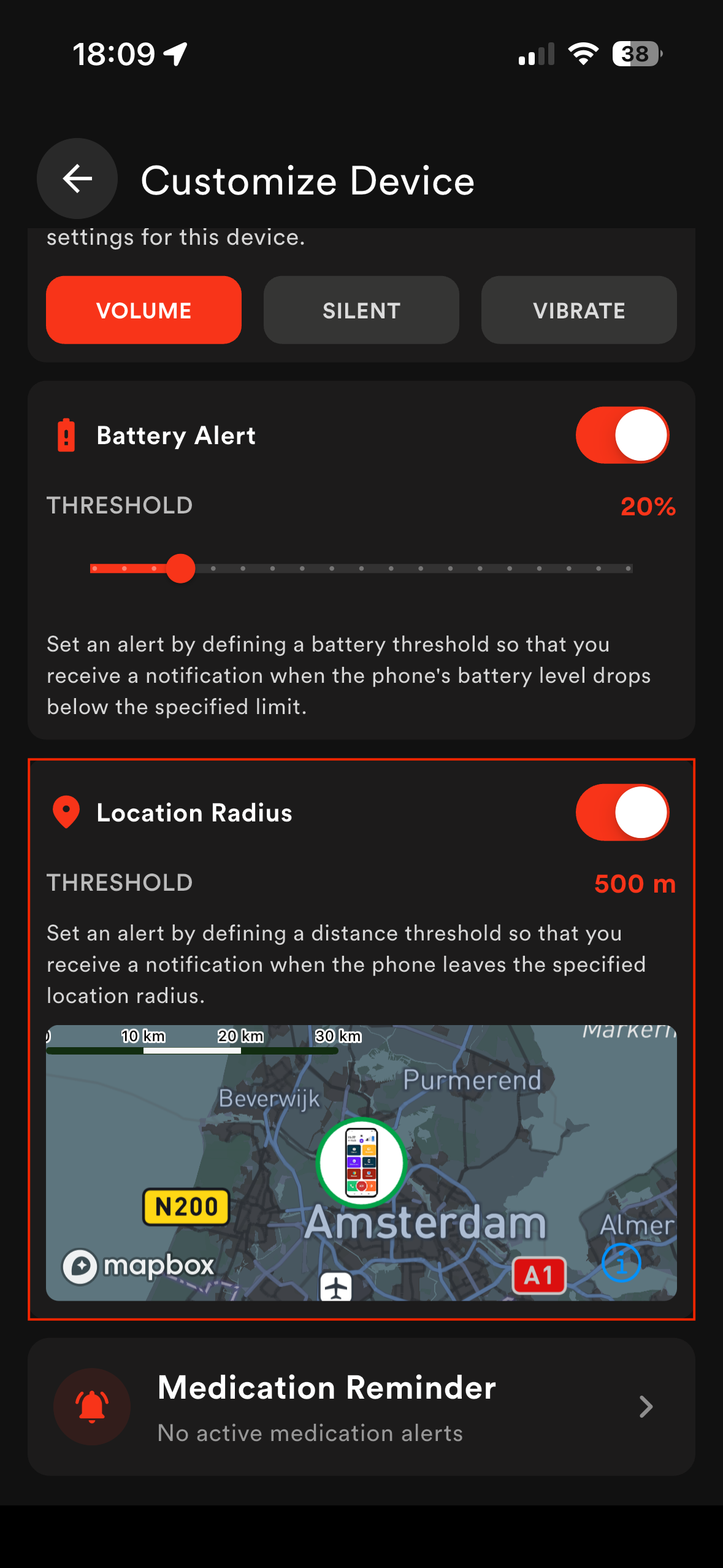
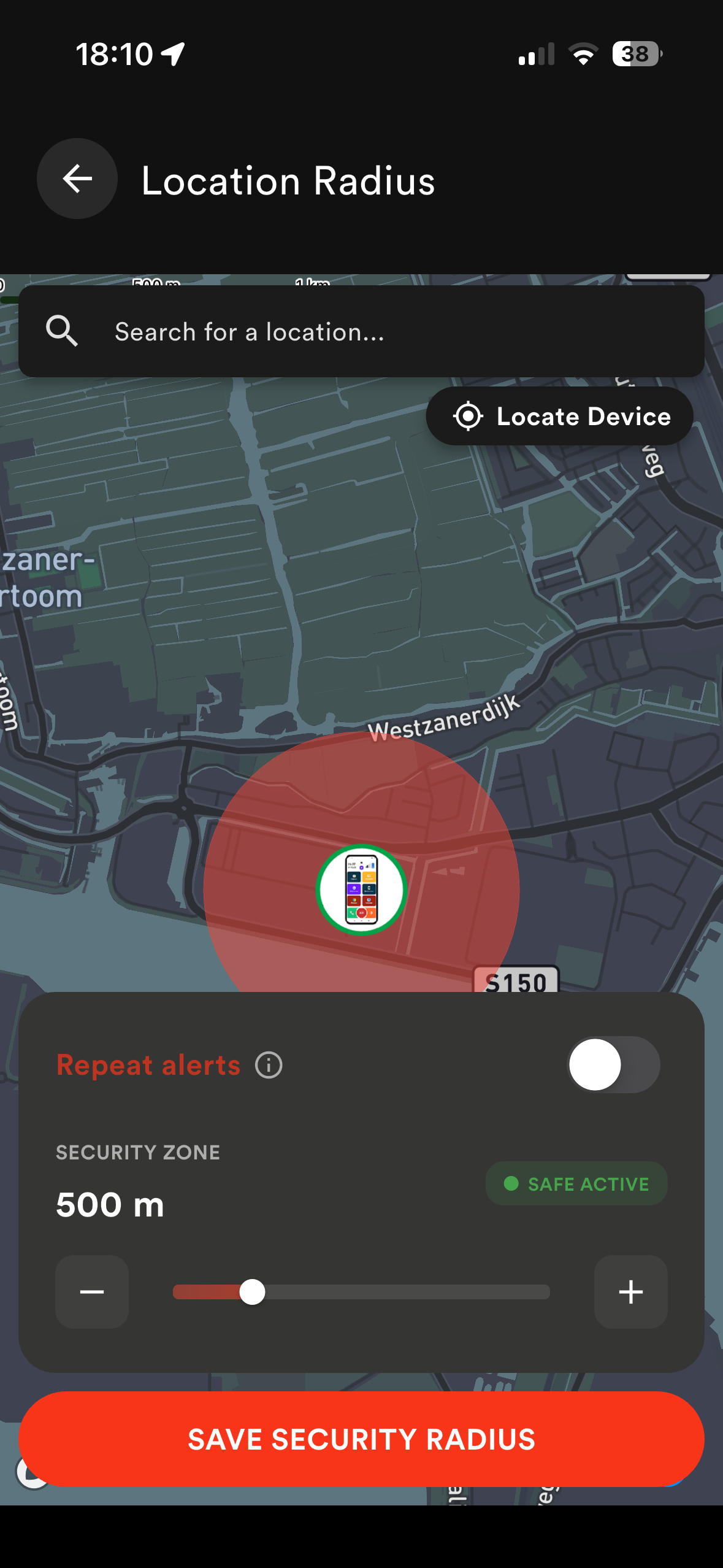
Use this to get notified when the device leaves a specific area.
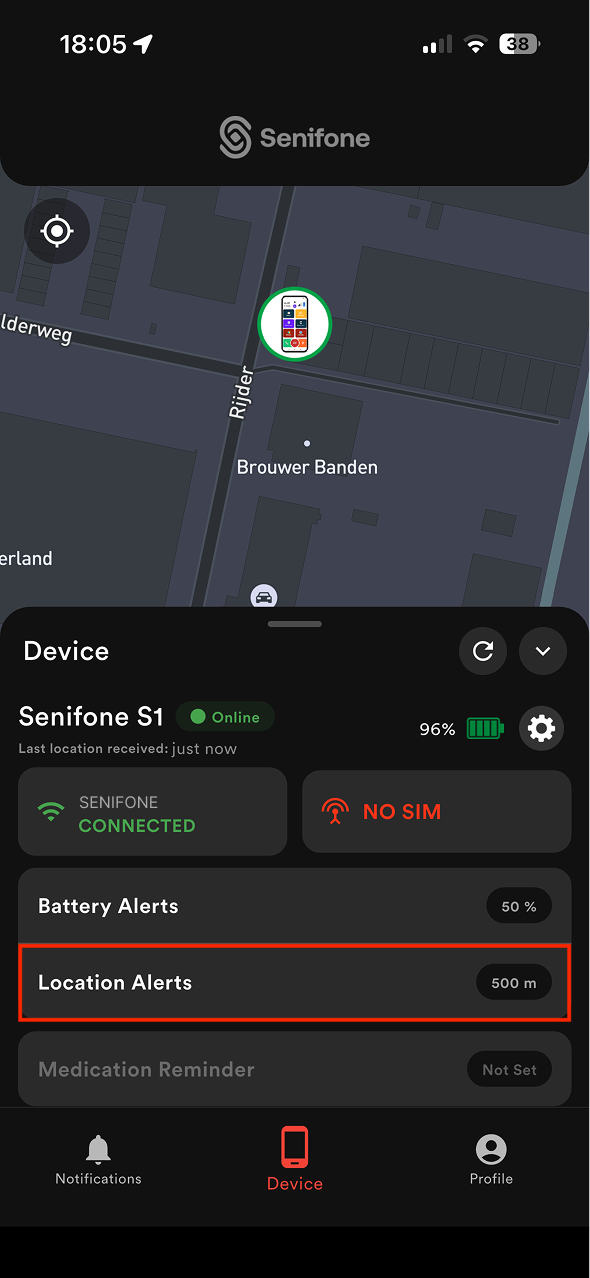
Set a safe zone
- Open Device Settings.
- Set Location Radius.
- Save changes.
SOS Alerts (emergency help)
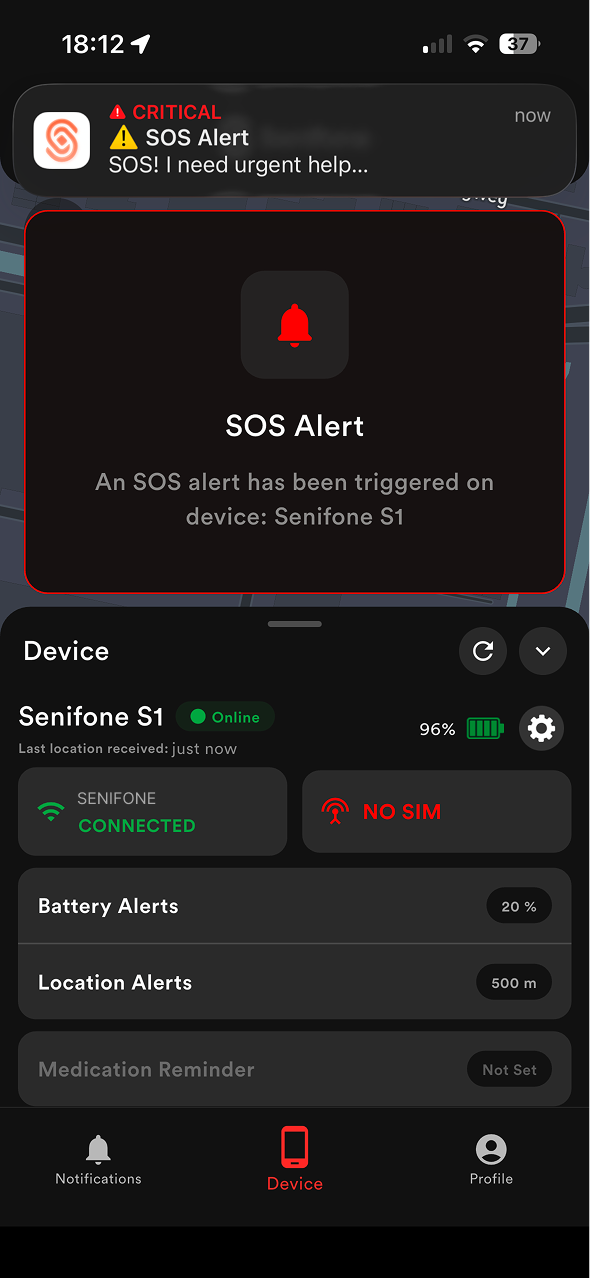
Use this to get instant emergency alerts when the device user needs help.
SOS alert flow
- SOS is triggered from the device.
- You receive an alert in the app
Battery Alerts
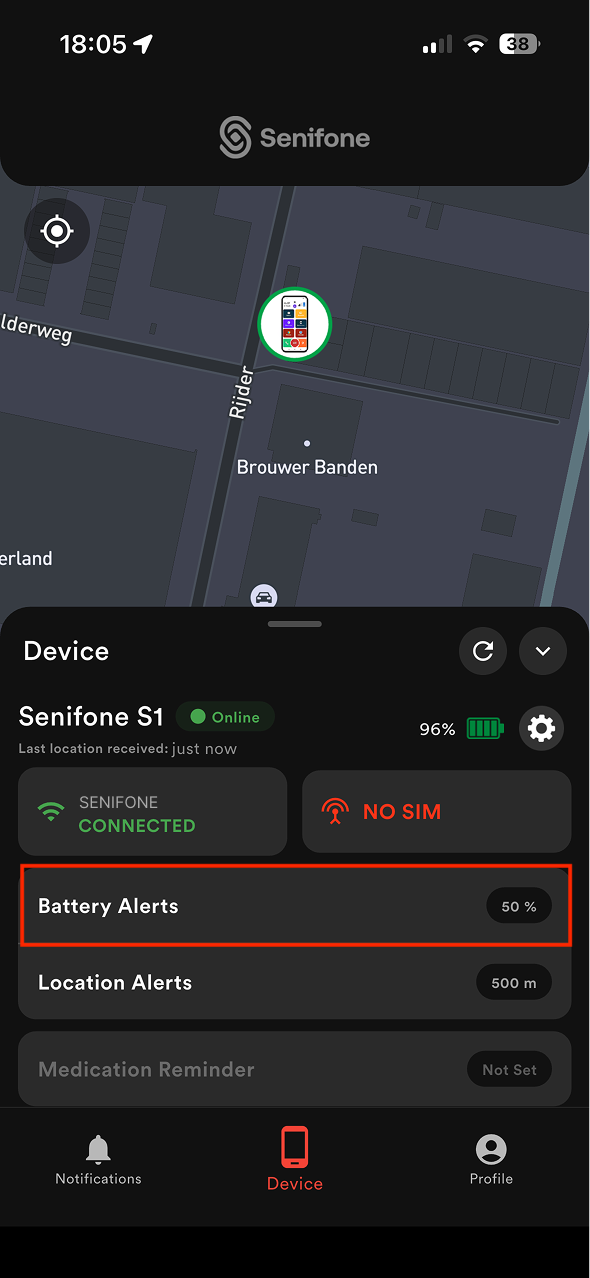
Use this to avoid losing connection due to low battery.
Battery alert flow
You receive alerts when battery drops below a set level
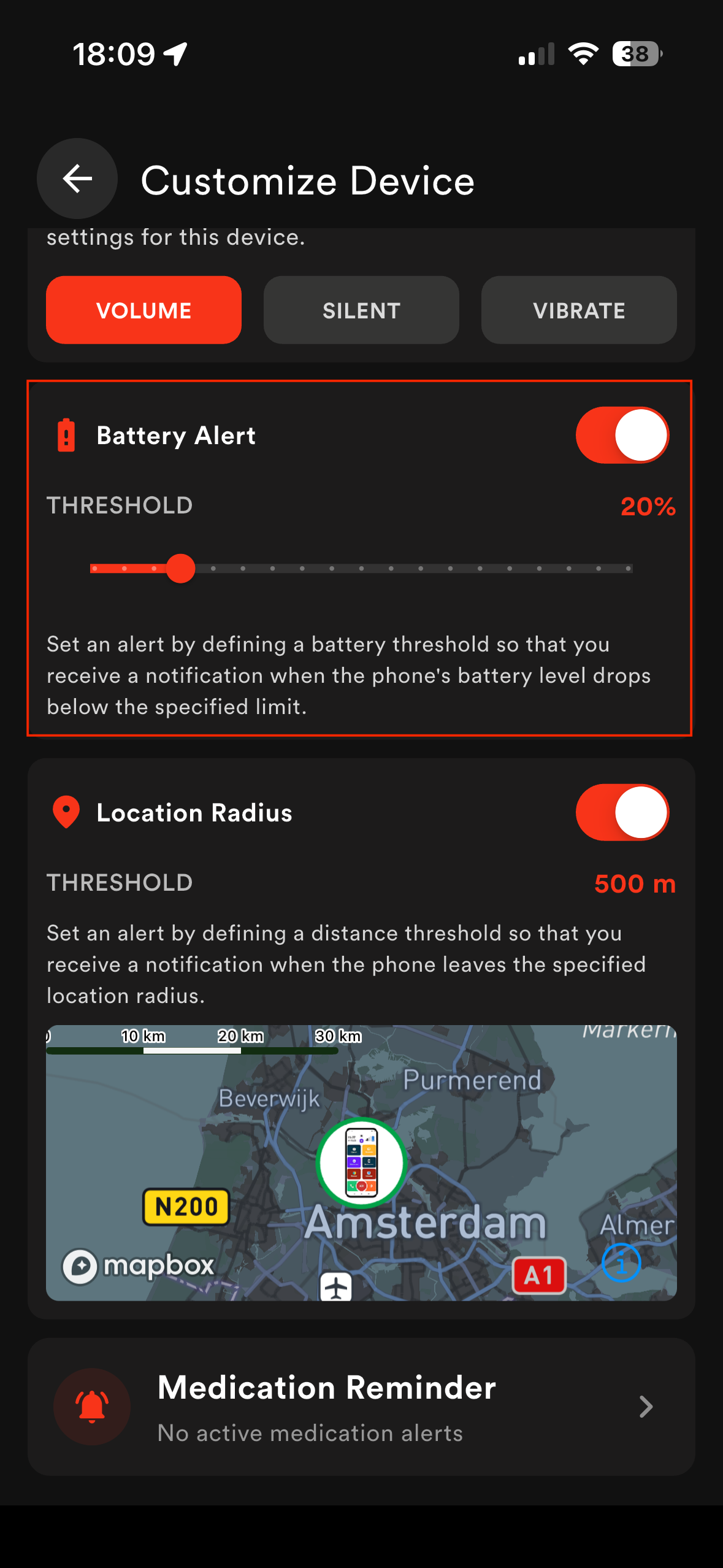
Use battery alerts
- Open Device Settings.
- Open Battery Alert.
- Set a battery threshold.
- Save changes.
Critical Alerts (always heard)
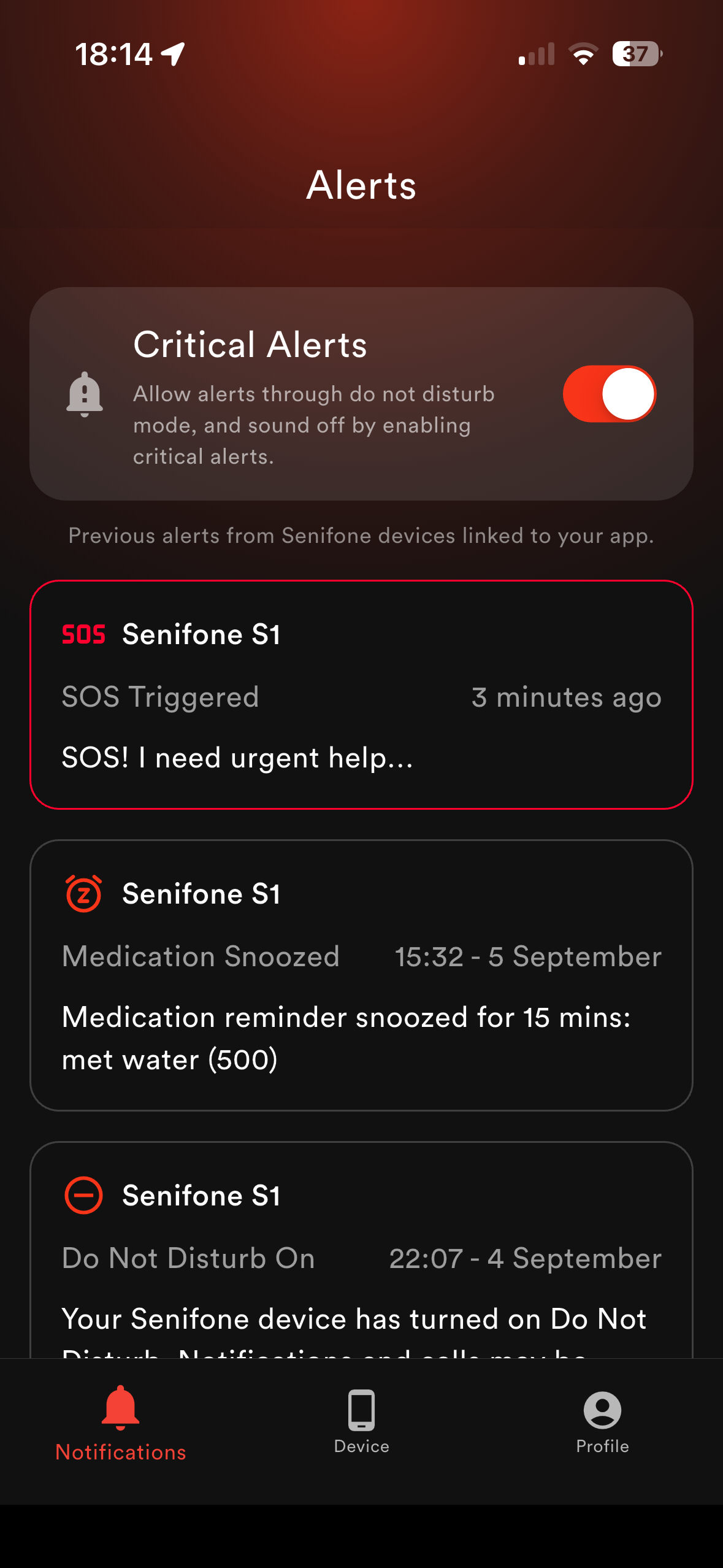
Use this to be ensure you never miss important alerts, even in Do Not Disturb mode.
When enabled plays sound for:
- SOS alerts
- Geo alerts
- Battery alert
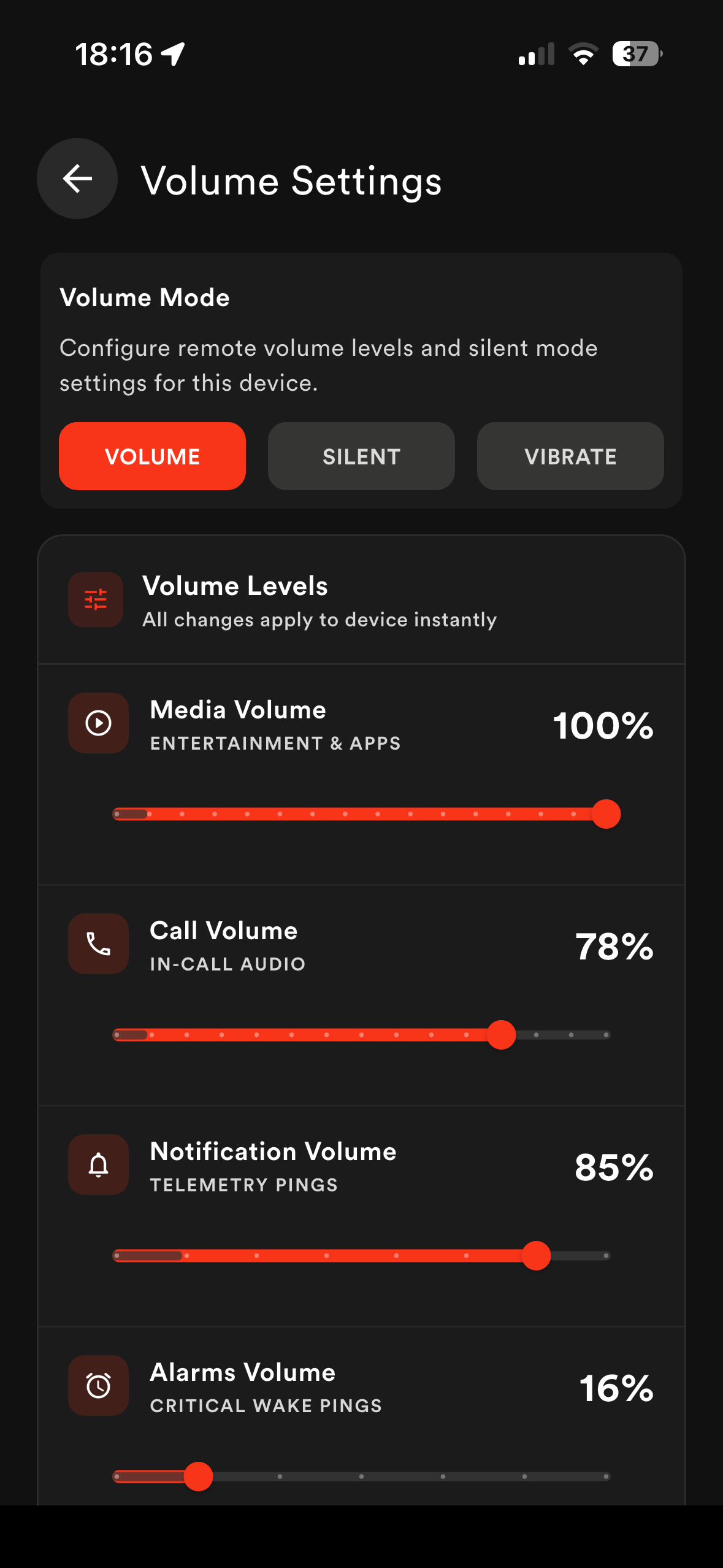
Volume settings
Controls
- Media volume
- Call volume
- Notification volume
- Alarm volume
Option:
- Restrictive mode volume limit
Inactivity Alert
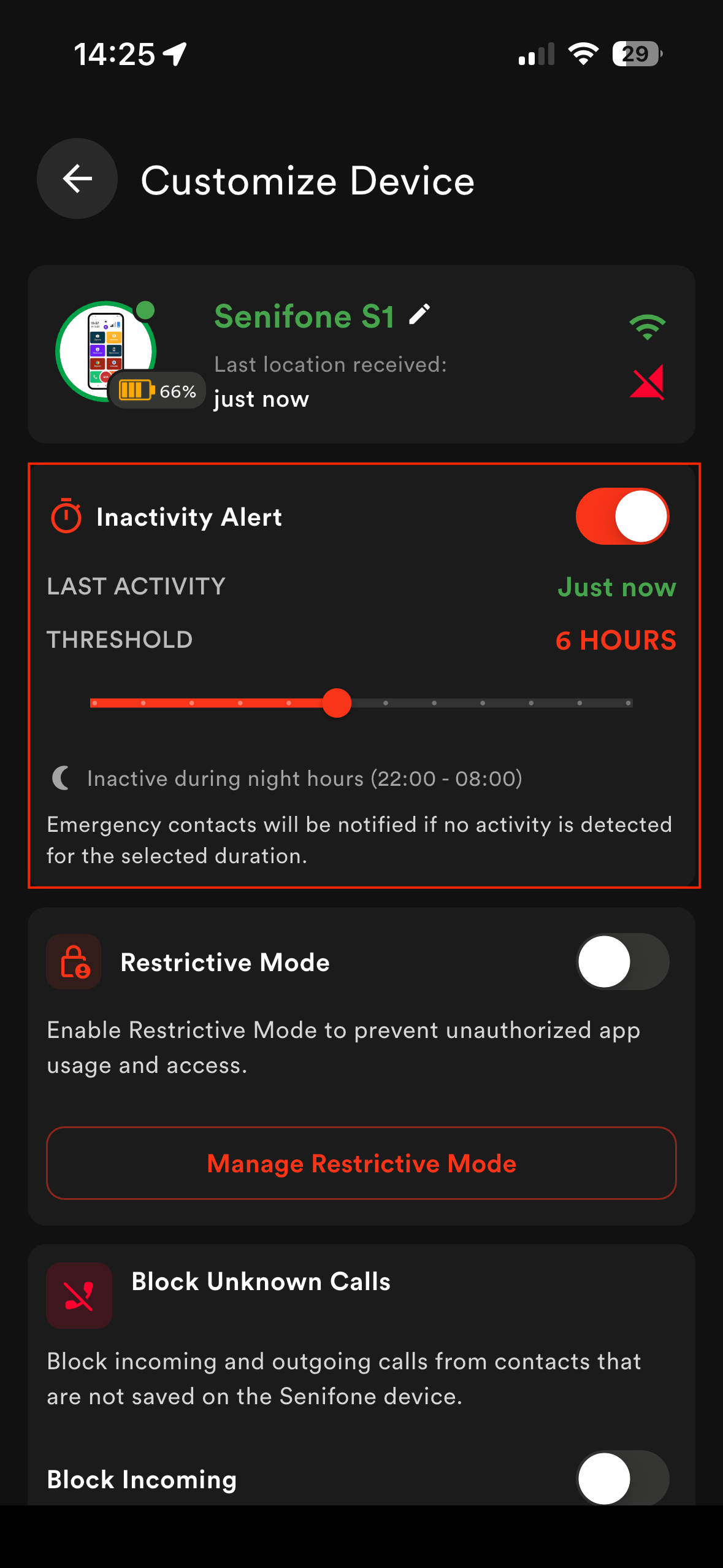
Inactivity Alert notifies you if your loved one has not used their phone for a set period of time.
How it works
If the Senifone device has not been used for the selected time period, an alert – "Are you OK?" – will appear on the device. The user needs to confirm they are fine. Once confirmed, a notification is sent to the Companion App. If there is no response, the emergency contacts are notified.
How to set it up
Open Inactivity Alert in the Companion App. Select a time period: 1 to 12 hours. The inactivity timer is paused between 10:00 PM and 8:00 AM – no alerts will be triggered during the night.
Restrictive mode
Restrictive Mode is controlled from the Companion App.
Enable restrictive mode
- Open Settings.
- Go to Restrictive Mode.
- Set a PIN if needed.
- Enable the mode.
What it does
- Limits maximum volume levels
- Prevents increasing volume beyond limit
- Helps enforce controlled usage
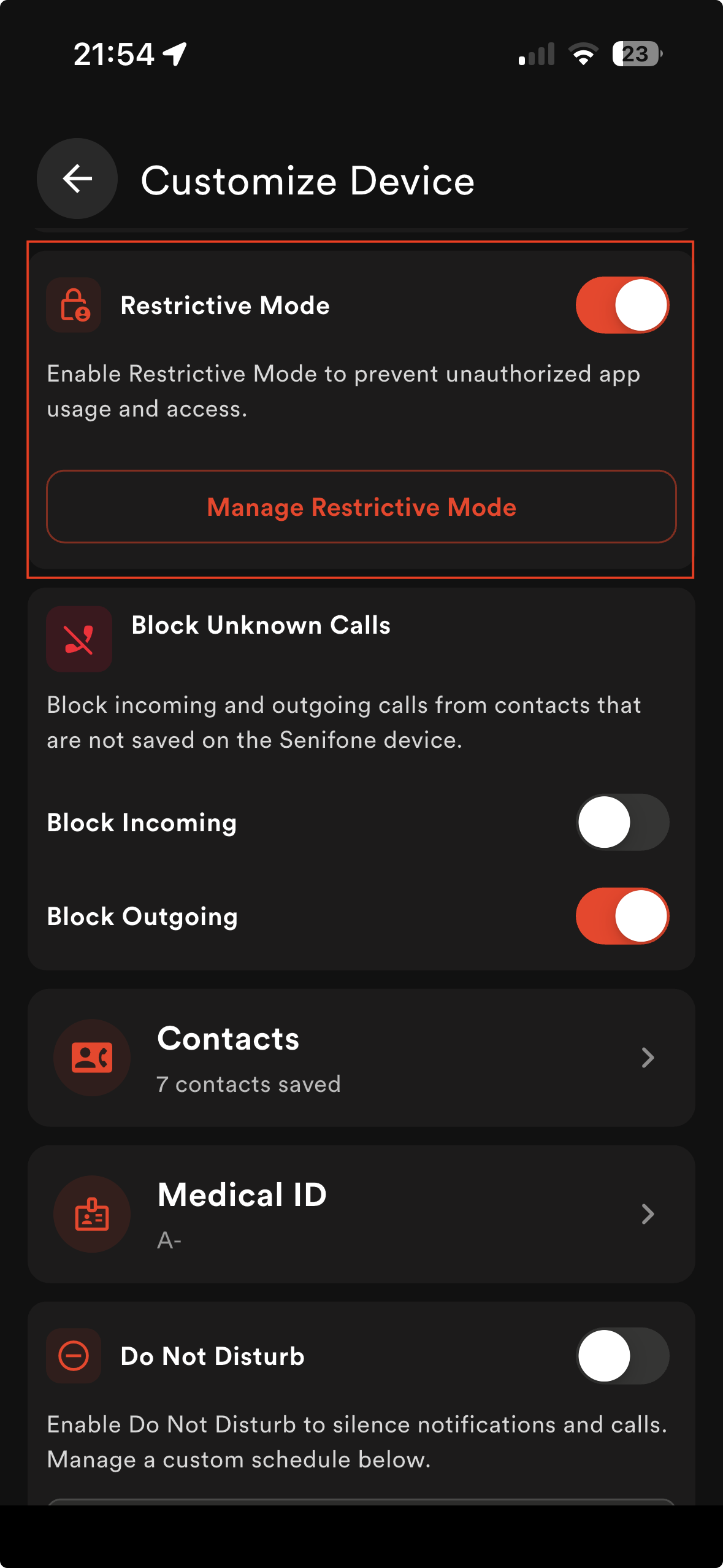
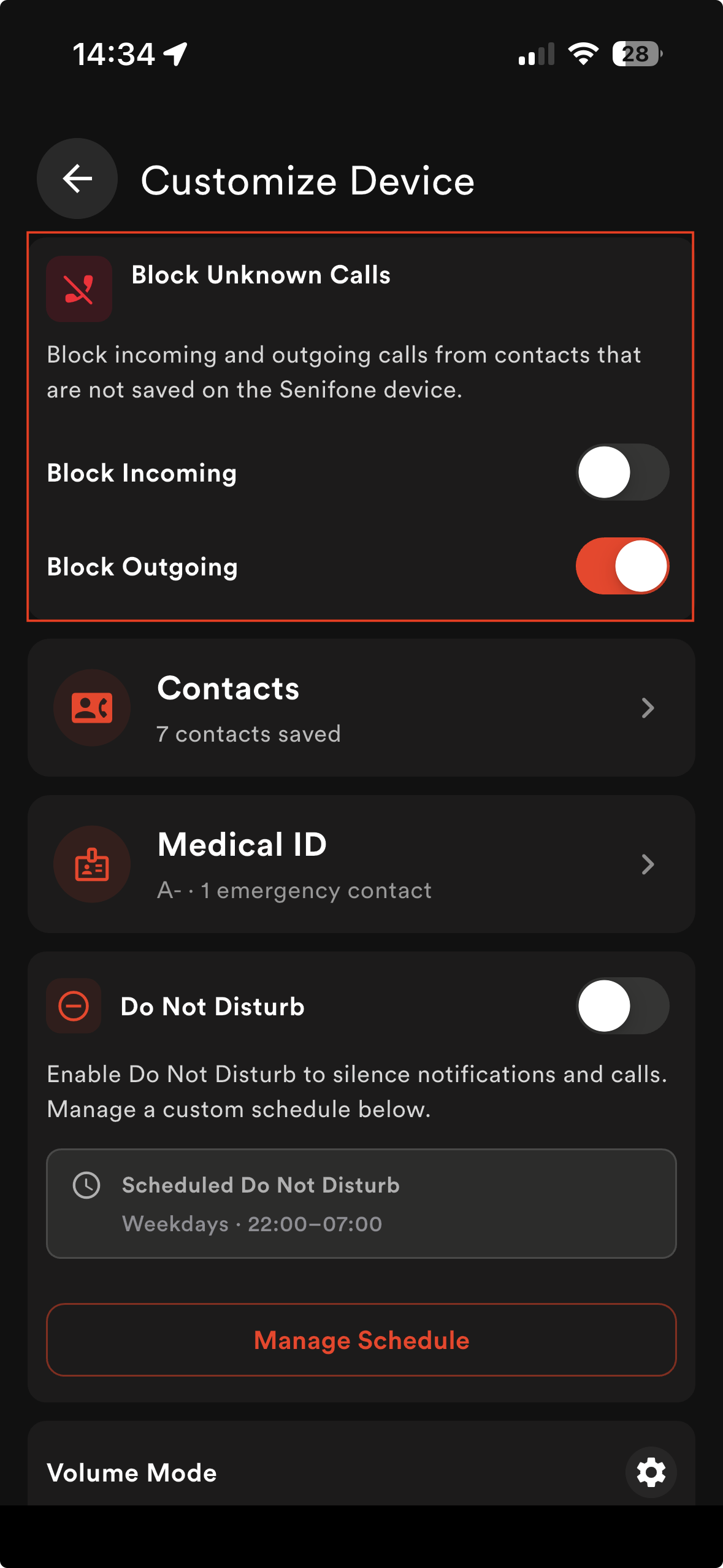
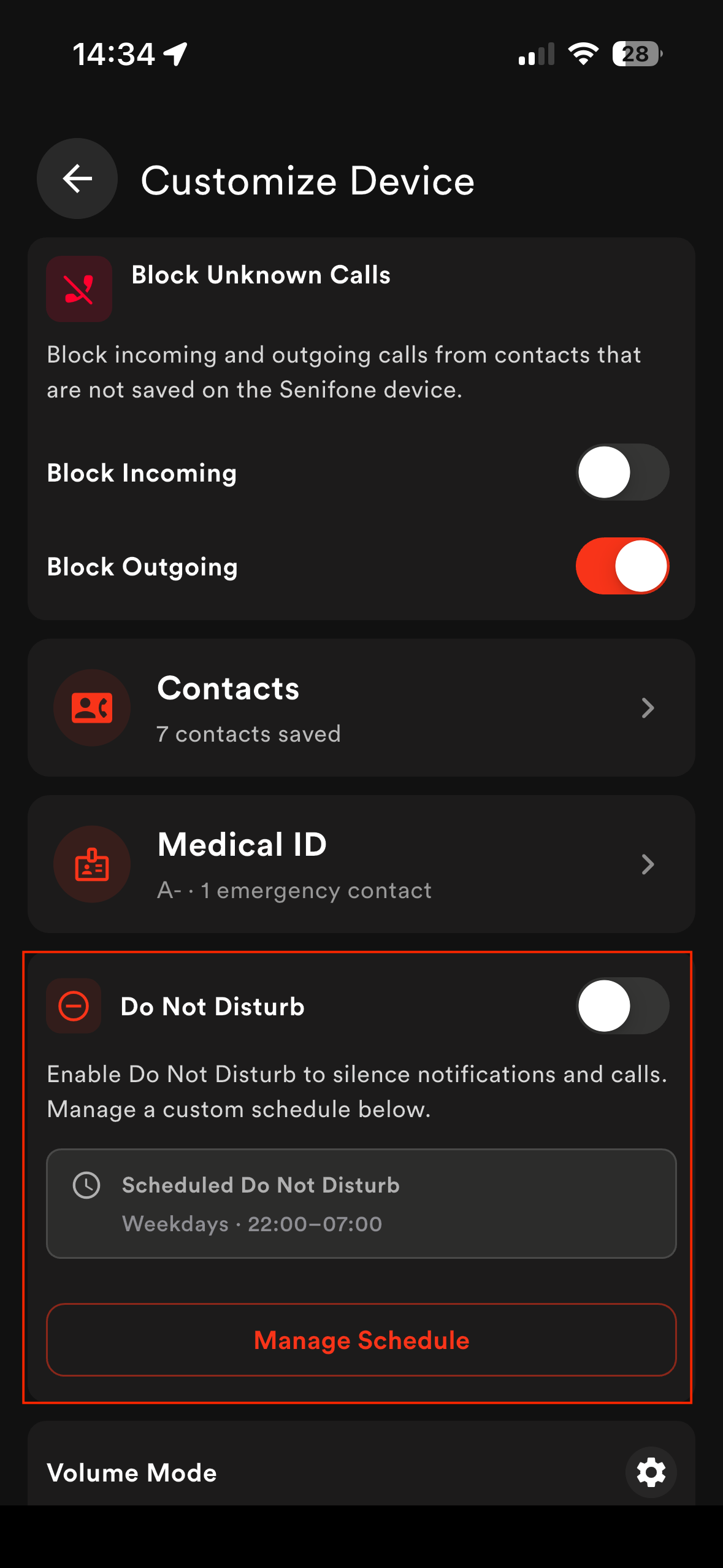
Block Unknown Calls
Prevents calls to or from numbers that are not saved in the contacts list.
Configure blocked call directions
Choose what to block:
- Incoming calls: unknown numbers cannot call the Senifone device.
- Outgoing calls: calls cannot be made to numbers not in the contacts list.
- Both: block calls in both directions.
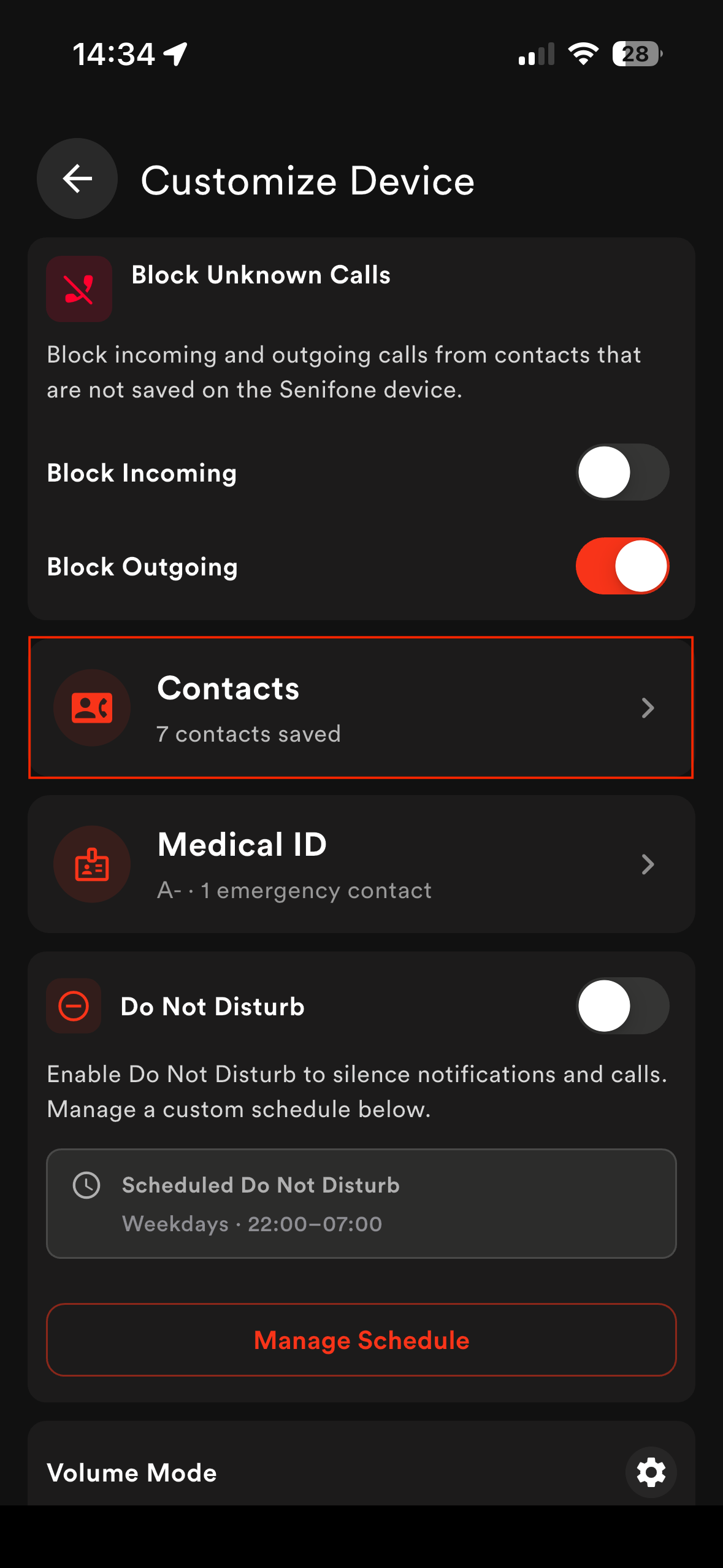
Contacts
Manage the contacts on the Senifone device directly from the Companion App – without needing access to the phone itself.
What you can do
- View the full contacts list.
- Add new contacts.
- Edit existing contact details.
- Delete contacts.
How to manage contacts
Open Contacts in the Companion App.
- To add a contact – tap + button and fill in the details.
- To edit a contact – tap the contact and edit what you need.
- To delete a contact – tap the contact and select Delete Contact.
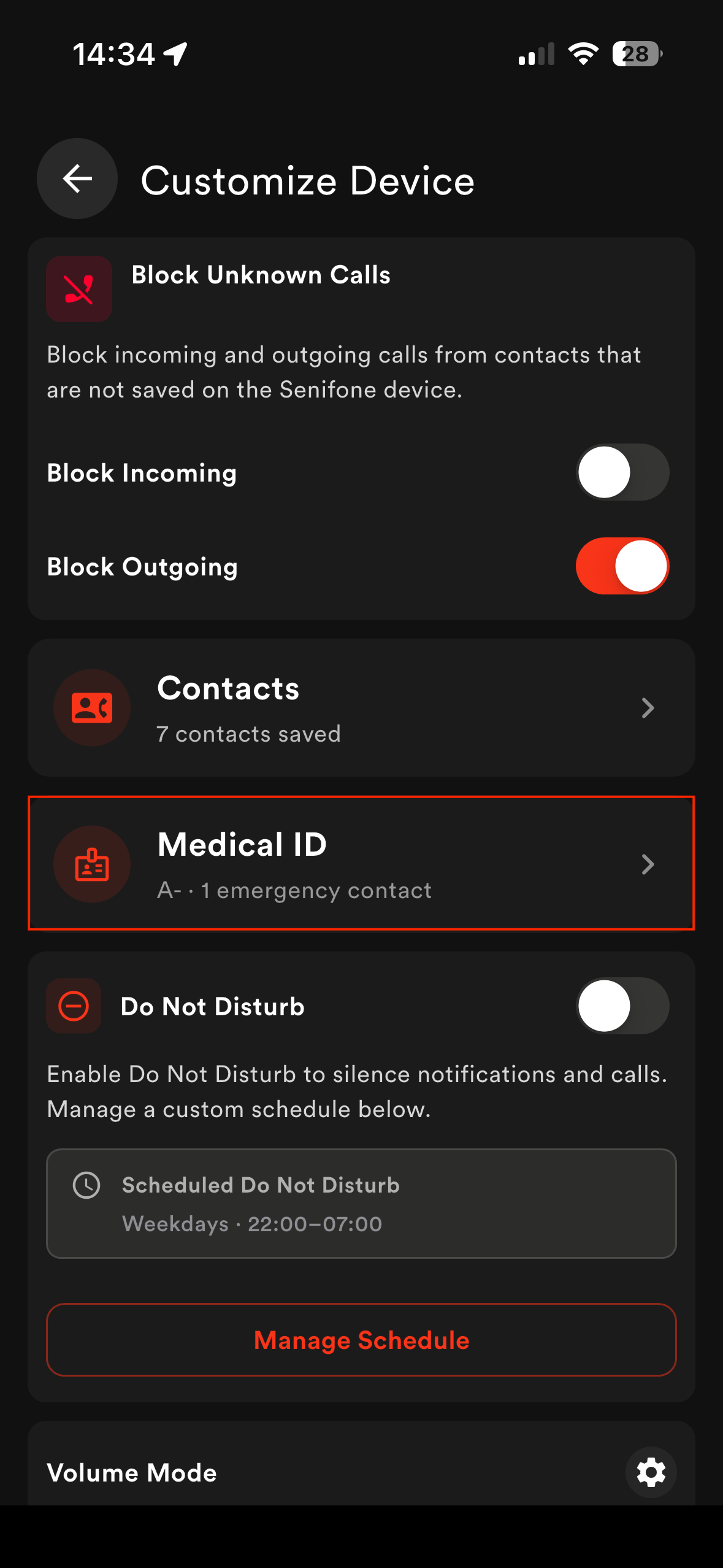
Medical ID
Store important health information in the Companion App. This information can be updated at any time.
Information you can store
- Blood type
- Critical allergies
- Current medication
- Organ donor status
- Primary residence
- Emergency contacts
Set up Medical ID
- Open Medical ID in the Companion App.
- Tap Update Medical Info.
- Fill in the relevant fields.
- Tap Save Profile.
Note
Keep this information up to date – it may be needed in an emergency.
Do Not Disturb
Enable or disable Do Not Disturb on the Senifone device remotely, or set a schedule for when it should be active automatically.
Set up Do Not Disturb
- To enable or disable manually – use the toggle.
- To set a schedule: Tap Manage Schedule. Select the days and time period.
- Tap Save.
Medication Reminder
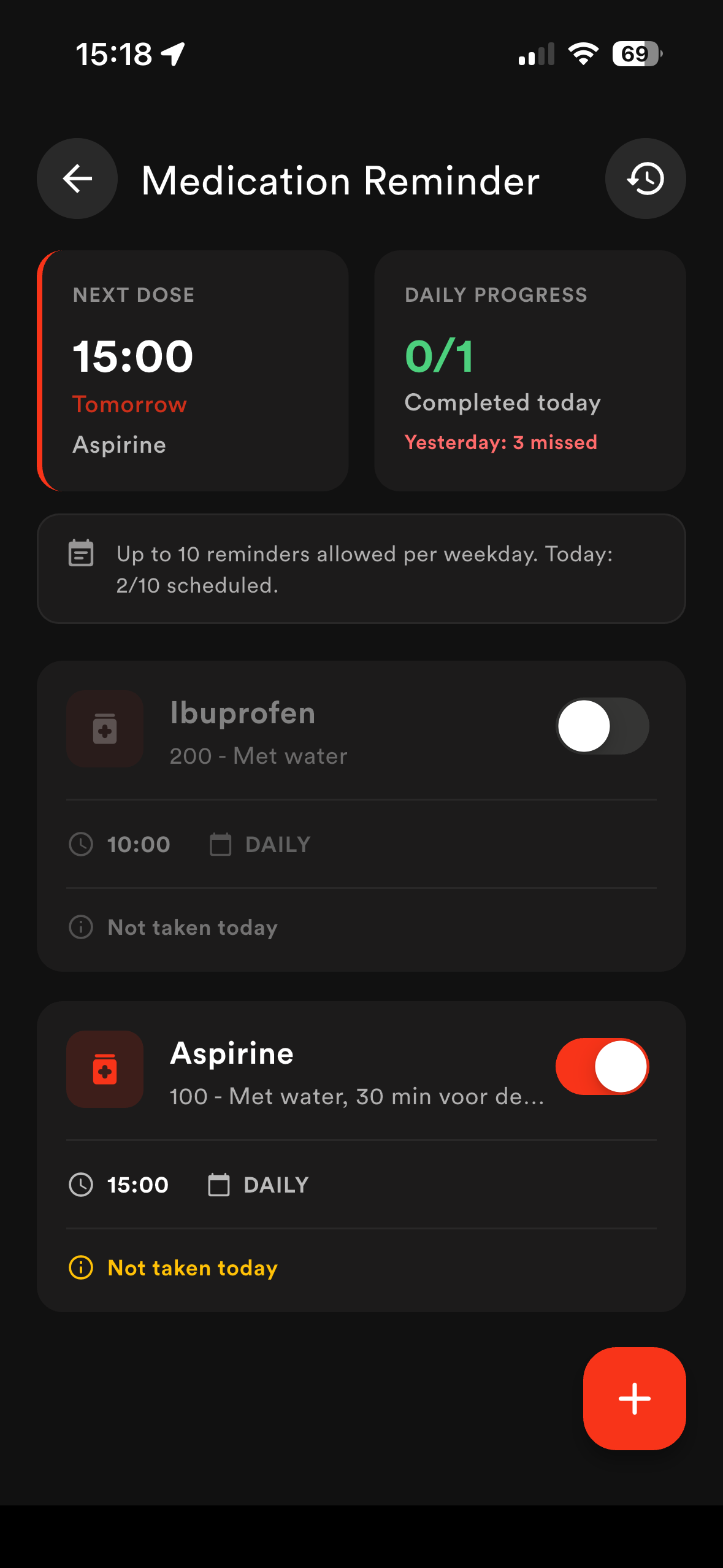
Create medication reminders for the Senifone user directly from the Companion App. When a reminder is due, a notification appears on the Senifone device asking the user to confirm they have taken their medication. The result is reported back to the Companion App.
What you can set
- Medication name
- Dosage
- Time and days of intake
- Additional notes or description
Set up Medication Reminder
- Open Medication Reminder in the Companion App.
- Tap + button.
- Fill in the medication details.
- Select the days and time for the reminder.
- Tap Confirm Reminder.
Medication reminder behavior
At the set time, a notification appears on the Senifone device. The users confirm they have taken the medication. The Companion App shows the medication as taken. If there is no confirmation, it is shown as not taken.
Profile and settings
Manage your personal preferences.
Profile
- Name
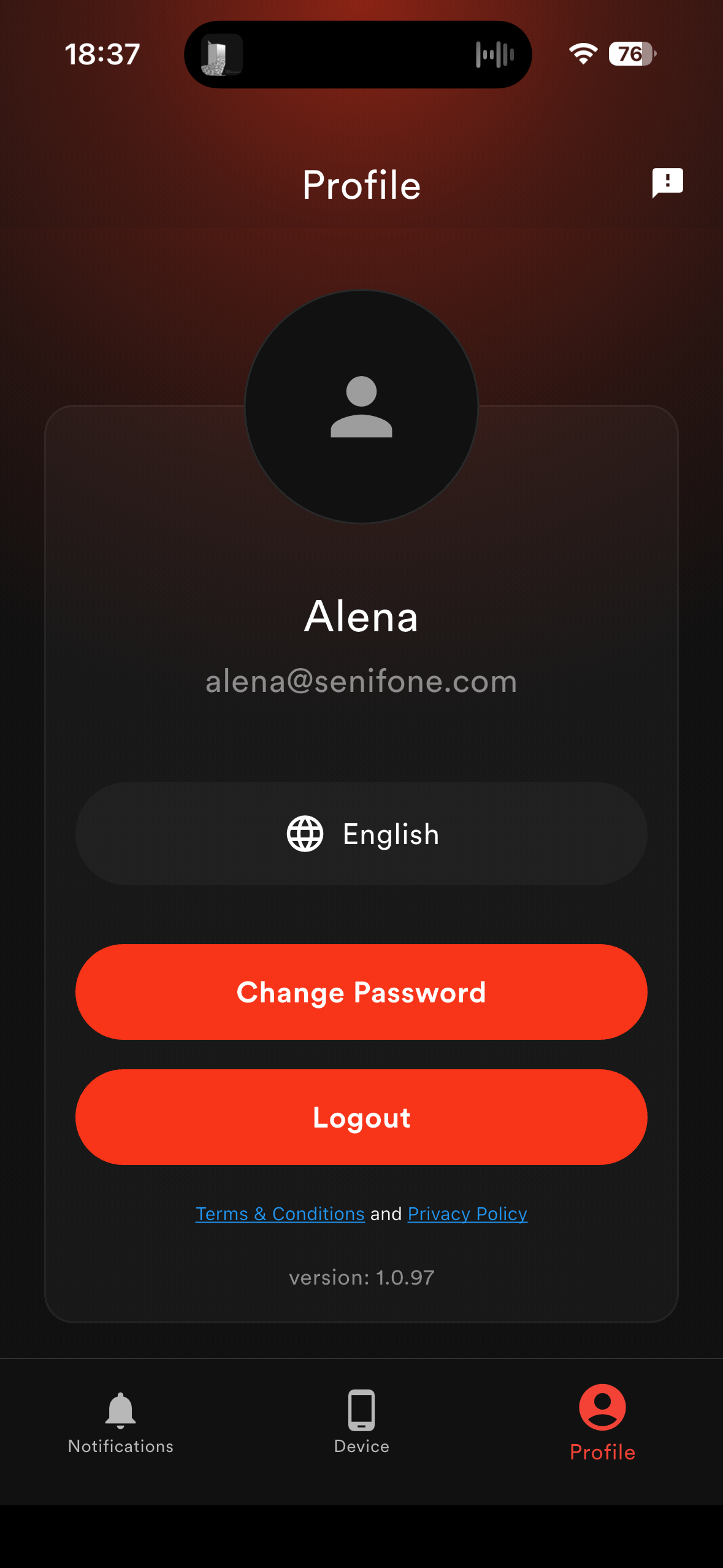
Options
- Language
- Change password
- Logout
Legal
- Terms & Conditions
- Privacy Policy
Feedback
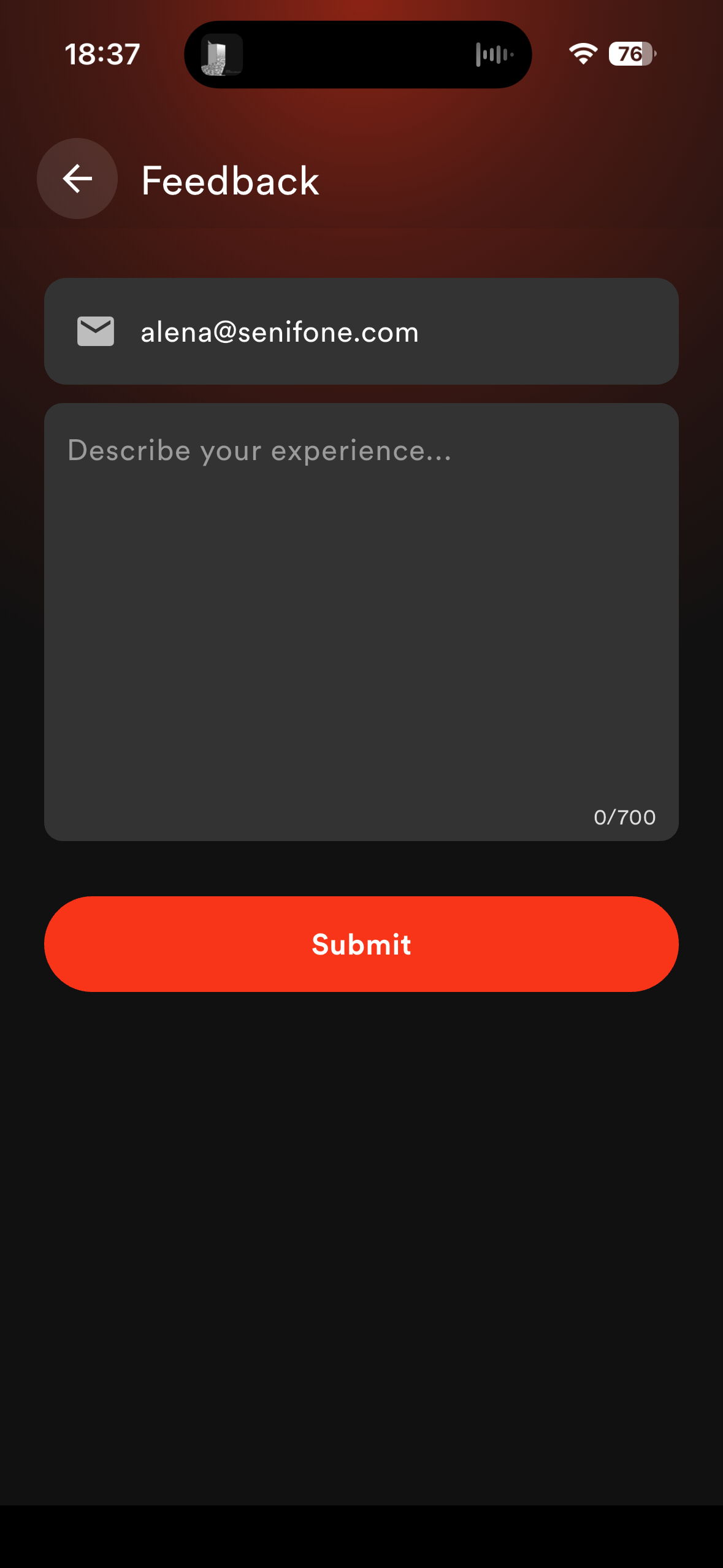
Send feedback about the app.
Submit feedback
- Open Feedback.
- Enter your message (max 700 characters).
- Tap Submit.