Customization
Overview
The Customization menu allows you to adjust the look and feel of Senifone.
Customization options
You can customize:
- Home
- Shortcuts
- Senifone Keyboard
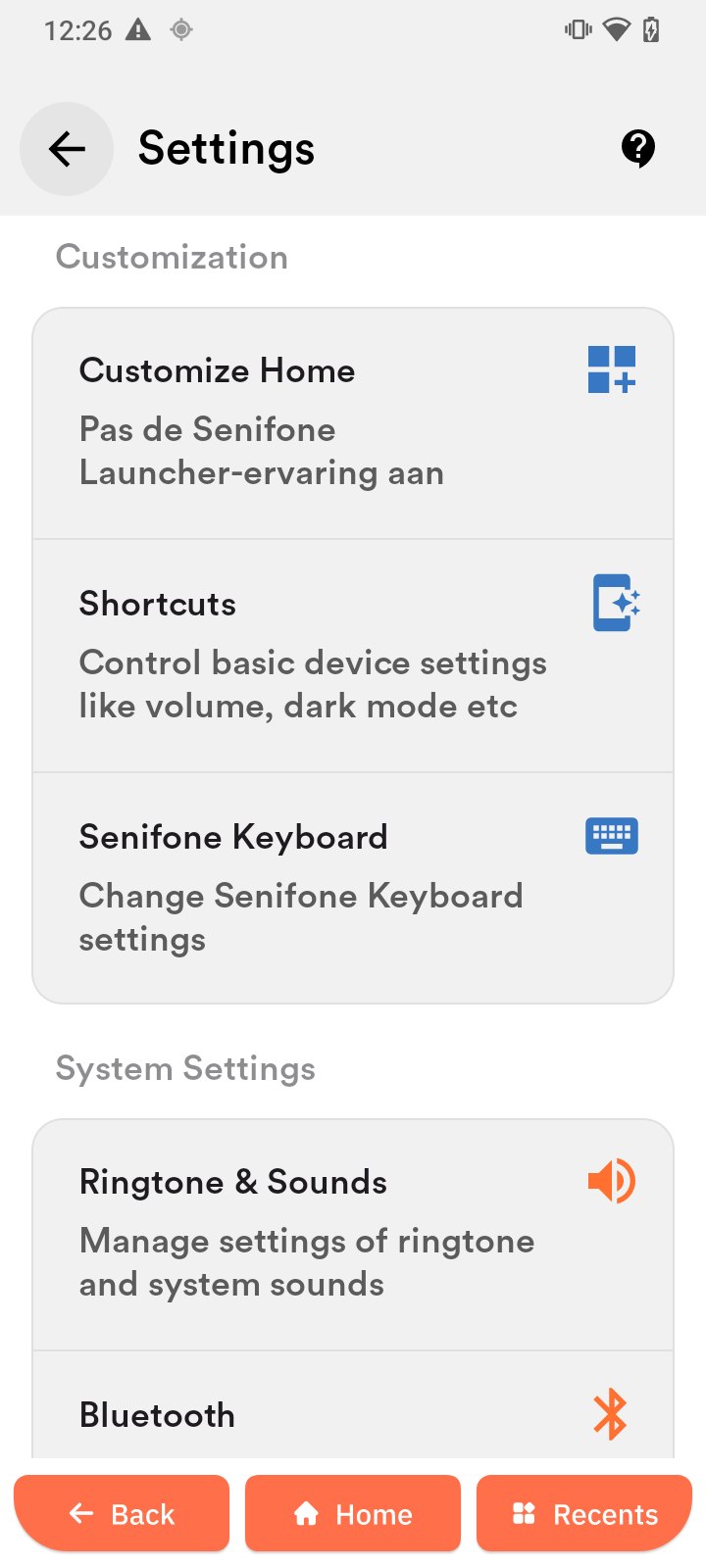
Customize Home
- Set text size (Custom allows a personalized size)
- Set app tile size
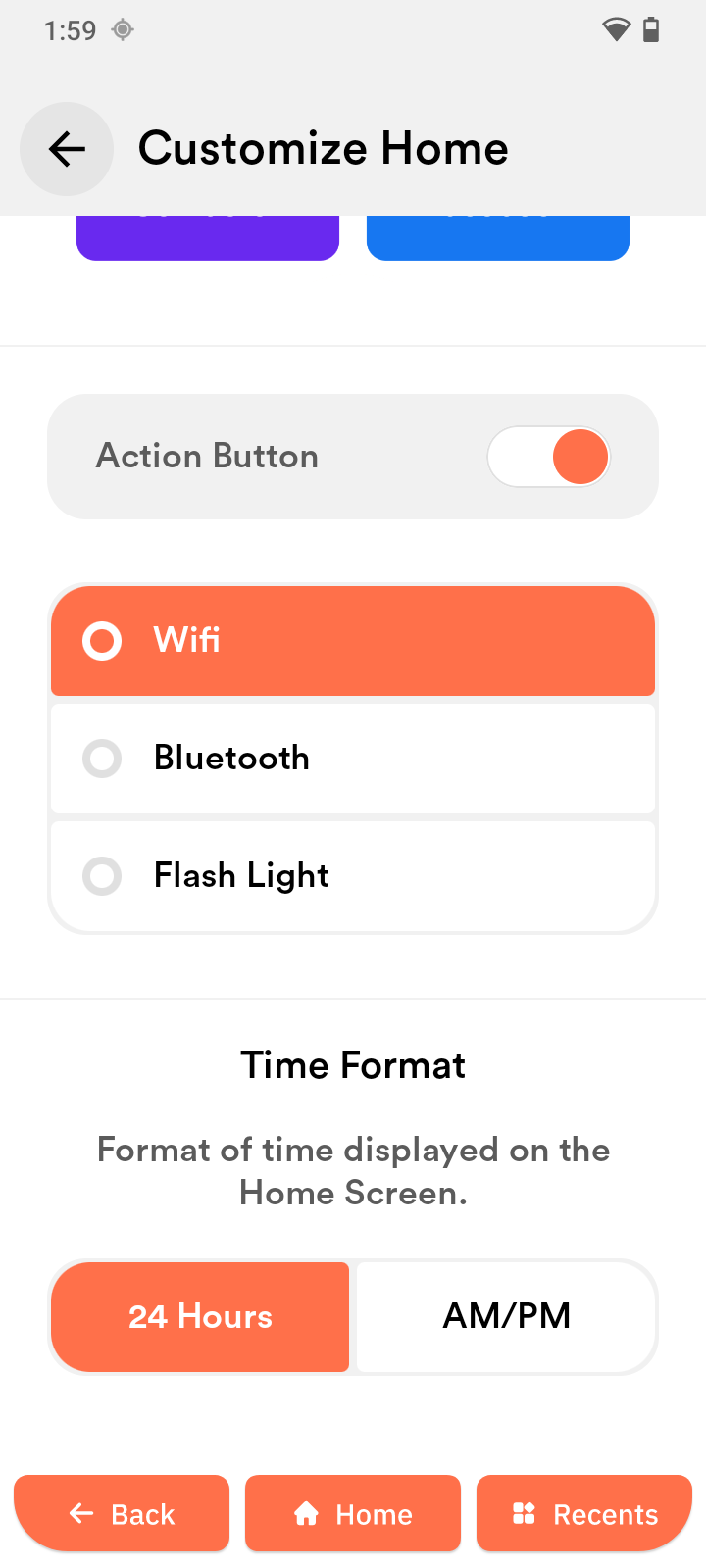
- Enable or disable the Action Button
- Choose Action Button function
- Select time format
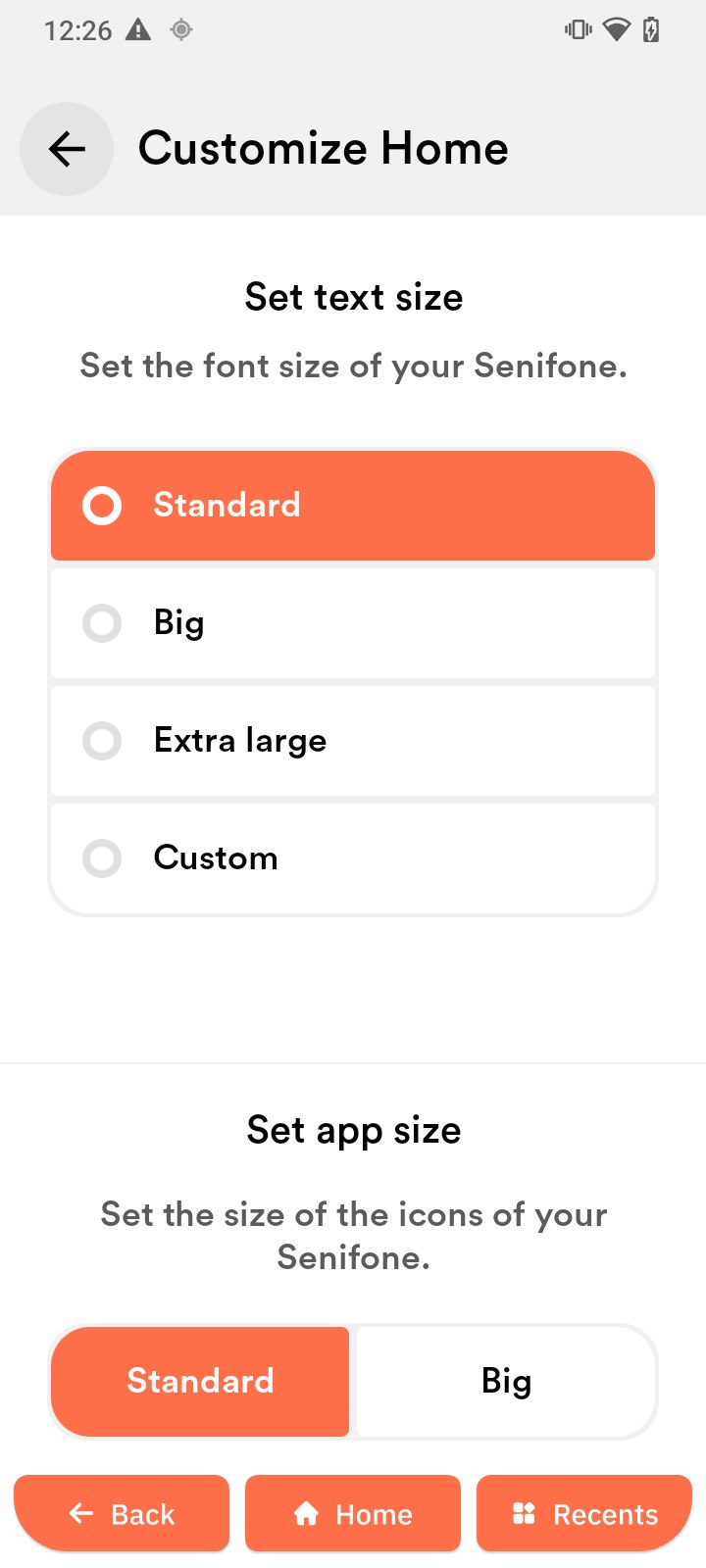
Set text size
- Open Settings.
- Tap Customize Home.
- Select Standard, Big, Extra large, or Custom.
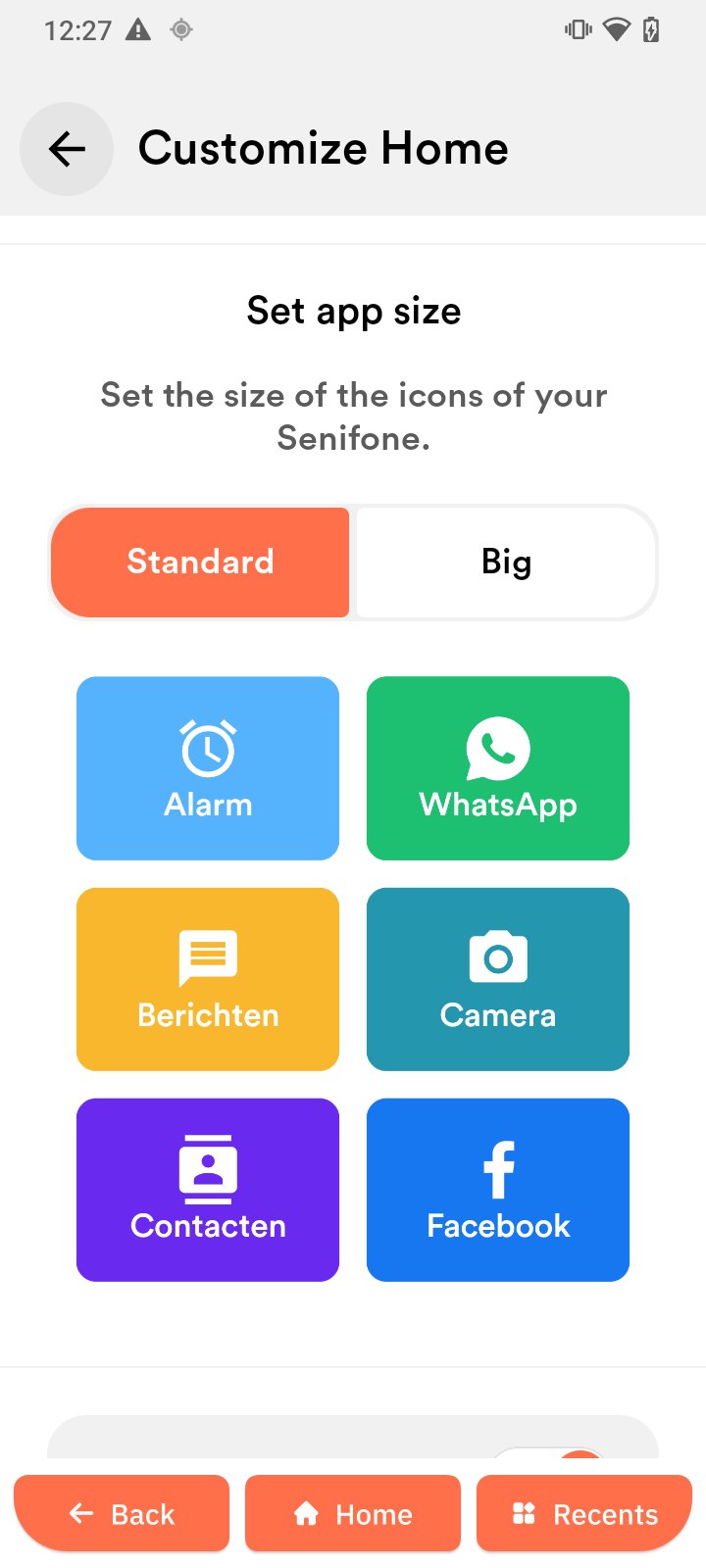
Set app size
- Open Settings.
- Tap Customize Home.
- Select Standard or Big.
Action Button
- Open Settings.
- Tap Customize Home.
- Tap Action Button.
- Turn it on.
- Choose a function:
- Wi-Fi
- Bluetooth
- Flashlight
The Action Button appears on the Home screen.
Time format
- Open Settings.
- Tap Customize Home.
- Select 24 Hours or AM/PM.
Shortcuts
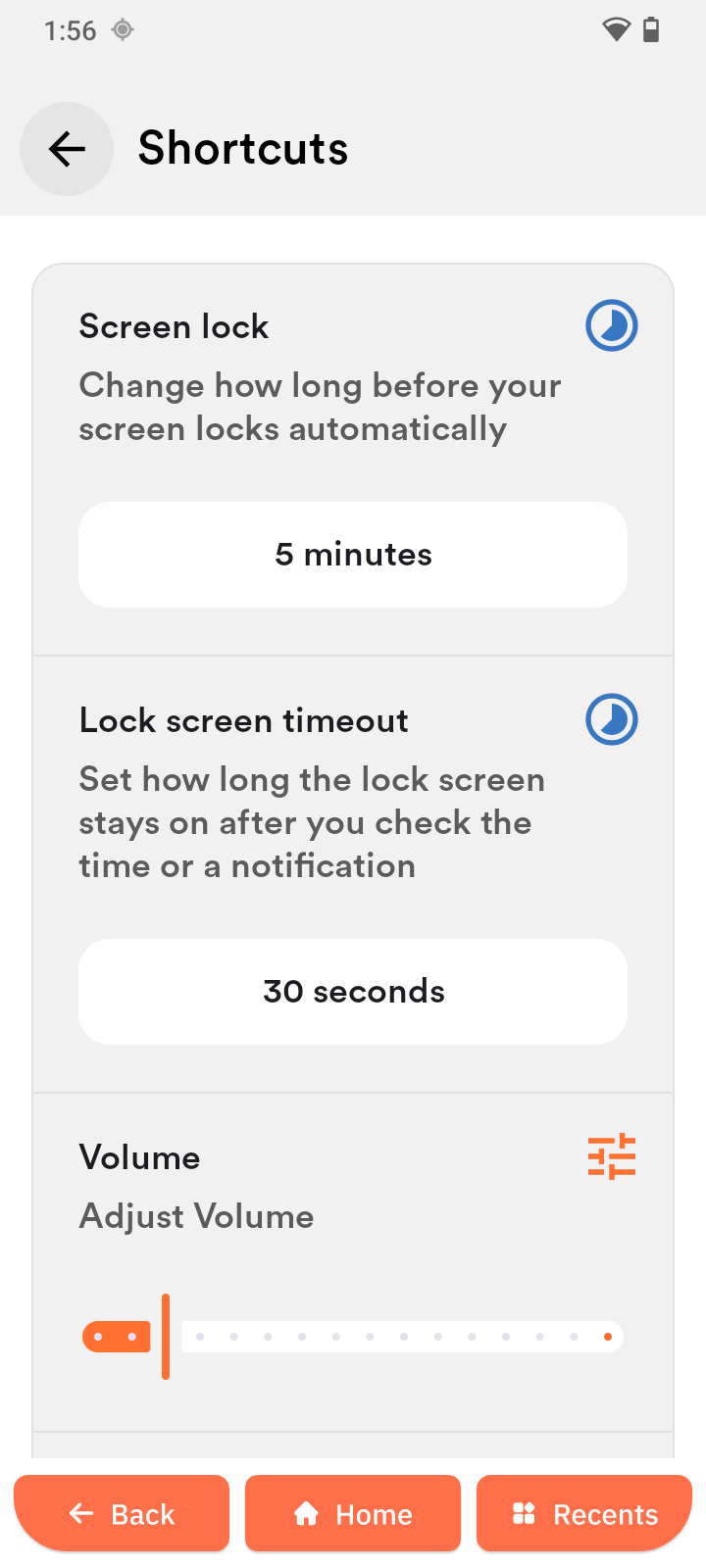
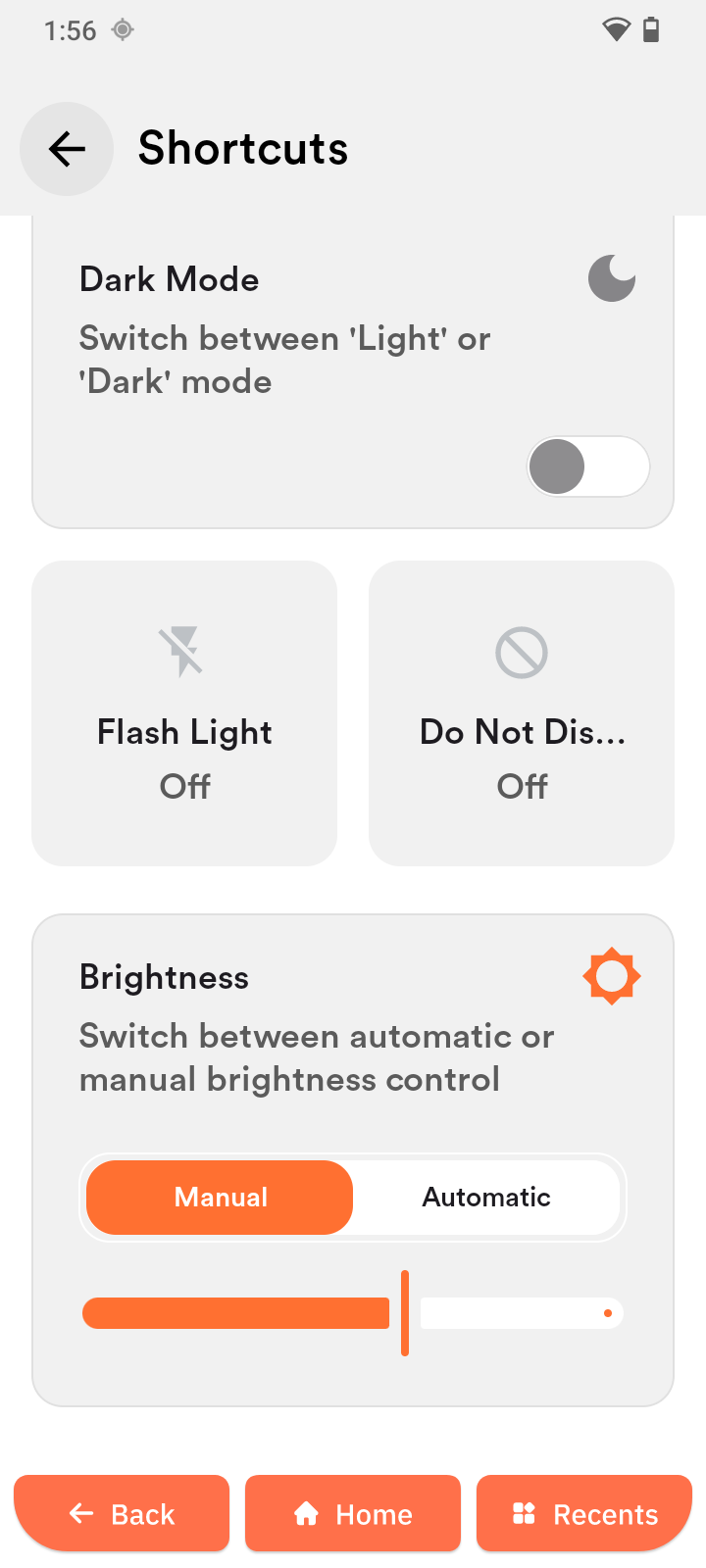
The Shortcuts app provides quick access to:
- Screen lock and timeout
- Volume
- Dark mode
- Flashlight
- Do Not Disturb
- Brightness
Senifone Keyboard
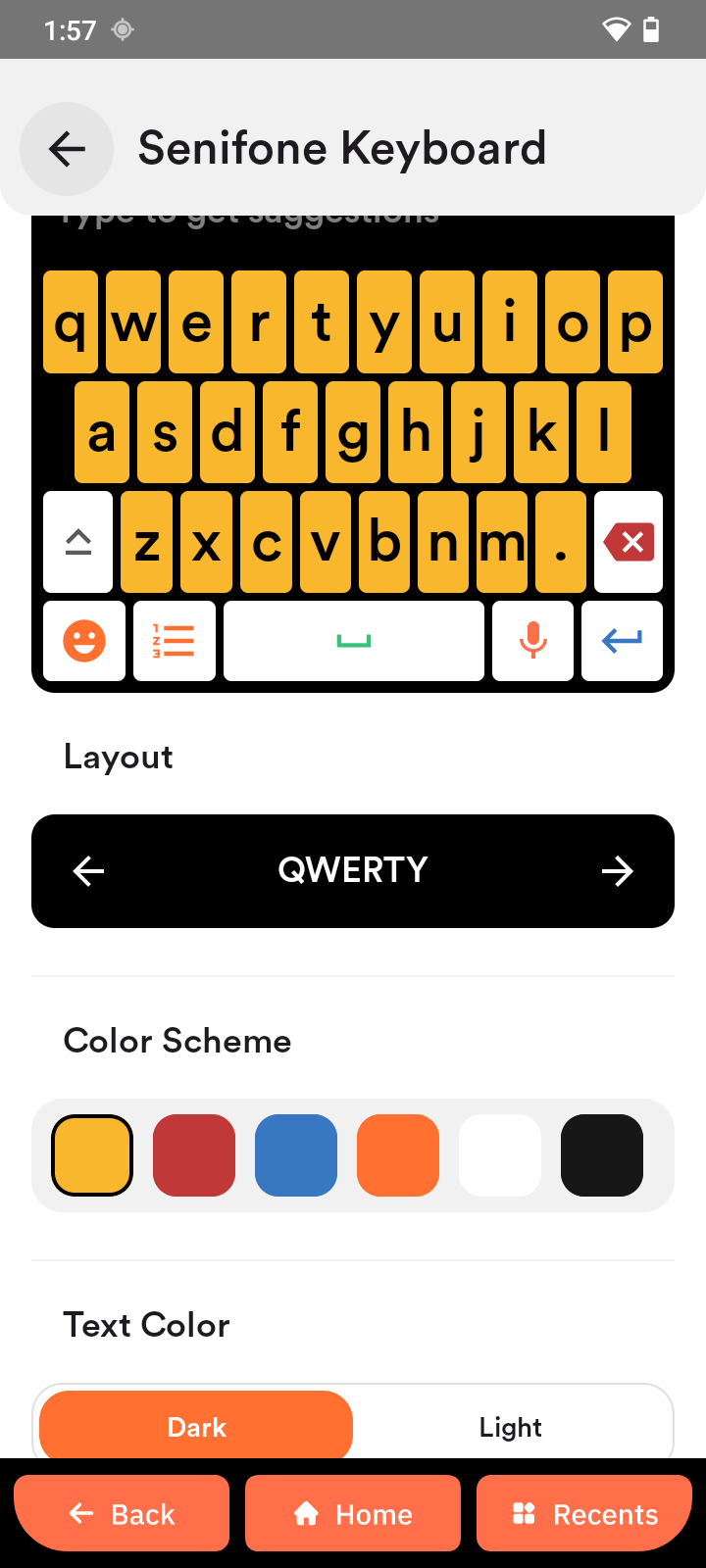
- Set layout of keyboard, color scheme, and text color
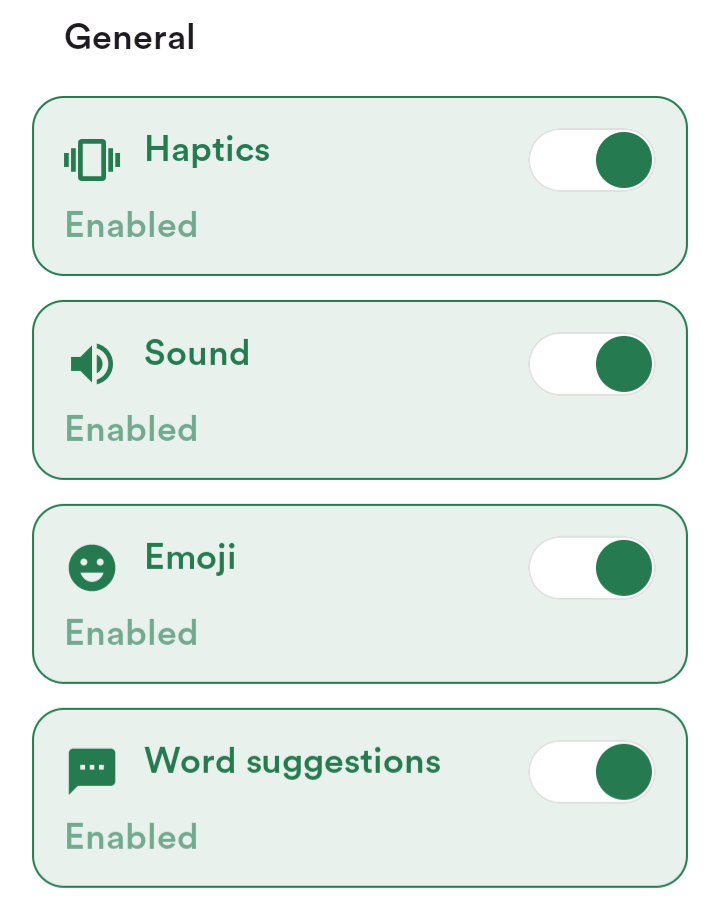
- Enable or disable haptics, sound, emoji, and word suggestions
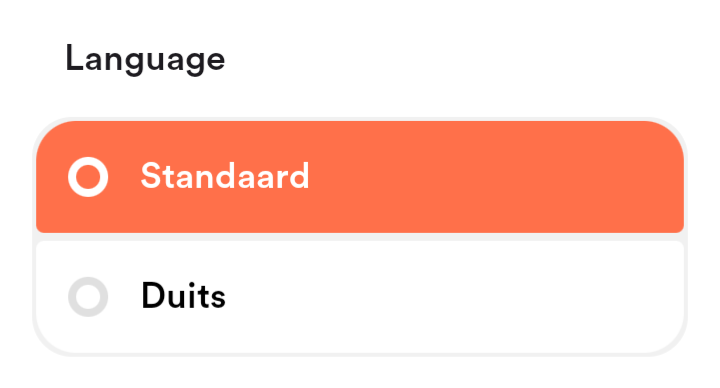
- Select the language