Display
Overview
The Display settings allow you to adjust screen brightness, appearance, and behavior to suit your preferences.
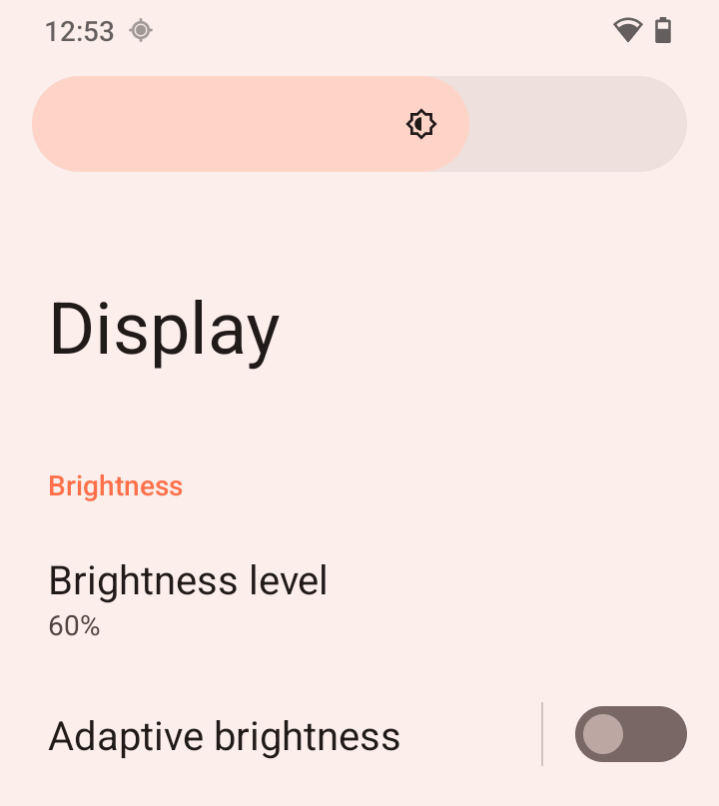
Brightness
Brightness level
Move the slider left or right to set a comfortable brightness level.
Adaptive brightness
Automatically adjusts screen brightness based on lighting conditions.
If you turn it on, the device will adjust brightness automatically.
Lock display
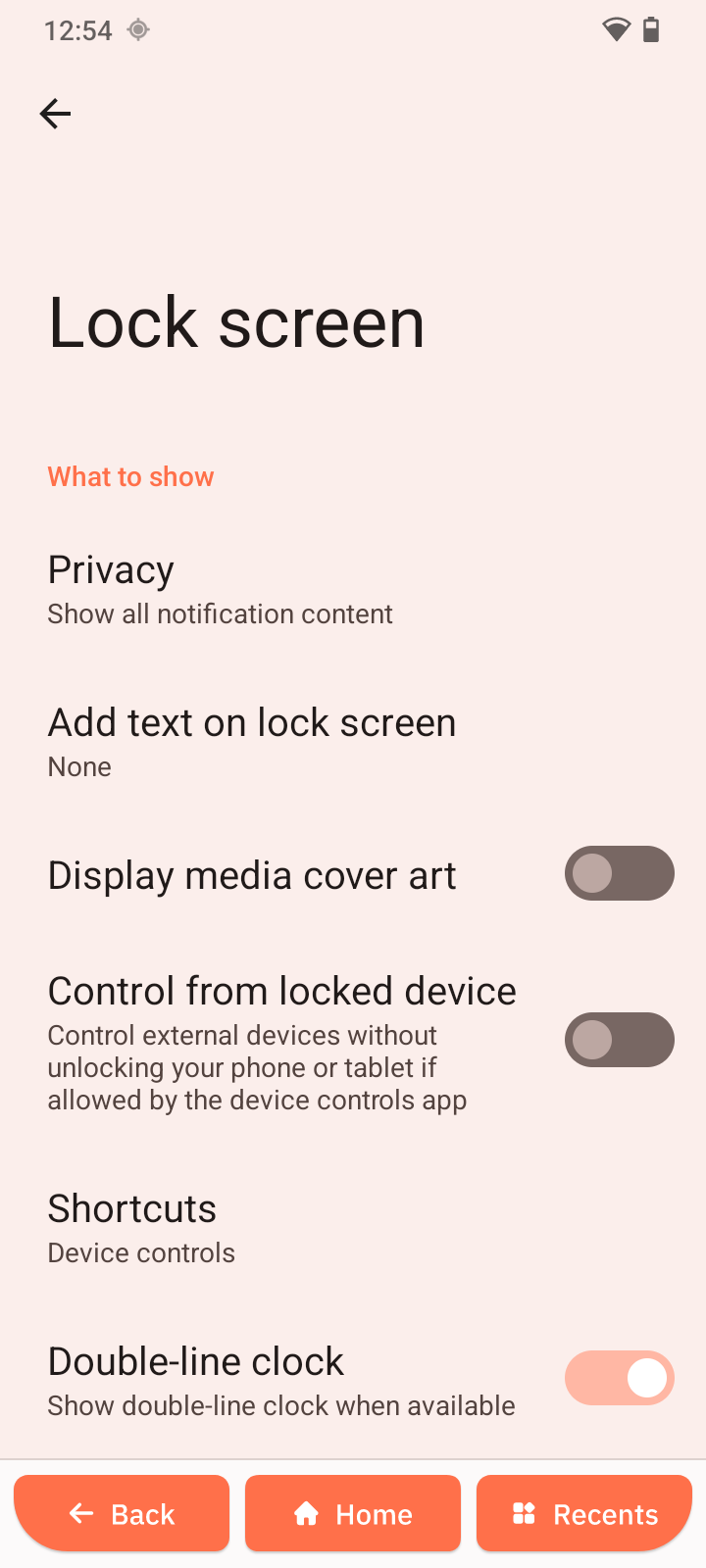
Lock screen
- Open Lock screen.
- Choose what information is displayed and when.
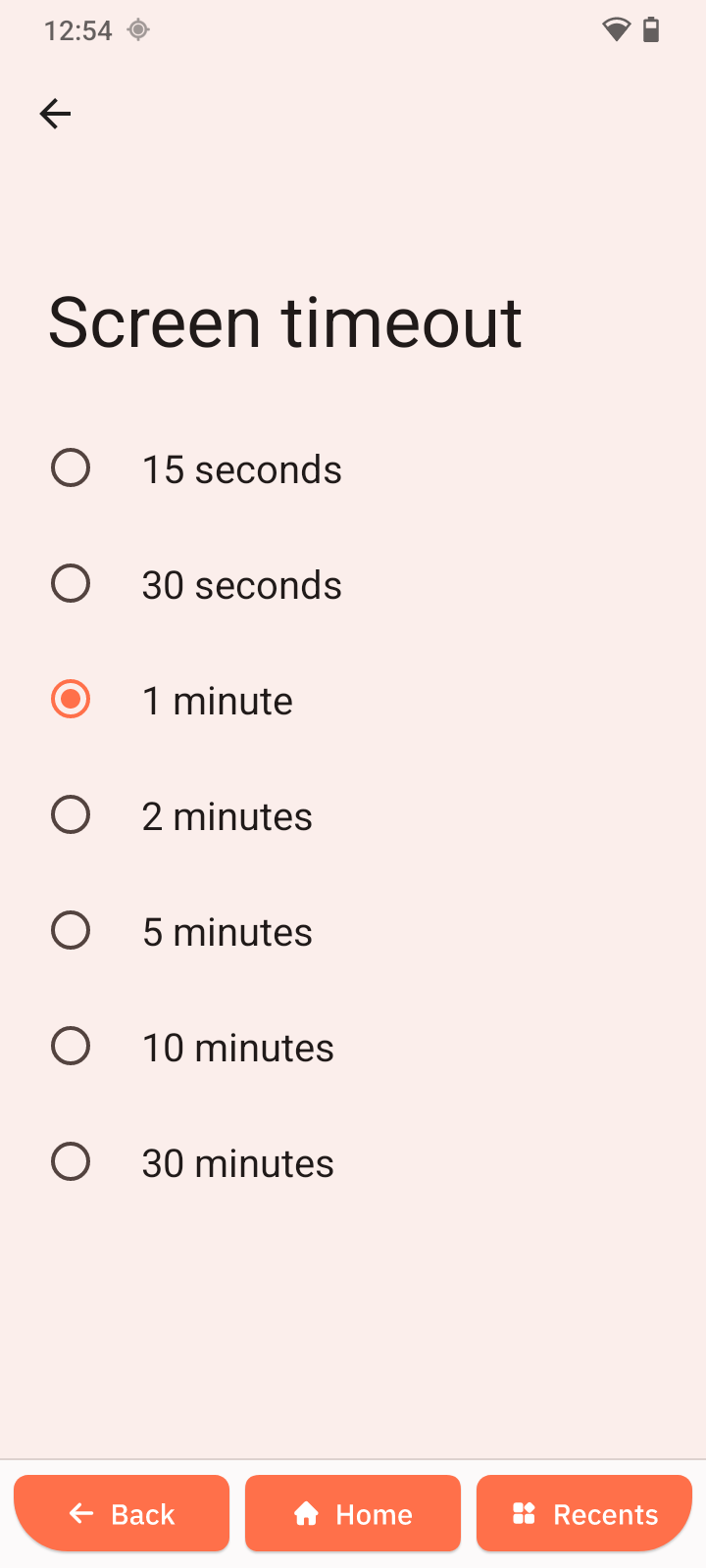
Screen timeout
- Open Screen timeout.
- Select a time such as 30 seconds or 1 minute.
Appearance
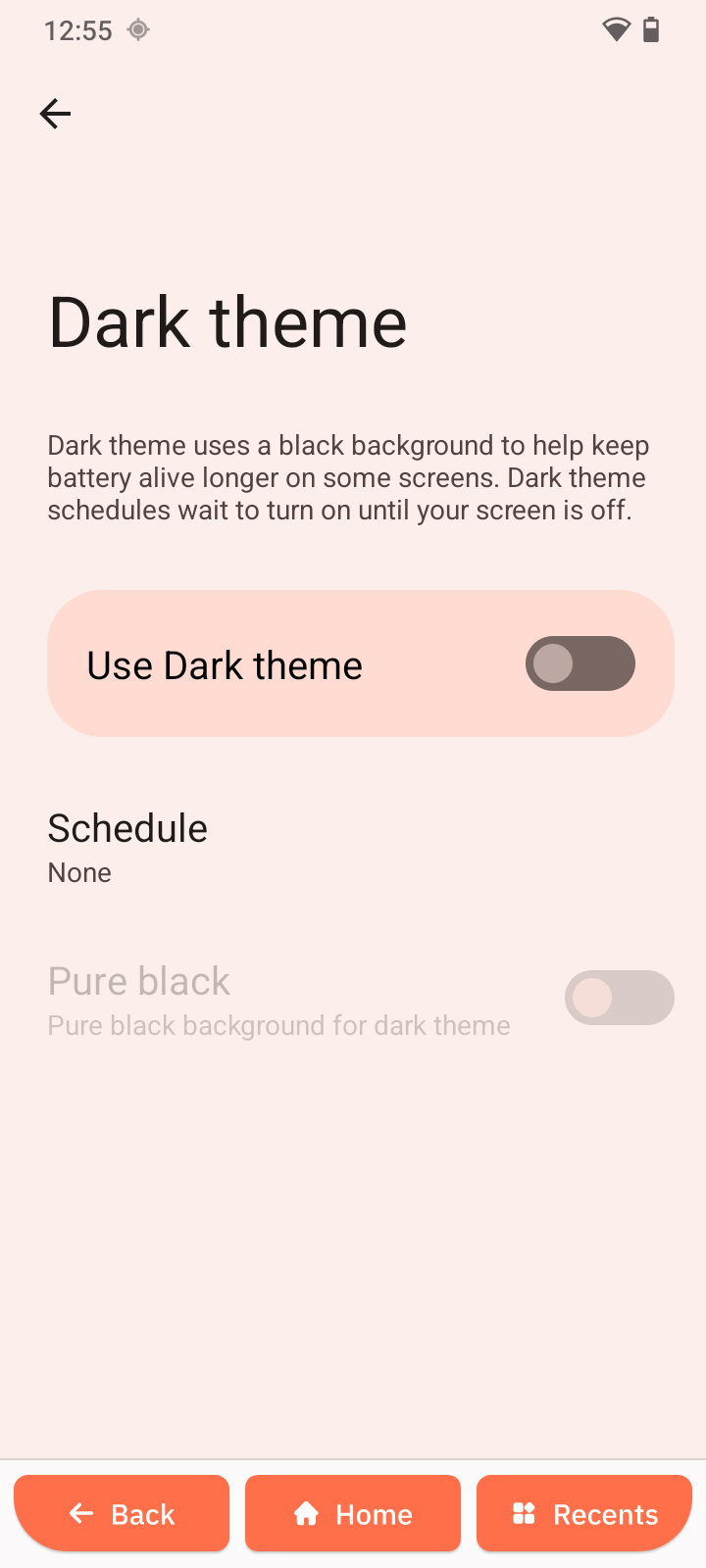
Dark theme
- Open Dark theme.
- Tap Use Dark theme to turn it on or off.
- Optional: set your schedule.
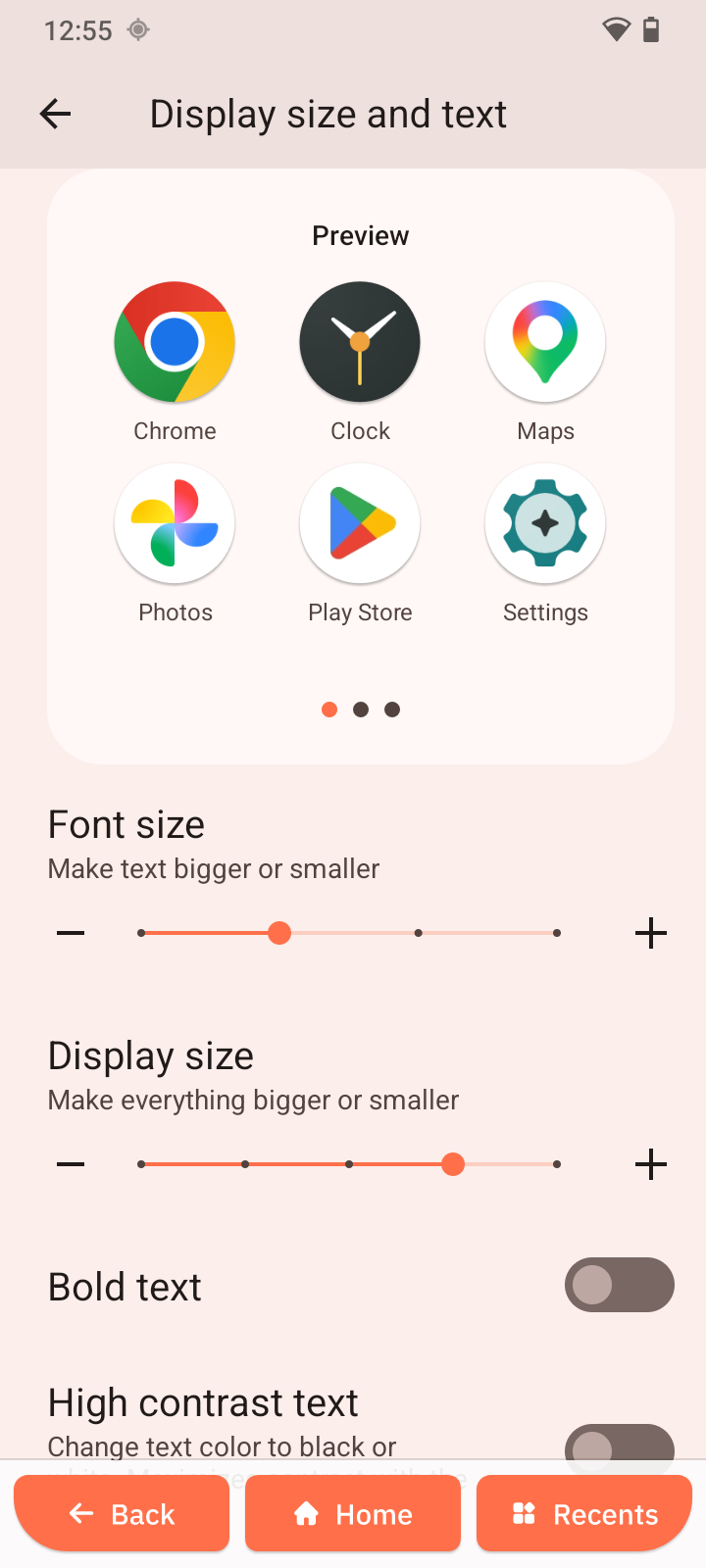
Display size and text
- Open Display size and text.
- Adjust text size or display size using the sliders.
- You can also choose bold and high-contrast text.
Color
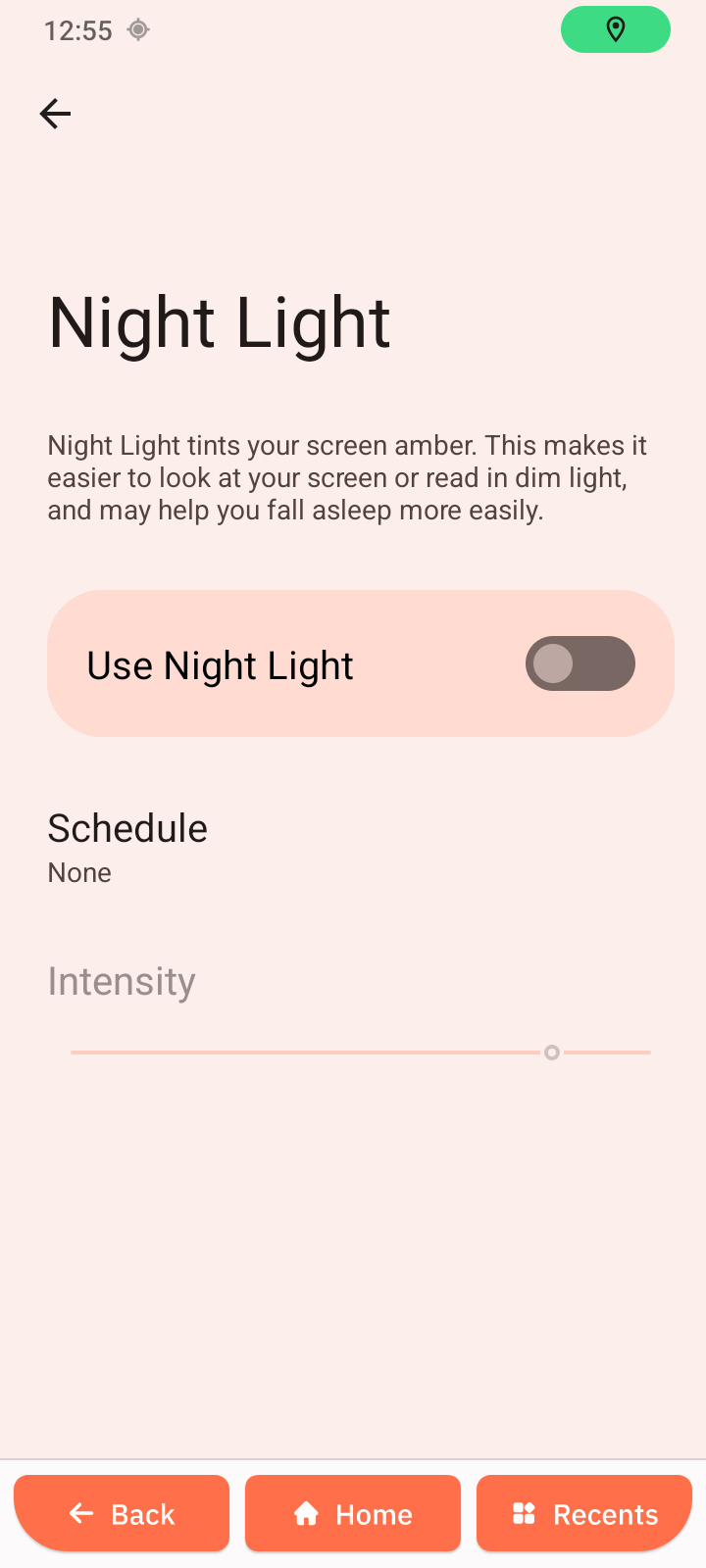
Night Light
- Open Night Light.
- Tap Use Night Light to turn it on or off.
- If it is on, you can also set the intensity.
- Optional: set a schedule.
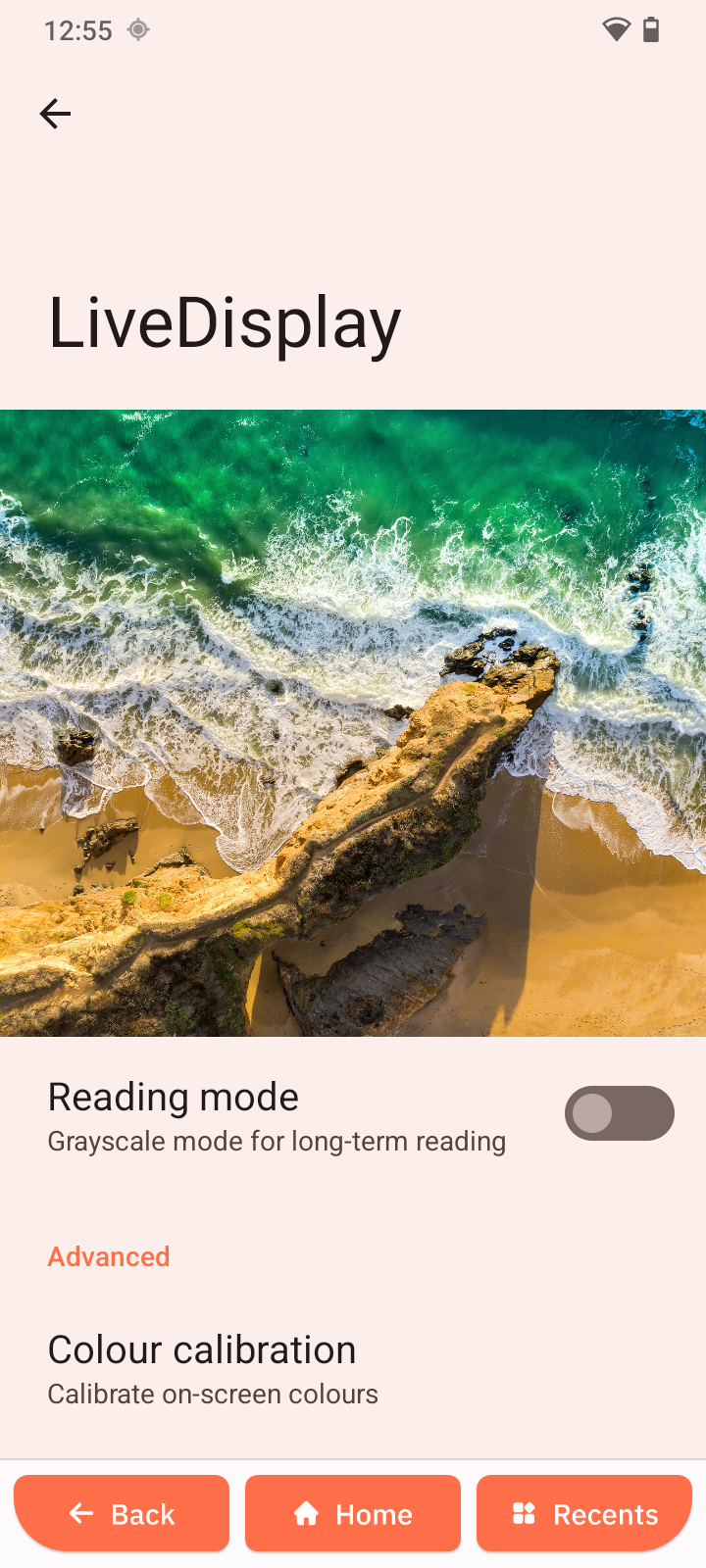
LiveDisplay
- Open LiveDisplay.
- Tap Reading mode.
- Optional: set color calibration.
Other display controls
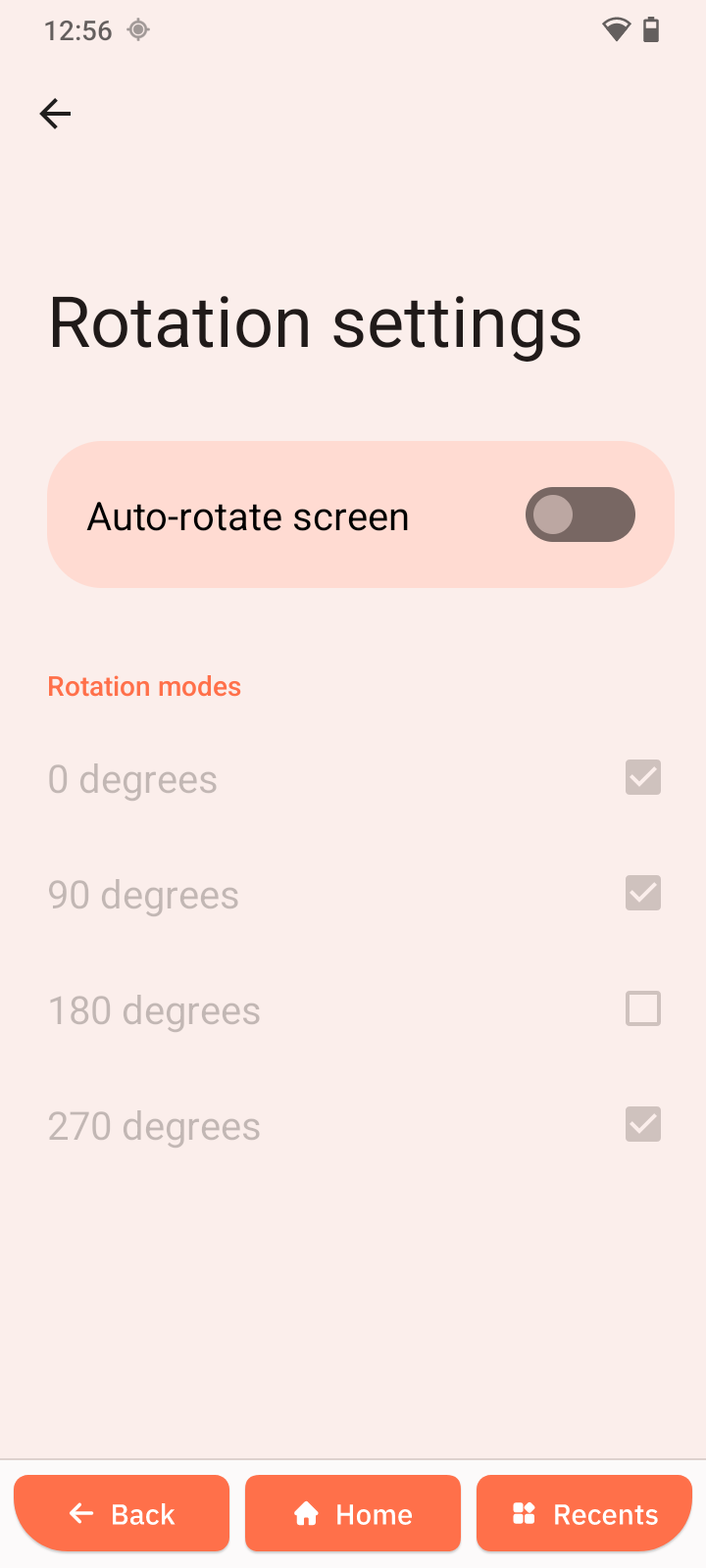
Rotation settings
- Open Rotation settings.
- Tap Auto-rotate screen to turn it on or off.
- Choose rotation modes.
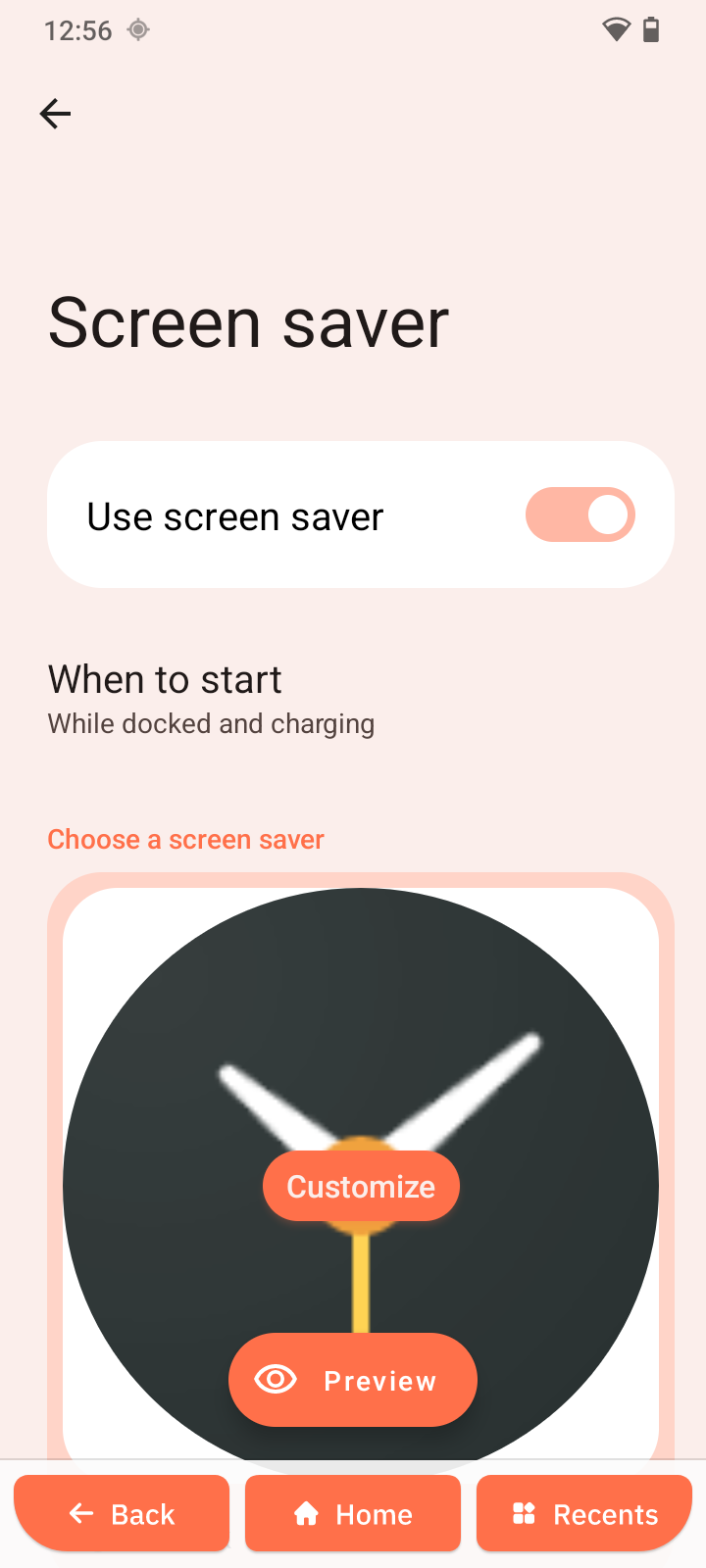
Screen saver
- Open Screen saver.
- Choose a style and when it activates.
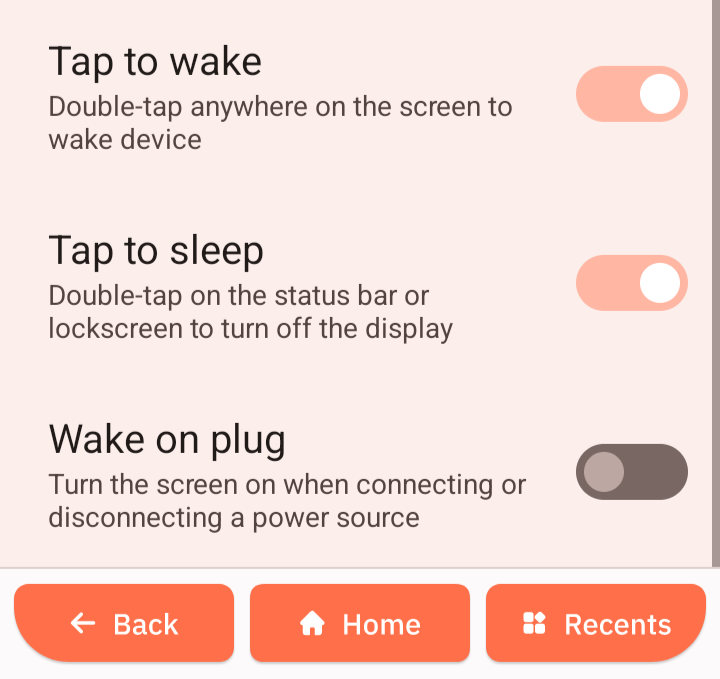
Tap to wake
Turns the screen on when you tap it.
Tap to sleep
Turns the screen off when you tap it.
Wake on plug
Turns the screen on when the charger is connected.