Accessibility
Overview
Accessibility settings help improve usability.
Downloaded apps
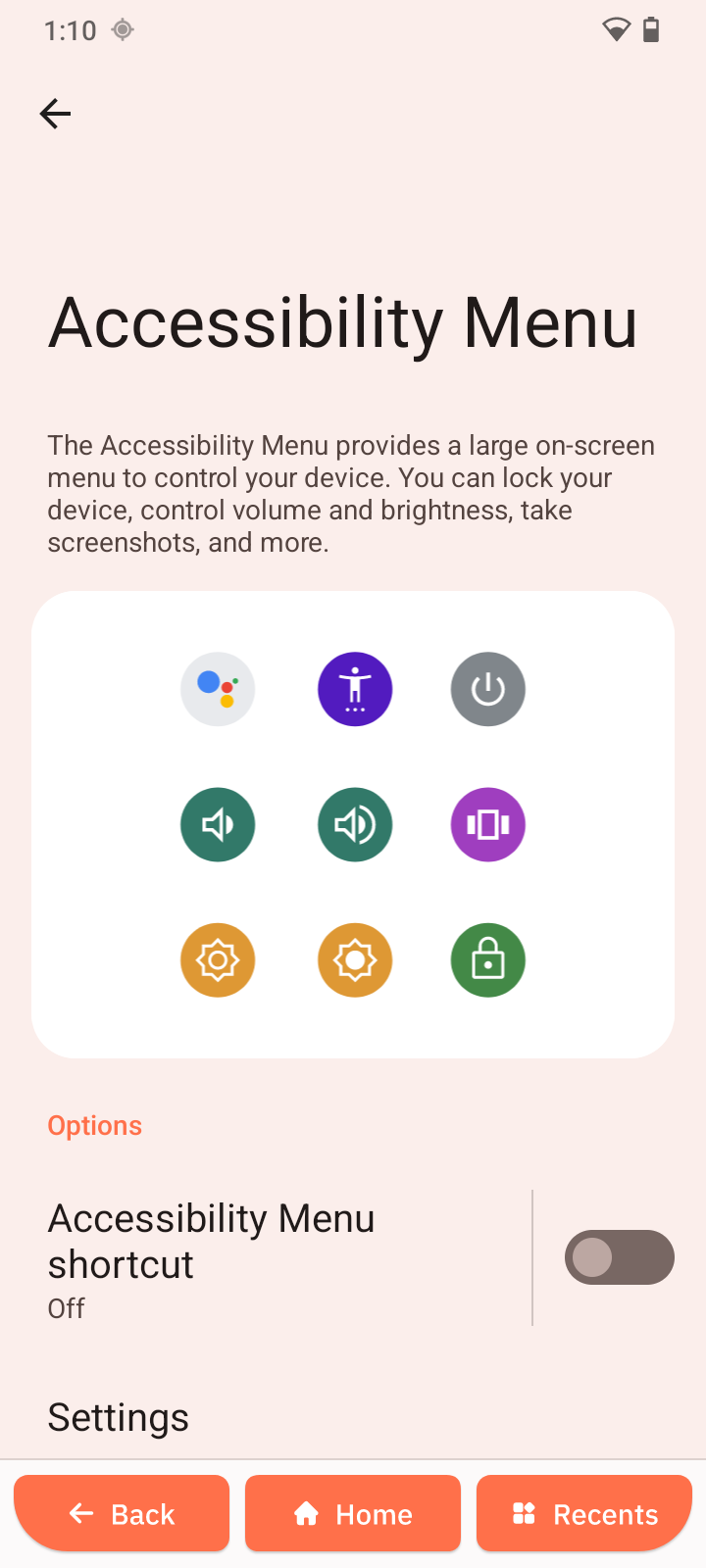
Accessibility Menu
- Open Accessibility Menu.
- Enable shortcut.
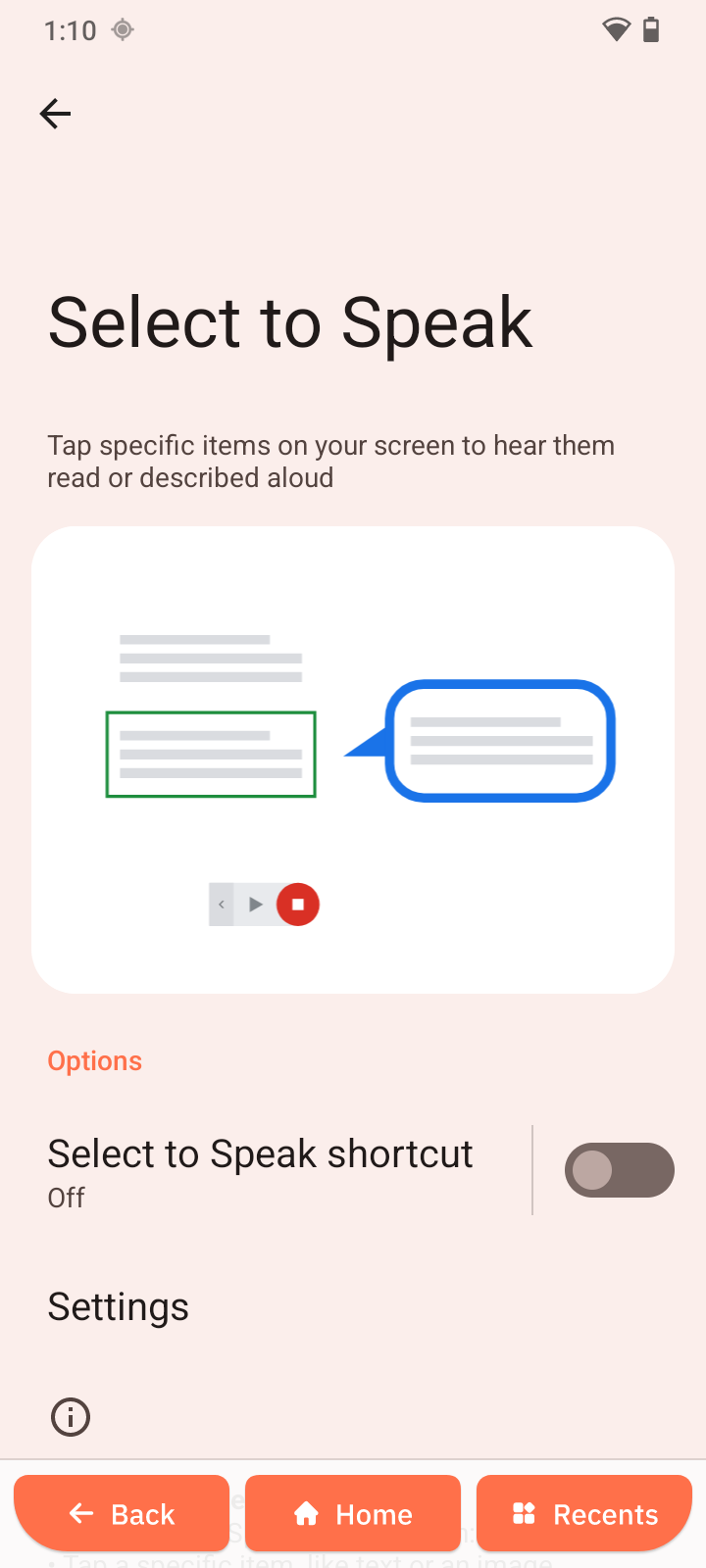
Select to Speak
- Open Select to Speak.
- Enable shortcut.
- Select text and tap Play.
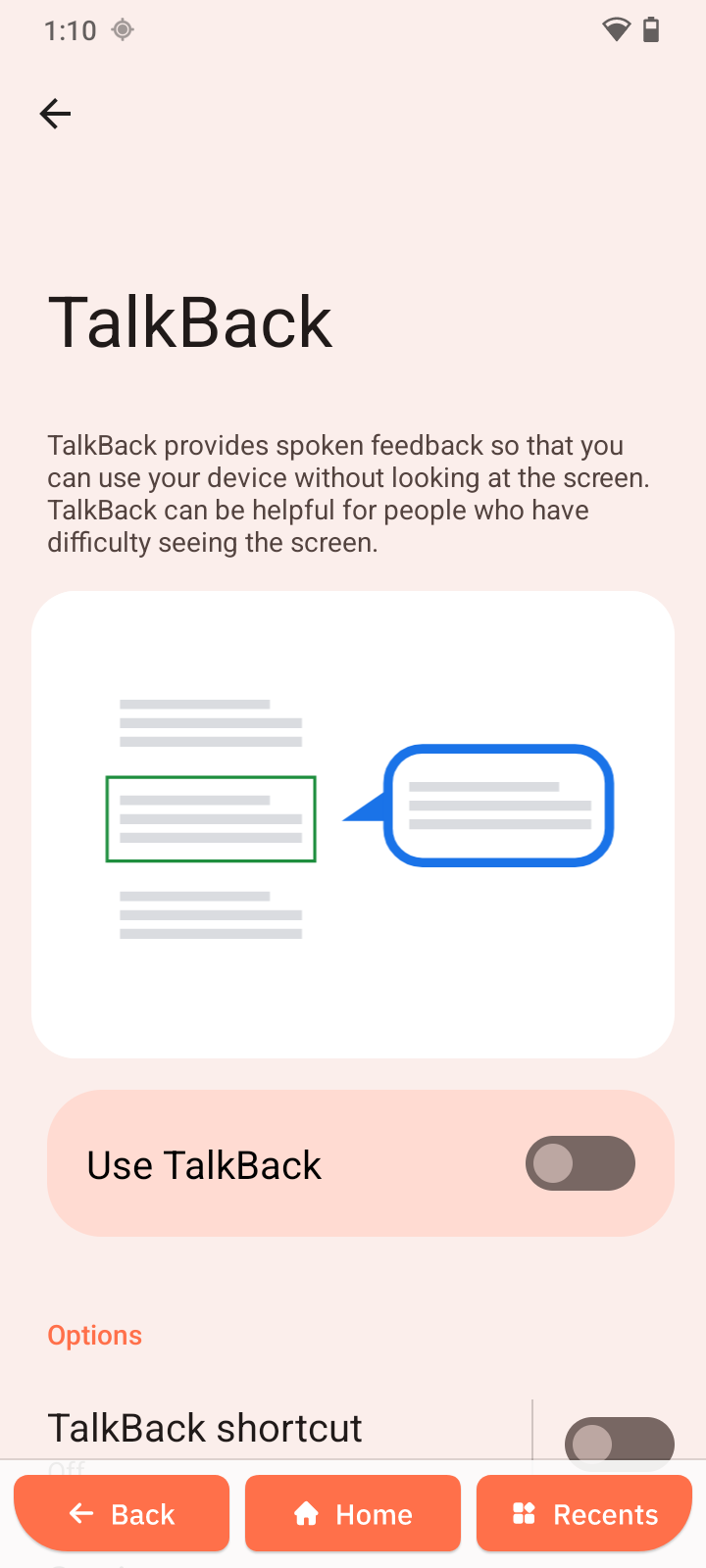
TalkBack
- Open TalkBack.
- Turn it on.
Use gestures:
- Swipe to navigate
- Double-tap to select
- Two-finger drag to scroll
Display (Accessibility)
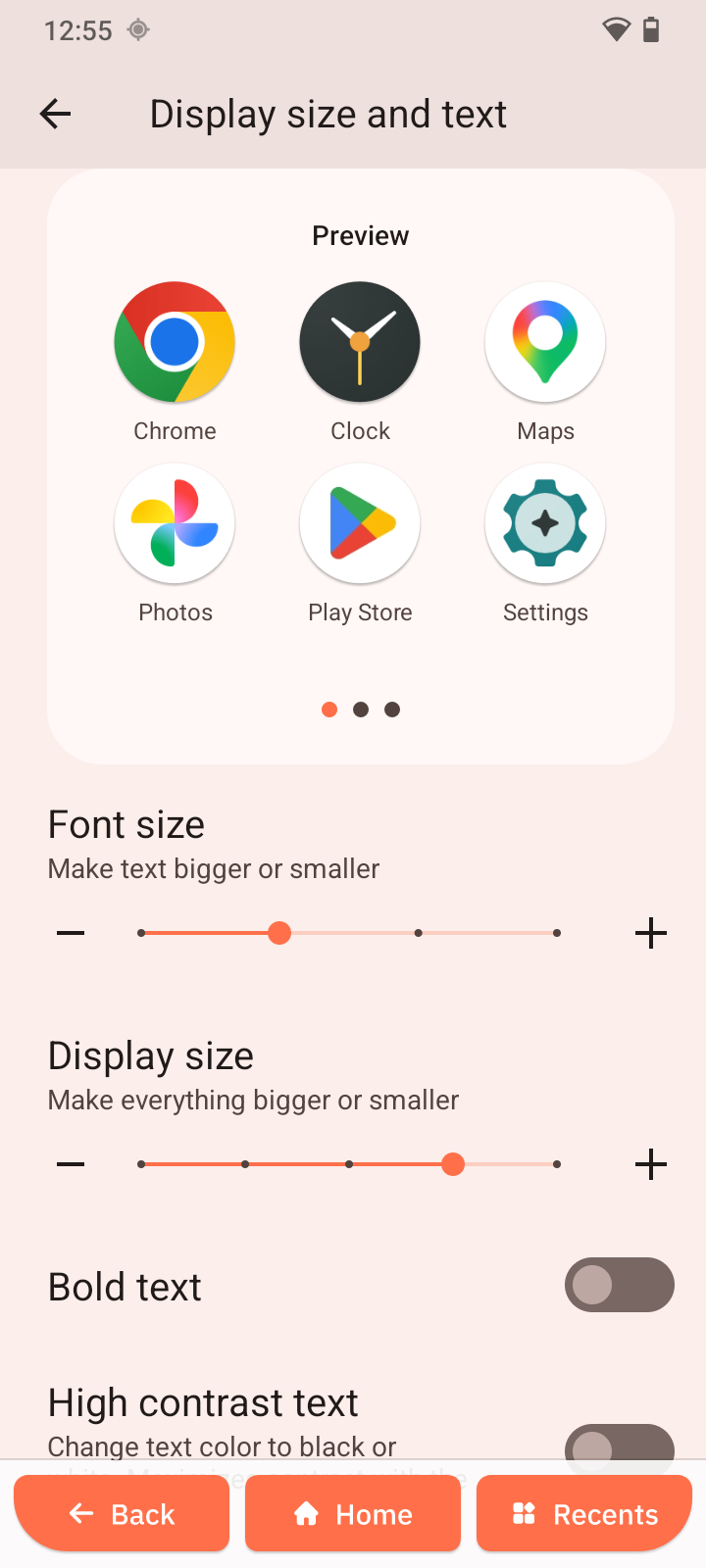
Display size and text
- Open Display size and text.
- Adjust size and contrast.
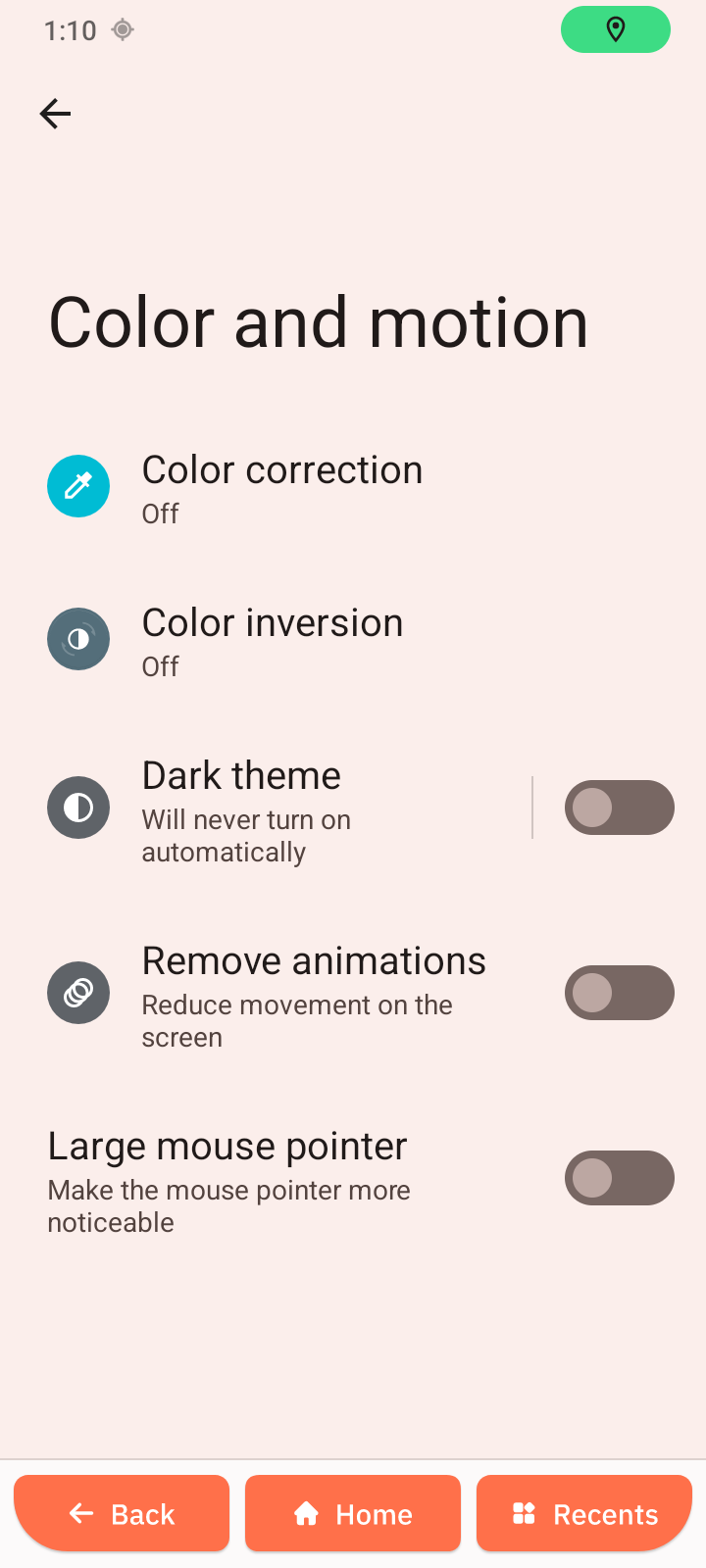
Color and motion
Adjust:
- Color correction
- Dark theme
- Animations
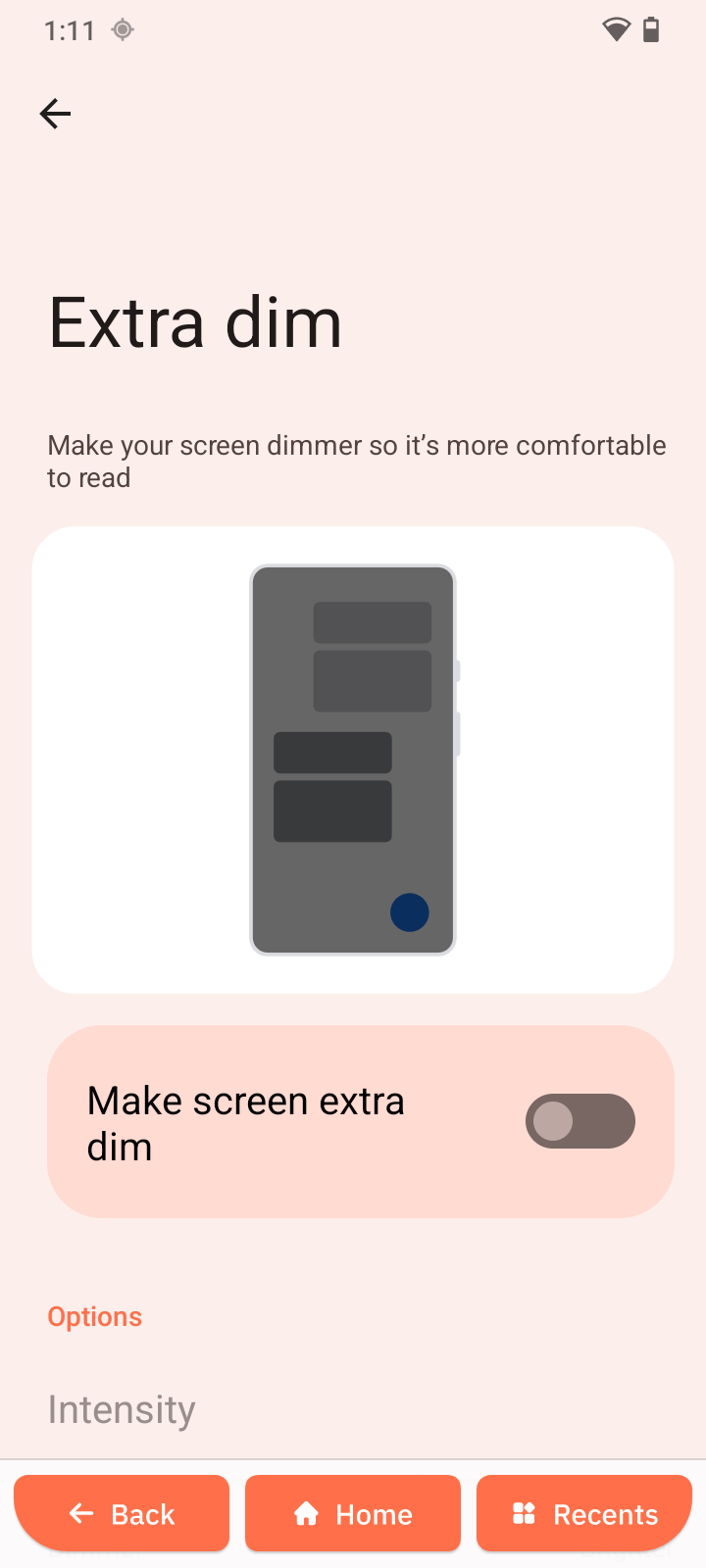
Extra dim
- Open Extra dim.
- Turn it on.
- Adjust intensity.
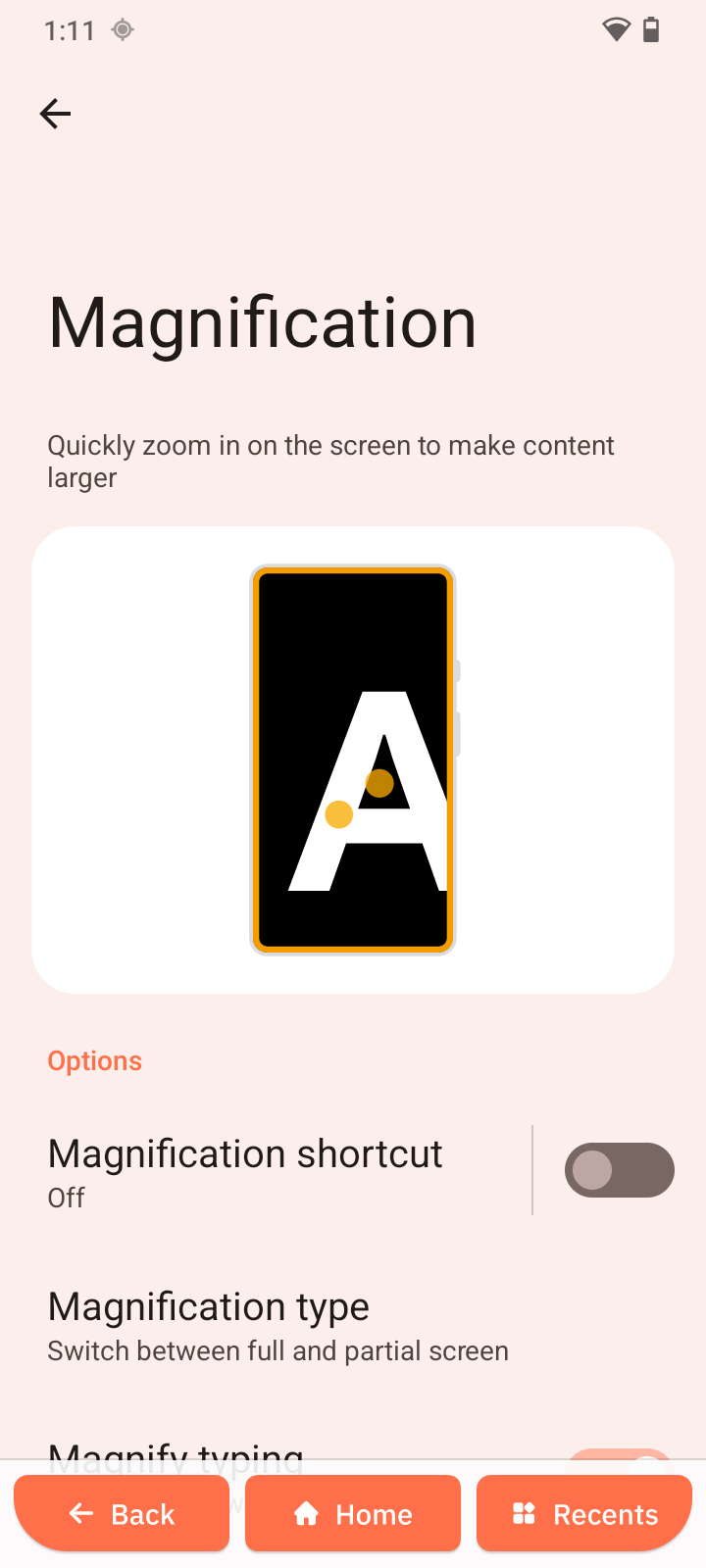
Magnification
- Open Magnification.
- Enable shortcut.
Interaction controls
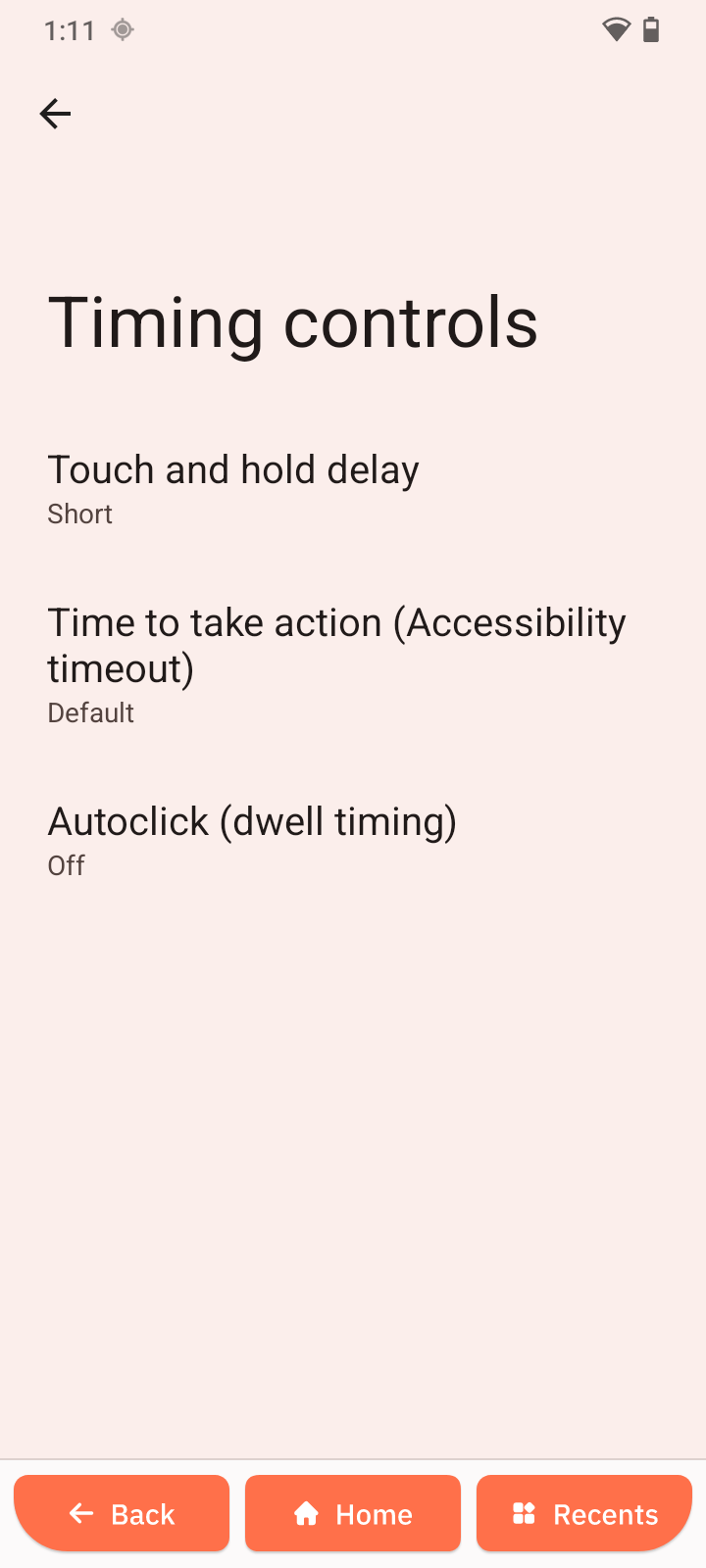
Timing controls
Adjust:
- Touch & hold delay
- Timeout
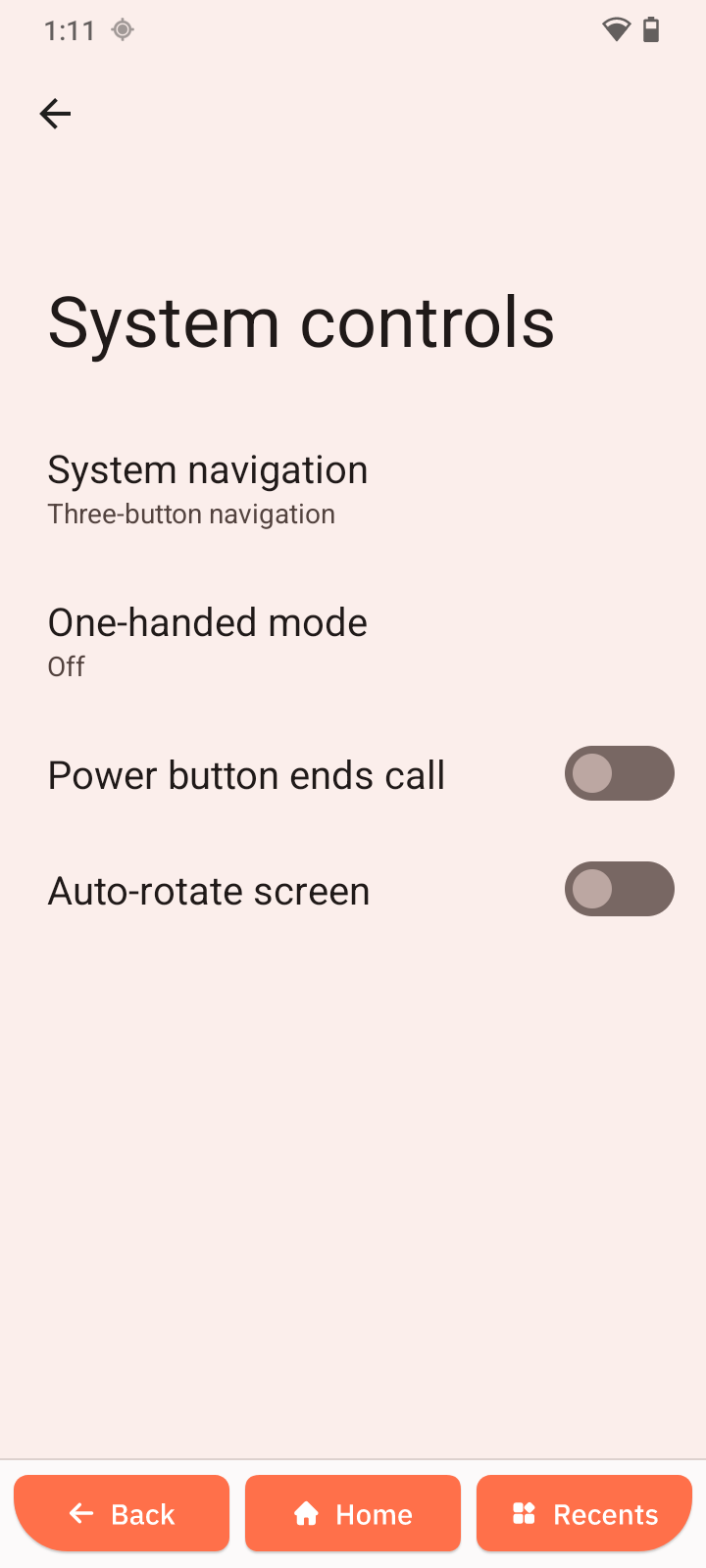
System controls
Enable:
- One-handed mode
- Auto-rotate
- Power button ends call
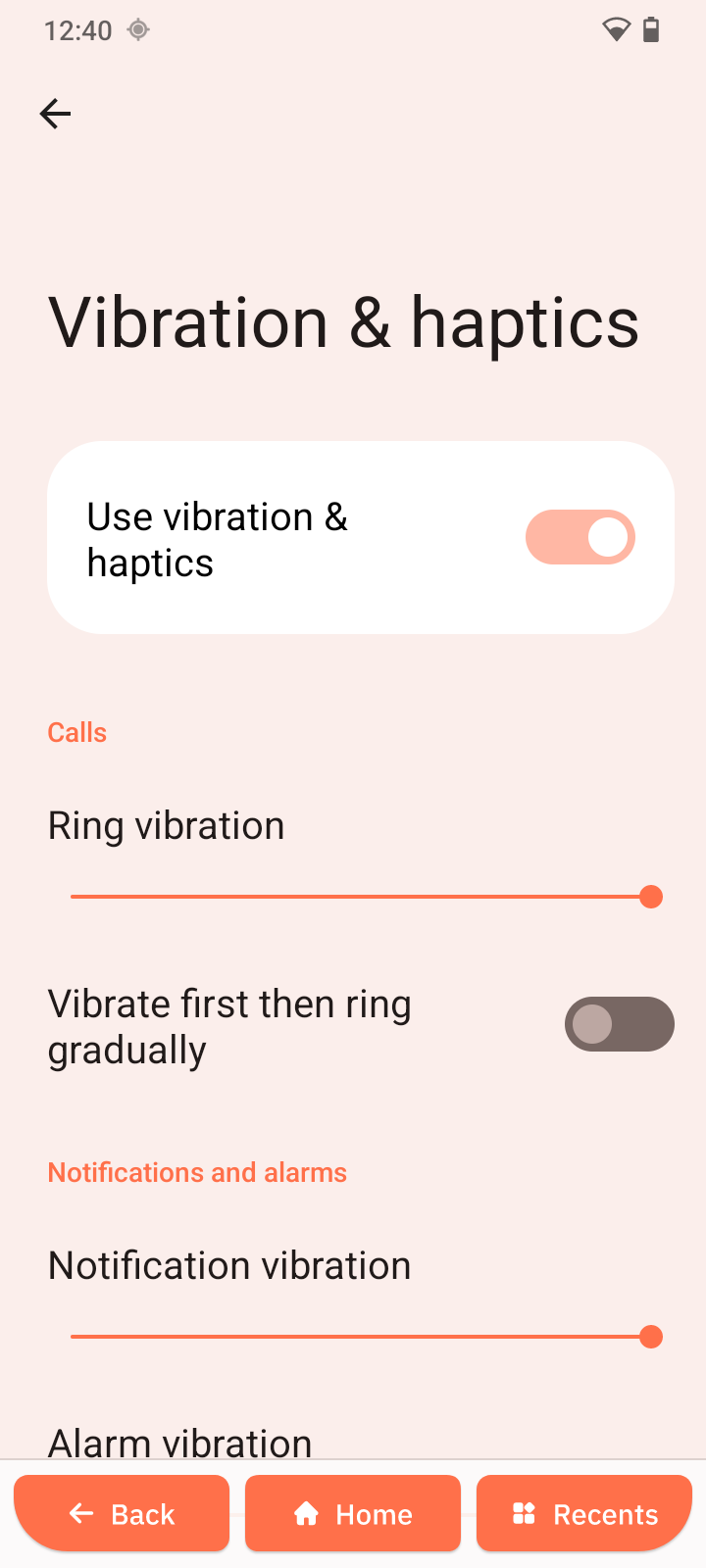
Vibration & haptics
Adjust vibration for calls, notifications, and touch.
Captions
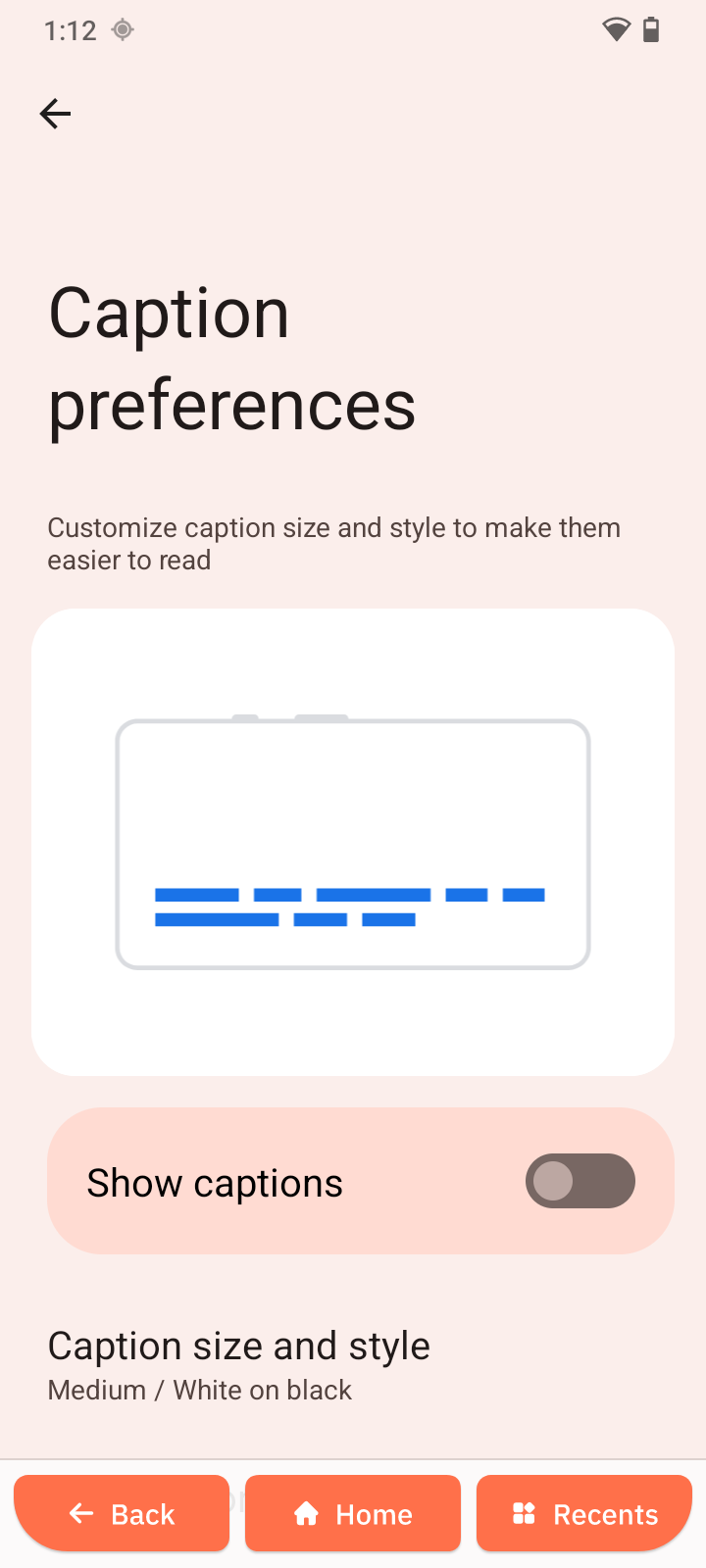
Caption preferences
- Open Caption preferences.
- Turn on captions.
- Customize settings.
Audio
Audio description
- Open Audio description.
- Enable the feature to hear a description of what's happening on screen in supported movies and shows.
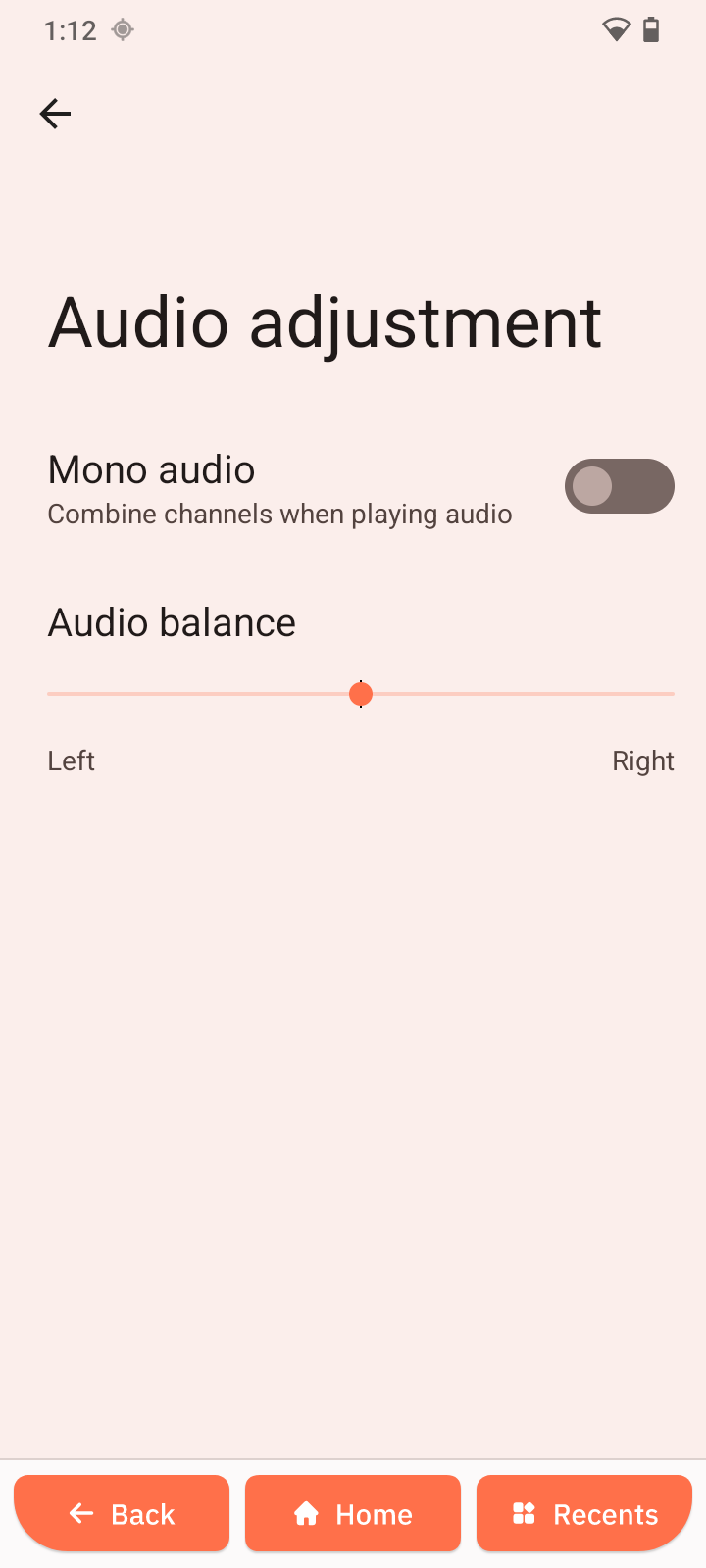
Audio adjustment
- Open Audio adjustment.
- Adjust mono audio or balance.
General (Accessibility)
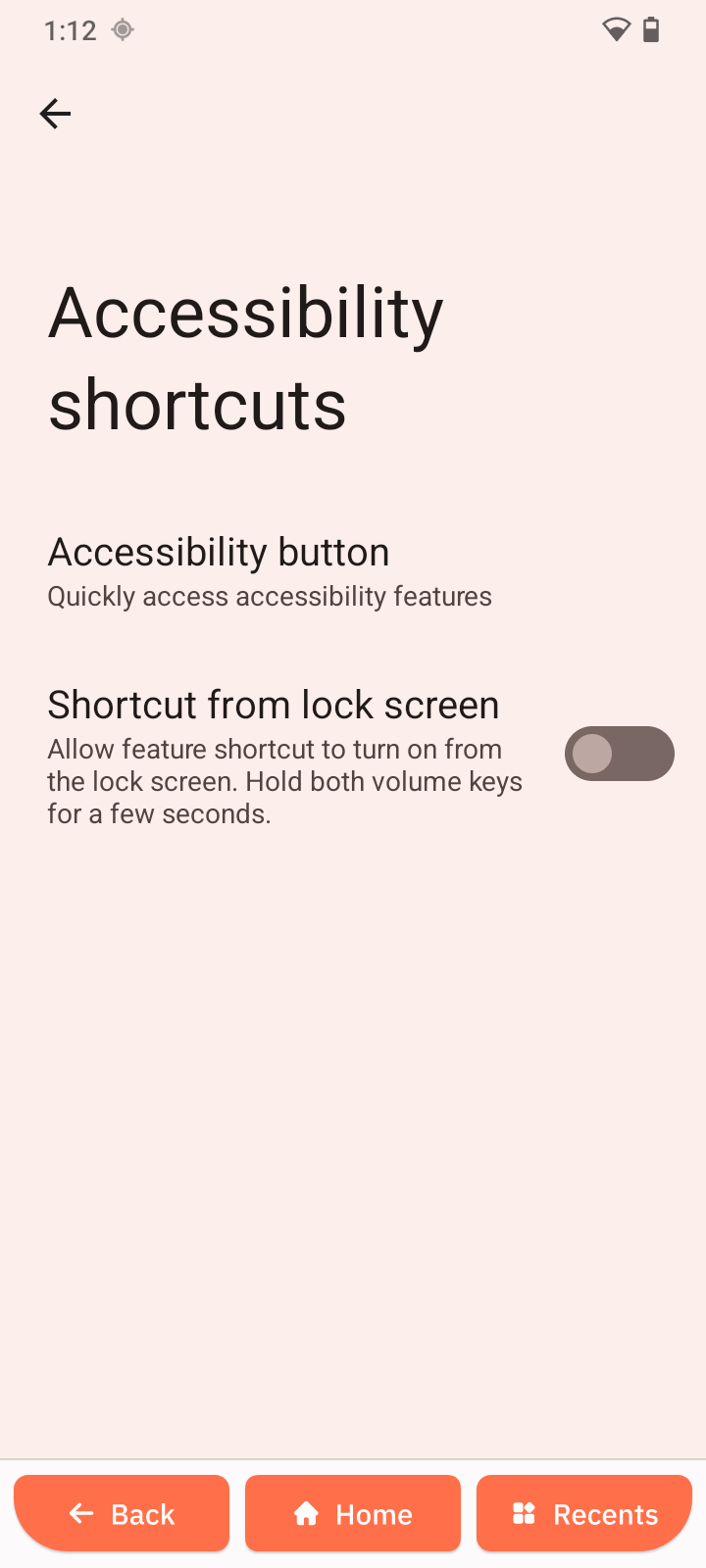
Accessibility shortcuts
- Open Accessibility shortcuts.
- Enable features.
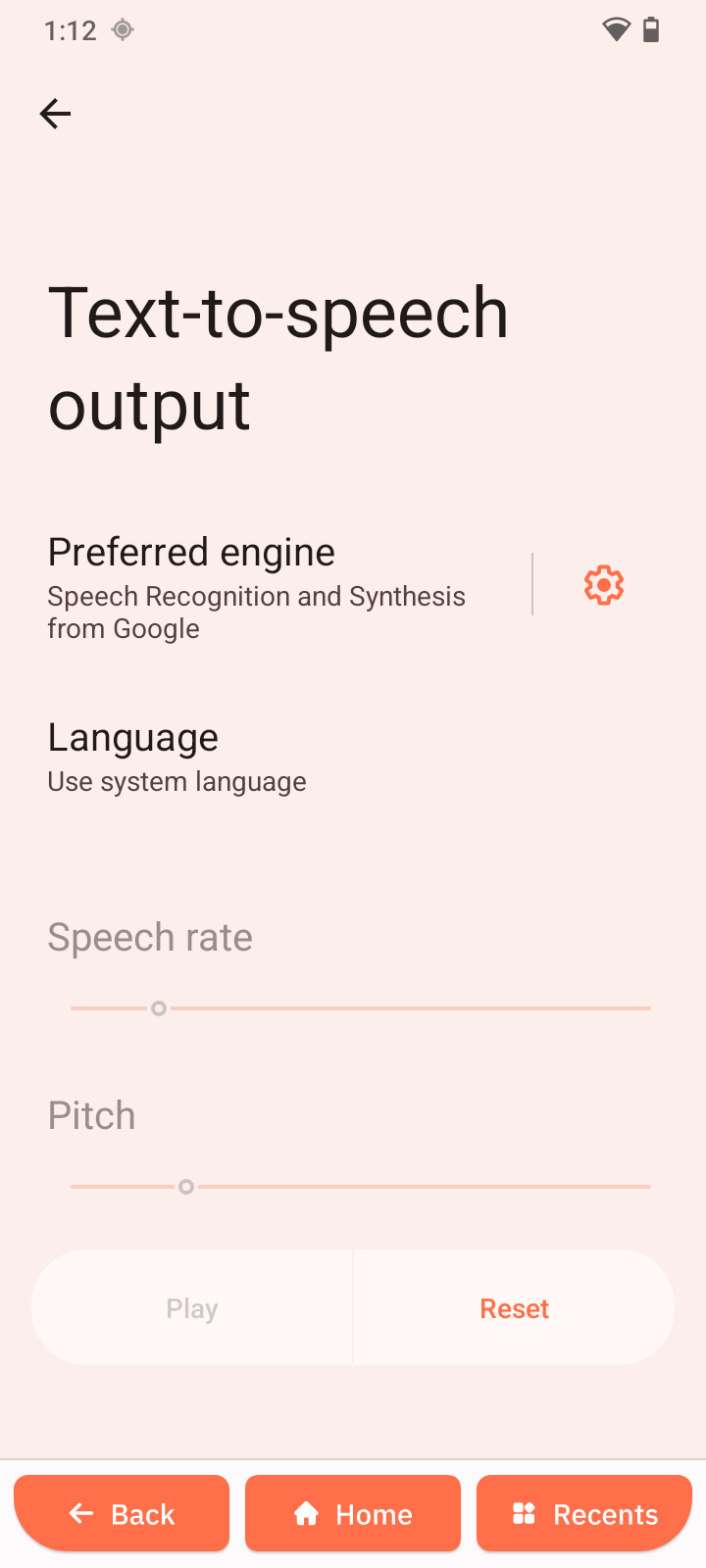
Text-to-speech
- Open Text-to-speech output.
- Configure voice and speed.