Contacts
Overview
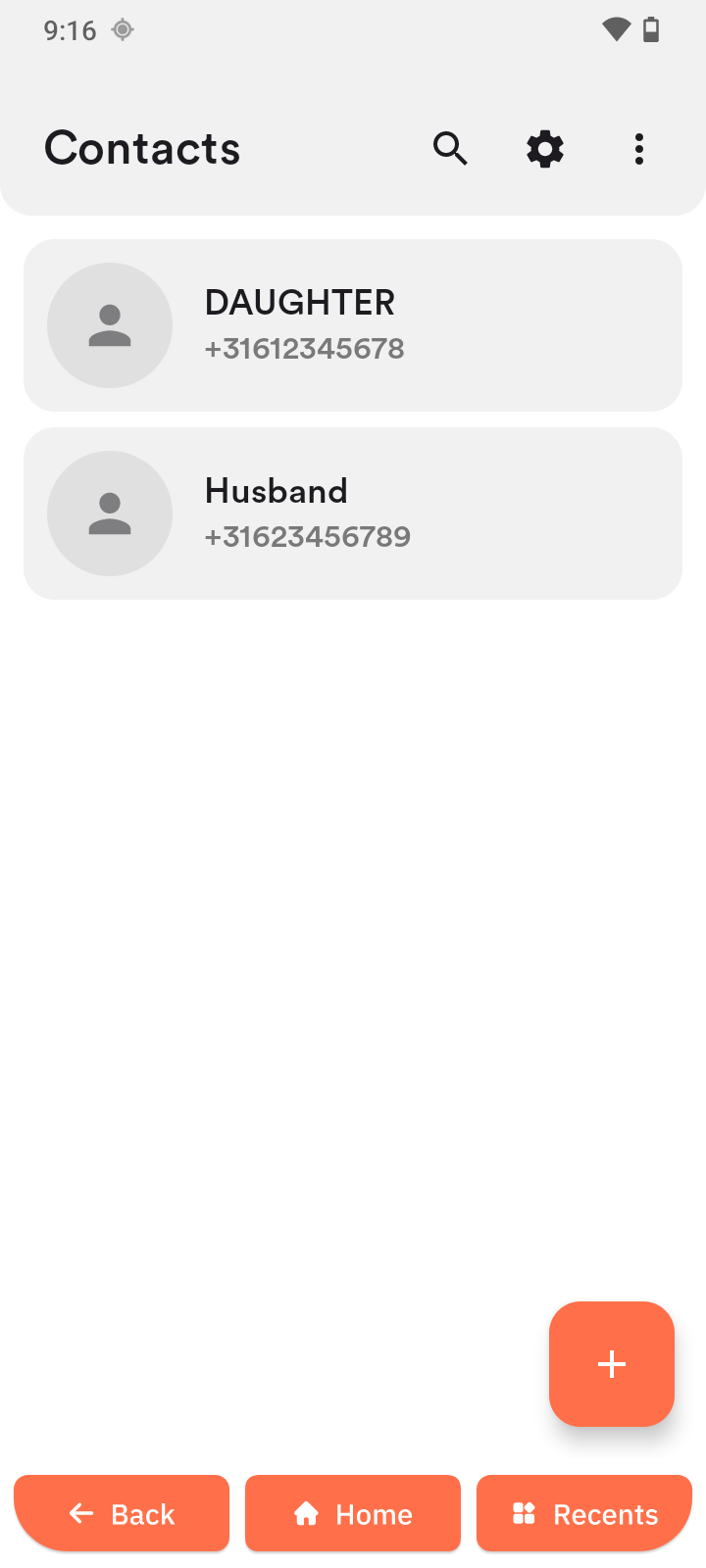
The Contacts app stores and manages your contacts.
Open Contacts
- Tap the Contacts tile to open the app.
Add a contact
-
Tap +.
-
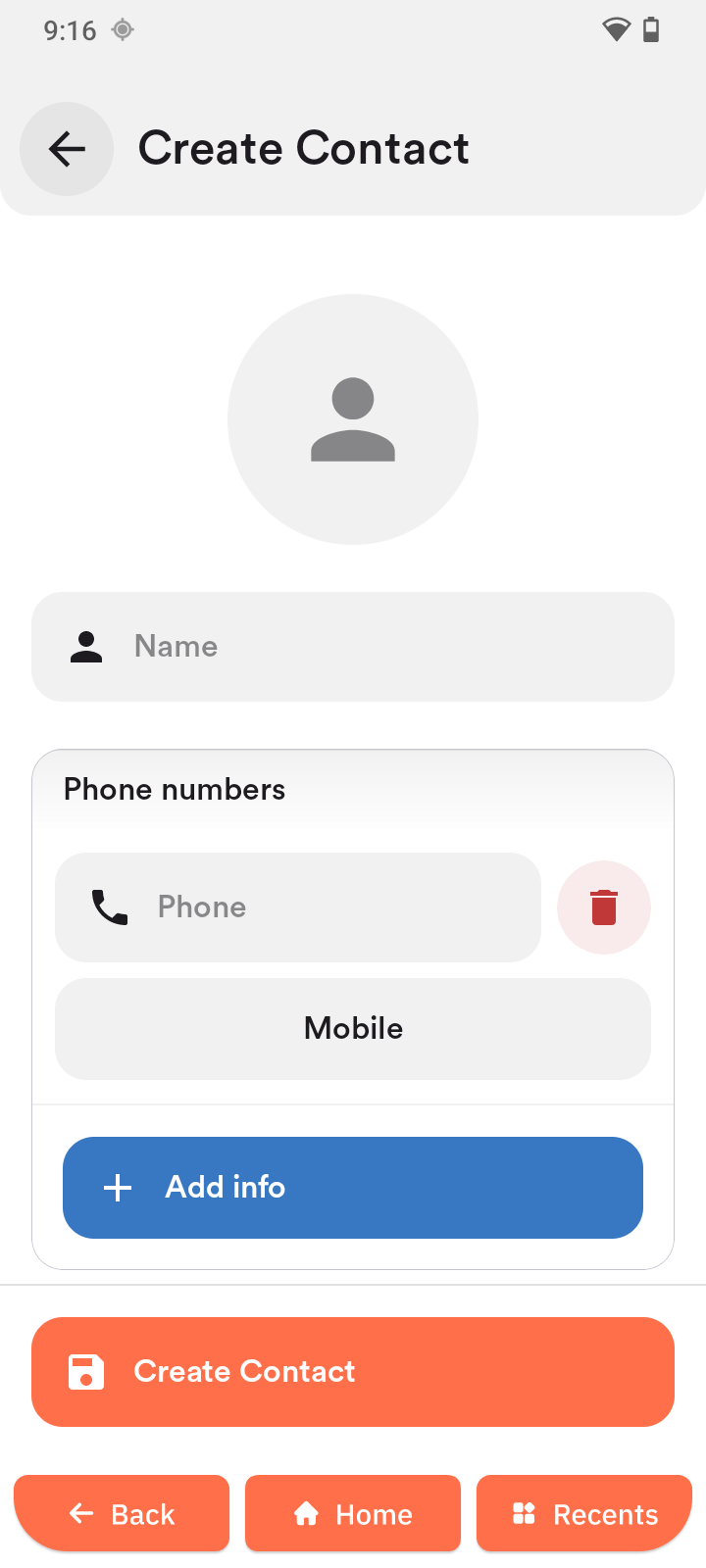
Fill in the fields:
- Photo
- Name
- Phone number
- Number type
- Additional info
-
Tap Create contact.
Edit or delete a contact
Use the contact's options menu when you want to change details, add the contact to another feature, or remove it from the phone.
Edit a contact or change contact options
- Open the Contacts app.
- Tap the contact you want to change.
- Tap the three-line Options menu in the top right.
- Choose the action you need, for example:
- Edit Contact
- Add to favorite
- Add to Home
- Add to SOS
- Block/unblock numbers
Delete a contact
- Open the Contacts app.
- Tap the contact you want to delete.
- Tap the three-line Options menu in the top right.
- Tap Delete Contact.
- Confirm by tapping Delete.
Quick actions
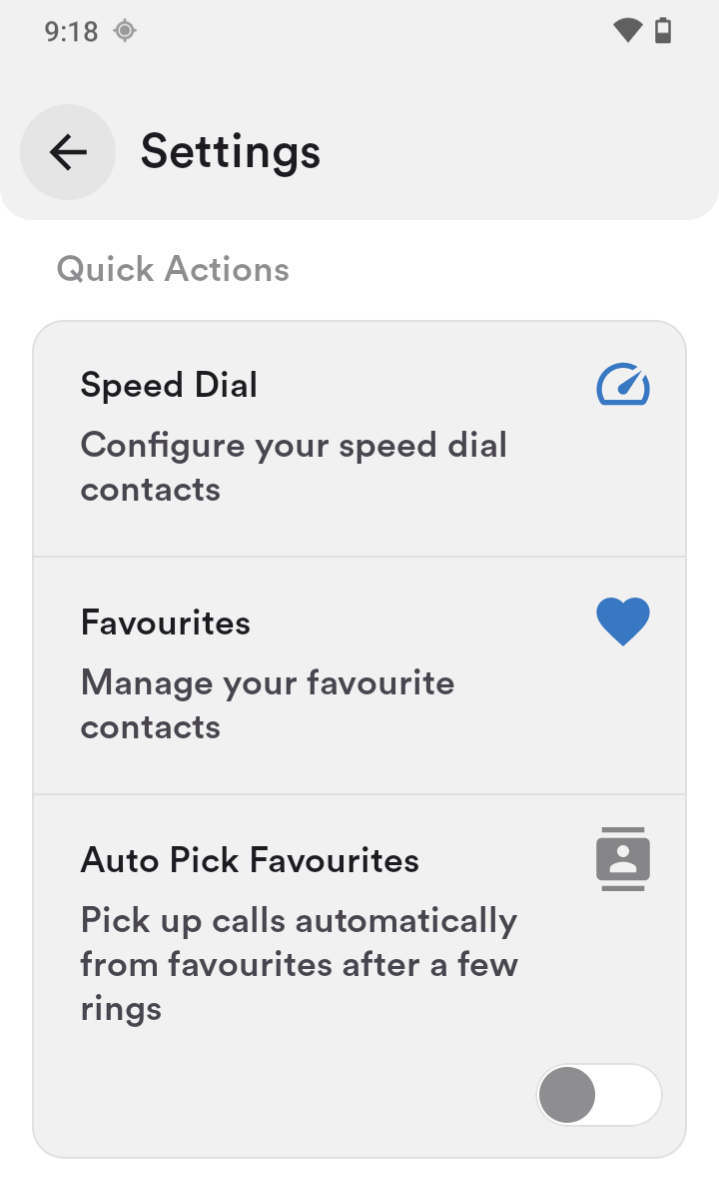
- Tap the gear icon in Contacts.
- Choose:
- Select contacts for speed dial
- Mark favorite contacts
- Enable auto-answer for favorites
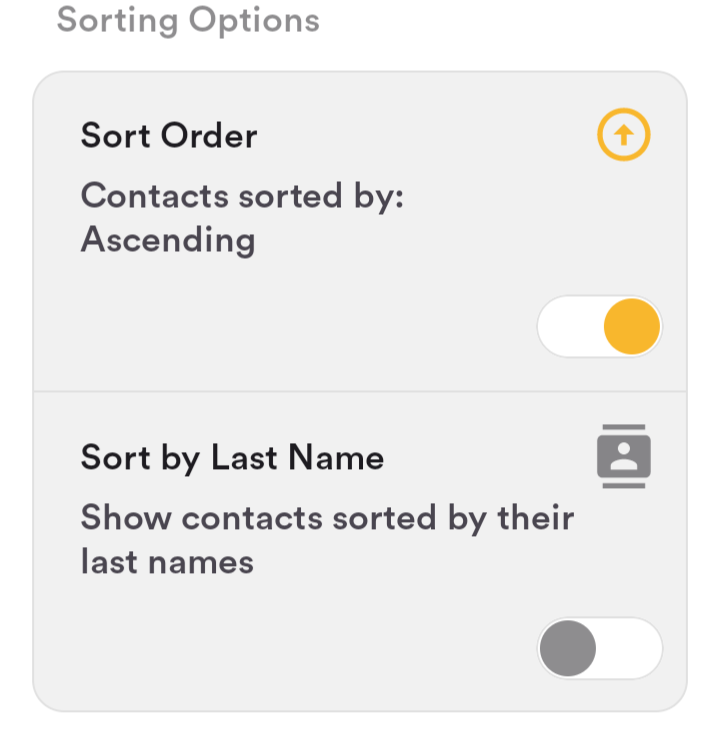
Sorting Options
- Tap the gear icon in Contacts.
- Choose:
- Sort ascending or descending
- Sort by last name
Import/Export Contacts
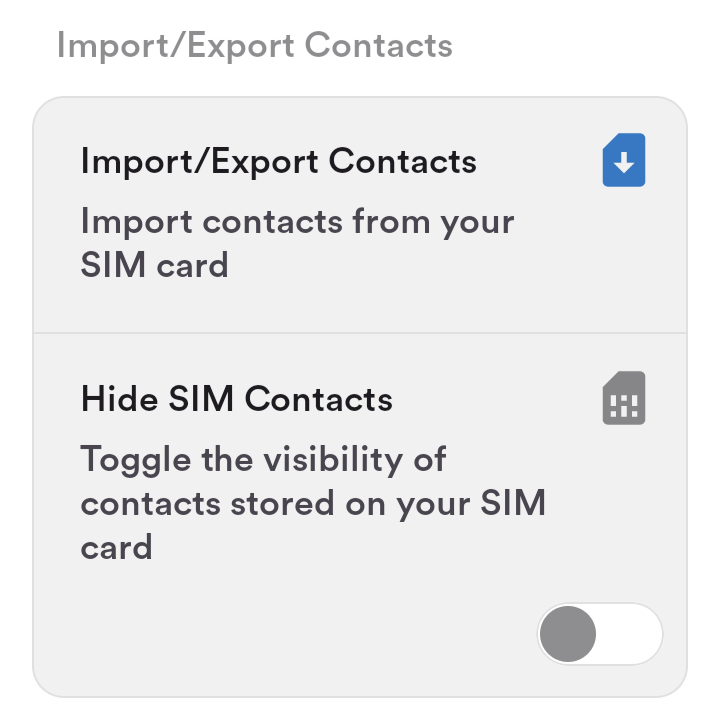
- Tap the gear icon in Contacts.
- Choose:
- Import/Export Contacts
- Hide SIM Contacts
Call Management
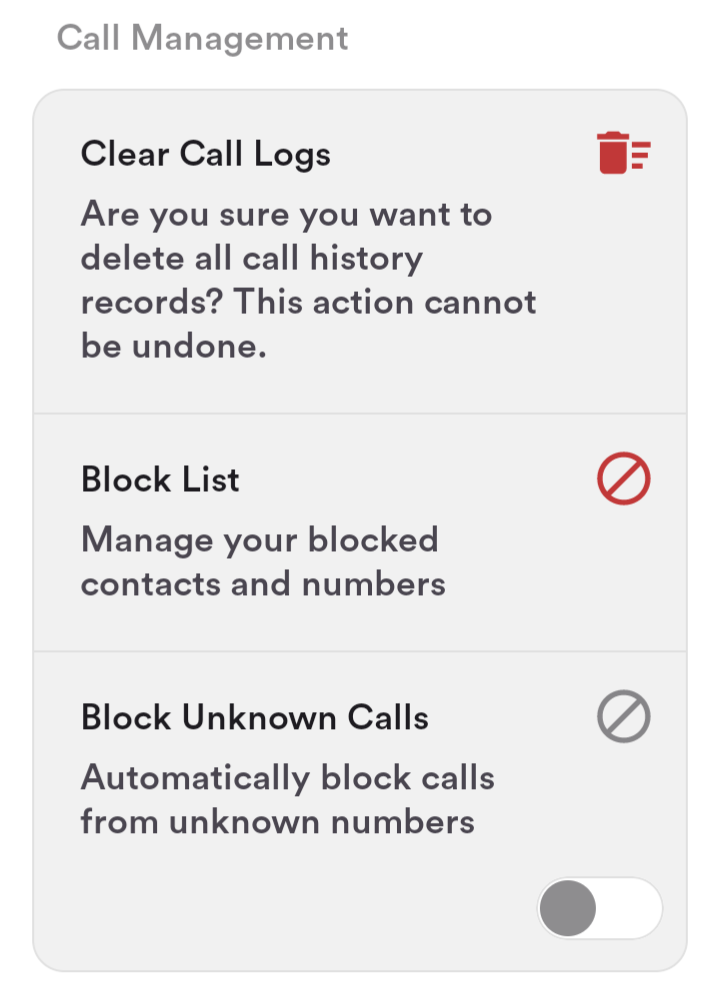
- Tap the gear icon in Contacts.
- Choose:
- Clear Call Logs
- Block List
- Block Unknown Calls
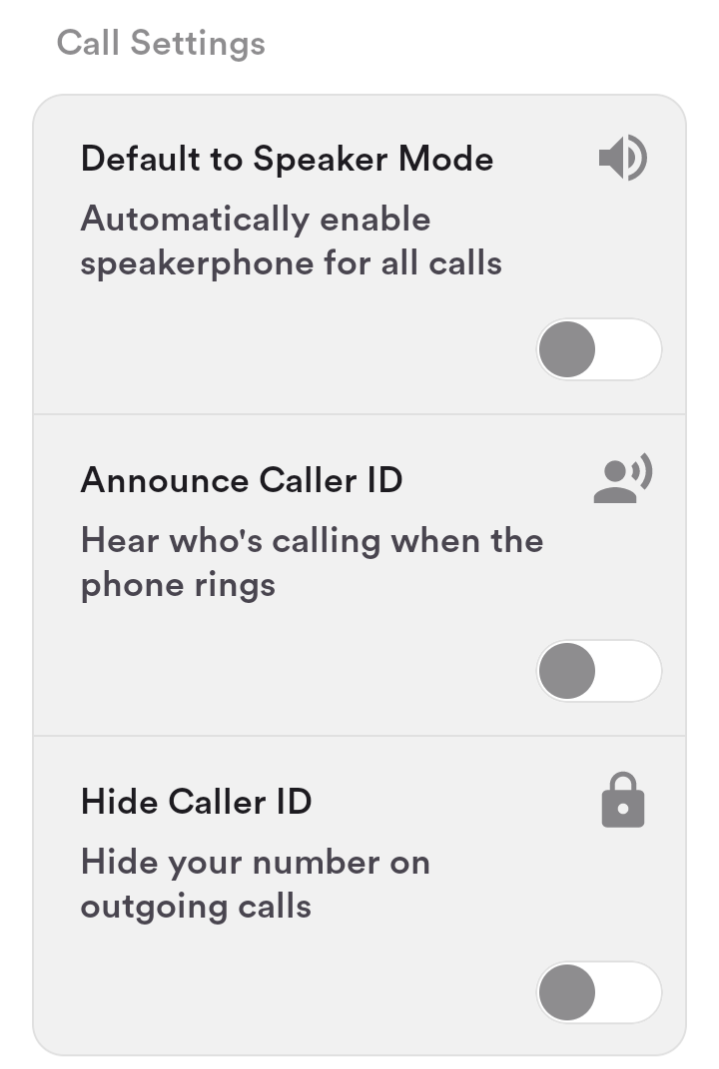
Call Settings
- Use Default to Speaker mode to route calls through the speaker by default.
- Use Announce Caller ID to hear who is calling when the phone rings.
- Use Hide Caller ID to hide your number on outgoing calls.